Automation & API – May 18, 2026 – 5 min read
How to Automate PDF to Excel in n8n with a File Conversion API

How to Automate PDF to Excel in n8n with a File Conversion API
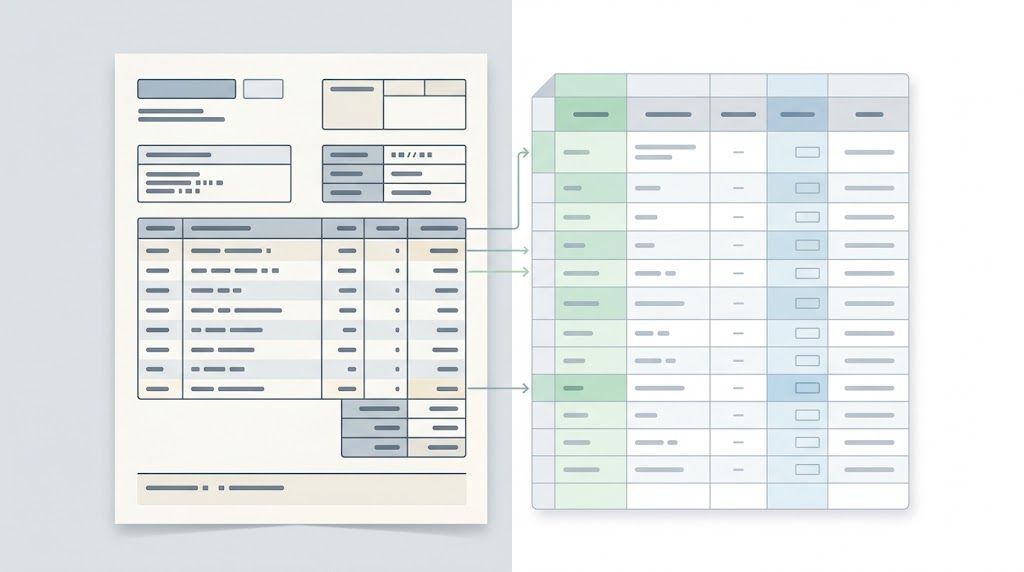
You get a PDF every week — an invoice, a bank report, a supplier sheet — and every week someone opens it, copies the data by hand, and pastes it into a spreadsheet. That's the kind of work that should disappear. The good news: if you're already using n8n, you're about 20 minutes away from never doing it again. This post walks you through a working n8n workflow that hits the ConvertFleet File Conversion API, converts the PDF to Excel automatically, and saves the result wherever you need it.
Quick answer: Use n8n's HTTP Request node to POST your PDF file to the ConvertFleet API, receive an Excel file back, then route it to Google Drive, Airtable, Slack — whatever fits your stack.
Why PDF-to-Excel Is a Recurring Pain Point in n8n Workflows
n8n can pull PDFs from email attachments, Google Drive, Dropbox, webhooks, and dozens of other sources. What it can't do out of the box is understand the data inside those PDFs. The file arrives as a binary blob. You can pass it along, but you can't filter rows, trigger conditions on values, or load it into a spreadsheet node without first converting it.
Most people hit this wall and either build a fragile regex parser (which breaks the moment a vendor changes their template) or fall back to manual copy-paste. A proper file conversion API solves it cleanly: you send the file, you get a structured spreadsheet back, and the rest of your workflow can treat it like normal tabular data.
The ConvertFleet File Conversion API supports over 177 formats. For this workflow you'll use the PDF-to-XLSX path, which preserves table structure and handles multi-page documents. If your PDFs are scanned images rather than text-based, the API's OCR path can handle those too — we'll cover that below.
Setting Up Your ConvertFleet API Key
Before you touch n8n, grab your API key:
- Go to convertfleet.com/api-docs and create a free account.
- Once logged in, your API key appears on the dashboard. Copy it — you'll paste it into n8n as a credential.
- In n8n, go to Credentials → New → Header Auth. Set the name to
X-API-Keyand paste your key as the value. Save it as "ConvertFleet API".
The free tier is enough to test the whole workflow. You can upgrade once it's running in production.
Building the Full PDF to Excel Workflow Step by Step
Here's the full flow. Each bullet is one n8n node.
1. Trigger node
Use whatever fires for your use case: a Schedule trigger to poll a folder, an Email Trigger to catch attachments, a Google Drive trigger when a file lands in a specific folder, or a plain Webhook if another system pushes the file to you. The key output you need is the binary PDF data — n8n stores file data in the data property of a binary field.
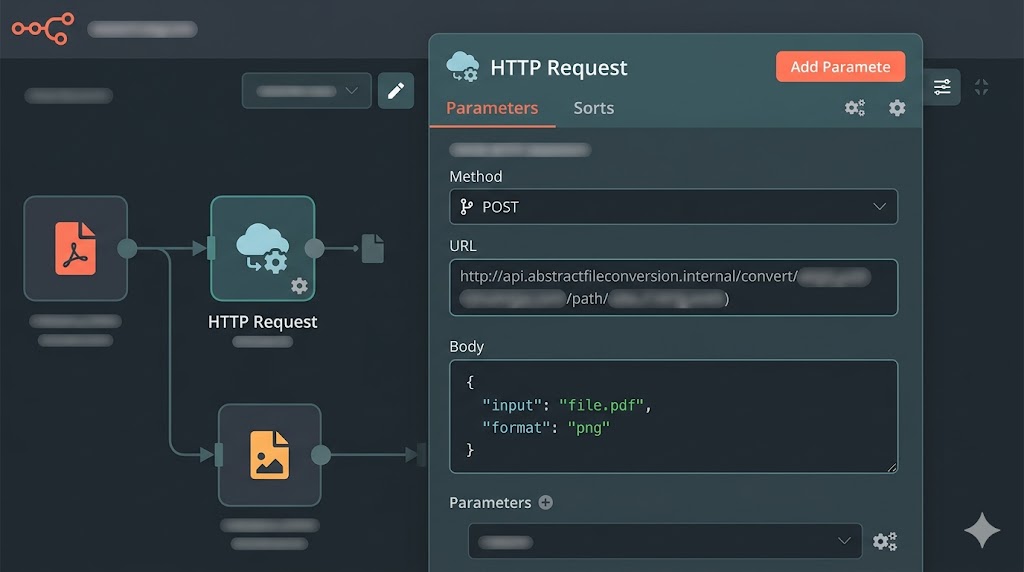
2. HTTP Request node — convert the PDF
This is the core node. Configure it like this:
- Method: POST
- URL:
https://www.convertfleet.com/api/convert - Authentication: Header Auth → select your "ConvertFleet API" credential
- Body Content Type: Form-Data (Multipart)
- Body Parameters:
file→ type: Binary, field: the binary property name from your trigger (usuallydata)to→ type: String, value:xlsx
- Response Format: File (so n8n receives the binary XLSX)
When the node runs, it returns the converted Excel file as a binary. The original PDF is gone from this point; you're working with the spreadsheet.
3. Save or route the file
From here the workflow branches however you need. Common next steps:
- Google Drive node: upload the XLSX to a specific folder
- Read Binary Files + Spreadsheet node: parse the XLSX rows and process each one individually (great for triggering further actions per row)
- Send Email node: attach the Excel and mail it to an accountant
- Airtable / Notion node: after parsing, push rows directly into your database
Handling Scanned PDFs with OCR in the Same Workflow
Text-based PDFs (ones generated by software) convert straightforwardly. Scanned PDFs — photos or scans of physical documents — are a different story. The file contains images, not text, so a standard converter will give you an empty spreadsheet.
For scanned documents, change the to parameter to xlsx and add an extra parameter: ocr → true. The ConvertFleet API runs OCR on the image layers first, then structures the recognised text into spreadsheet columns. You can also pass ocr_lang if your documents aren't in English.
Because OCR takes a little longer than a plain conversion, you may want to set your HTTP Request node's timeout to 120 seconds for scanned files. Most documents finish well before that, but the extra headroom prevents false timeout errors on dense multi-page scans.
Scaling It: Batch-Processing Folders of PDFs Automatically
The single-file flow above is the foundation. Once it's working, scaling is mostly about the trigger:
- Google Drive folder watch: the Drive trigger fires whenever a new file lands. You don't need to change the conversion node at all — it just processes each arriving file.
- Schedule + list: a Schedule trigger fires every hour, a Drive or S3 node lists all PDFs in a folder, a SplitInBatches node processes them in groups of five (to stay inside rate limits), and each batch goes through the HTTP Request node.
- Webhook intake: other apps POST their PDFs to your n8n webhook URL. Each incoming request triggers one conversion. Good for multi-system pipelines.
If you hit the free tier's conversion limit, the API returns a clear 429 status. Add an IF node after the HTTP Request to catch that code and route the item to a wait queue or an error Slack message — don't let it silently drop files.
FAQ
Does the ConvertFleet API keep my PDF files after conversion?
Files are processed in memory and not stored long-term. The API returns the converted file directly in the response. For the exact data-handling policy, check the ConvertFleet API docs, but the design is stateless by default — no uploads sitting on a server after the request completes.
What happens if the PDF has multiple tables on the same page?
The converter tries to map each distinct table region to its own set of rows in the output sheet. Results vary depending on how tightly the tables are laid out. For complex documents, the XLSX-then-parse approach inside n8n (using the Spreadsheet node) gives you more control over which rows you act on.
Can I use this same API node for other format conversions, not just PDF to Excel?
Yes. The only thing that changes is the to parameter. You can send a DOCX and get back a PDF, send a HEIC and get back a JPG, or convert MP4 to MP3 — all from the same HTTP Request node pattern. The ConvertFleet API covers 177+ format pairs, so one n8n credential handles your whole conversion stack.
How do I test this without putting real documents through the API?
n8n has a manual trigger mode where you can drag a test PDF file directly into the workflow. Use a sample invoice from any public document set (no sensitive data). Run the HTTP Request node in test mode to confirm the XLSX comes back correctly before you connect real data sources.
Do it now (and automate it later)
Doing this a lot, or inside a workflow? Automate PDF-to-Excel end-to-end with the ConvertFleet File Conversion API — 177+ formats, works natively in n8n, Make, and Zapier workflows. Free tier to test; paid plans scale to production volume. See the File Conversion API · plans & pricing.
One-off conversion? You don't need to build a workflow for that. Convert your PDF to Excel free on ConvertFleet — no install, no sign-up required to try it.
Once the workflow is live, the weekly copy-paste routine disappears. The PDF arrives, the spreadsheet appears, and your team can focus on what the numbers actually mean — not on getting them out of the file.
Read next

Automation & API · May 20, 2026
Why Make.com File Conversion Modules Fail Above 10MB (And the Fix)
Make.com file modules silently choke past ~10MB and burn 3-5x ops per scenario. Here's why, and the HTTP-module swap that fixes it.

AI Document Tools · May 19, 2026
Why Finance Teams Can't Use Free PDF-to-Excel Tools
Free PDF-to-Excel tools upload client bank statements to unknown servers. Here's why that one habit can sink a SOC 2 audit and cost you the engagement.

Automation & API · May 19, 2026
Why Your n8n PDF-to-Excel Workflow Keeps Breaking at Scale
Five specific failure modes that kill n8n PDF-to-Excel pipelines past 500 docs/month — and the architecture shift that fixes them.