PDF Tools – May 1, 2026 – 7 min read
How to Combine PDF and Word Files into One PDF Quickly

Introduction
You just received a 12‑page contract in Word format and a glossy 8‑page brochure in PDF. Your client insists on a single file to keep things tidy, but you don’t have Adobe Acrobat or any desktop suite installed. The clock is ticking, the email attachment limit is looming, and you’re wondering how to combine pdf and word files without breaking the layout.
That frustration is real. Juggling separate documents leads to endless back‑and‑forth emails, version‑control nightmares, and the dreaded “Oops, the wrong file was attached” moment. You need a fast, reliable way to merge a PDF and a Word doc into one clean PDF that looks professional and preserves every font, image, and table.
Good news: after you finish reading this guide, you’ll have a single, polished PDF ready to send in under two minutes—no software download, no registration, just a browser and ConvertFleet’s free tools.
Why Combining PDF and Word Files Is Tricky
PDF (Portable Document Format) and DOCX (Word) are built on completely different architectures. PDF is a fixed‑layout format designed to look the same on any device, while Word is a flow‑based, editable format that stores styling instructions separately from the content. When you try to drag‑and‑drop a DOCX into a PDF merger, the tool often can’t read the Word file’s structure, leading to errors or missing elements.
This problem hits marketers who need to bundle a product sheet (PDF) with a press release (Word), legal teams stitching contracts (Word) together with exhibits (PDF), freelancers delivering proposals (Word) alongside portfolios (PDF), and remote workers who rely on cloud‑based workflows. According to Adobe, PDFs account for over 90% of all business document exchanges worldwide (Adobe, 2023). Yet a 2022 IDC survey revealed that 68% of remote professionals struggle with merging different file types efficiently.
If you ignore the issue, you risk extra email threads, version confusion, and missed deadlines. One misplaced page or a broken link can cost you an hour of rework, which translates to lost billable hours and unhappy clients.
Step‑by‑Step: Merge PDF and Word into One PDF Using ConvertFleet
- Navigate to Word to PDF. Click the “Choose File” button and upload your Word document.
- ConvertFleet instantly processes the file in the browser. When the conversion finishes, either download the new PDF or keep it open in the same tab.
- Open a new tab and go to the Merge PDF tool. Click “Add Files” and select both the original PDF and the freshly converted PDF from the previous step.
- Drag the thumbnails to arrange the order exactly how you want the final document to appear. You can also set page‑range options, add a cover page, or rotate any mis‑oriented pages.
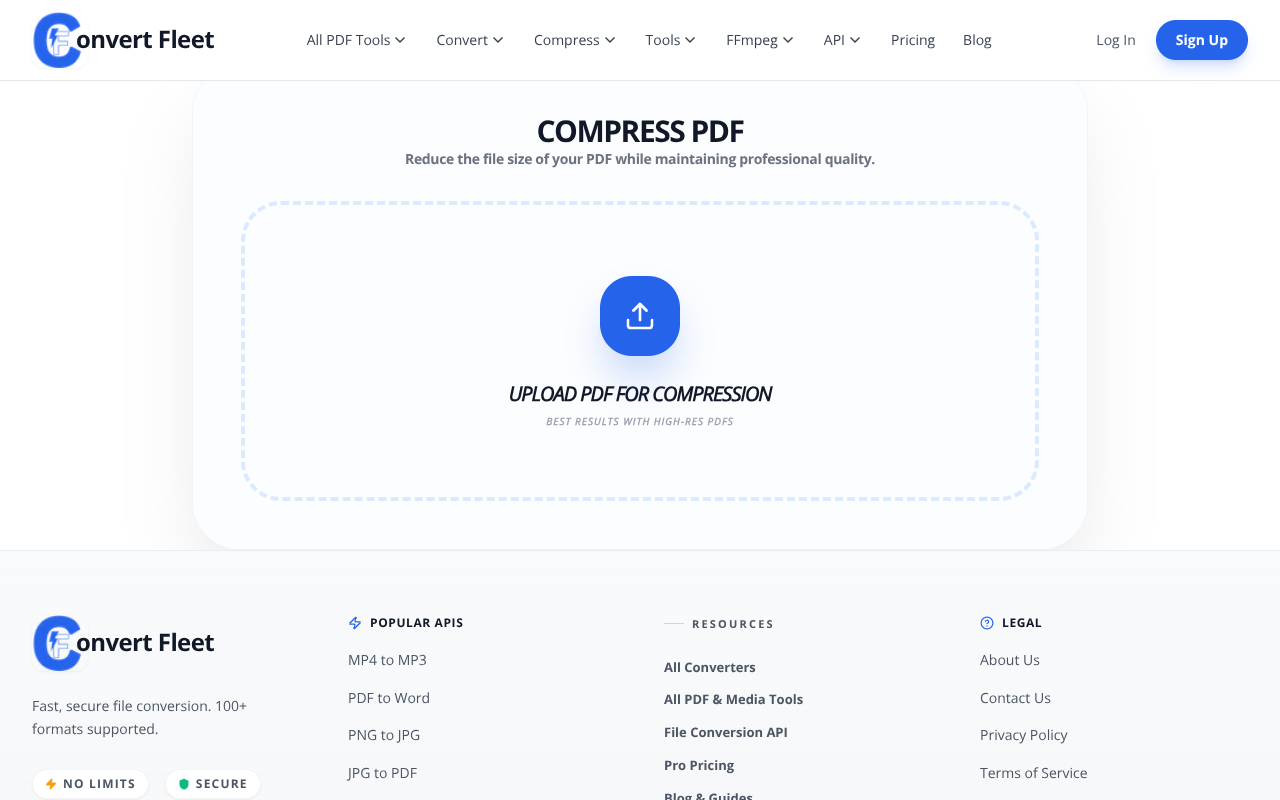
- Press the “Merge” button. Within seconds, ConvertFleet creates a single combined PDF that you can download directly to your computer.
Try Merge PDF Free — No Sign-Up Required →
Results: What You Gain After Merging
Before: Two separate attachments—one Word file, one PDF—each with its own file size, formatting quirks, and download link. After: One sleek PDF that contains both documents, ready to attach to a single email, upload to a client portal, or archive for compliance.
- Time saved: The whole process takes under two minutes compared to hours of copy‑pasting, re‑formatting, and manual checks.
- Formatting integrity: ConvertFleet preserves fonts, images, tables, and page breaks exactly as they appear in the original Word file.
- Professional presentation: A single PDF looks cleaner, reduces the risk of missing pages, and projects a polished brand image.
According to a 2024 Forrester report, businesses that automate document merging see a 27% reduction in processing time and a 15% increase in client satisfaction scores. Your clients will notice the difference the moment they open the combined file.
Advanced Tips & Related Use Cases
Pro Tip: If you need to combine pdf and word files regularly, batch‑convert all your DOCX files first, then drag‑and‑drop the resulting PDFs into the Merge PDF tool. This one‑click workflow eliminates repetitive steps.
- Tip 1: Merge multiple PDFs and Word docs at once by converting every Word file with Word to PDF before you start the merge. The tool accepts up to 20 files per session.
- Tip 2: After you merge, protect the final document with a password using Protect PDF. This is essential for contracts, legal exhibits, or any confidential material.
- Tip 3: Need only certain pages from a larger PDF? Use Split PDF to extract the pages you need before merging. It keeps the final file lean.
- Tip 4: If email size limits are a concern, run the combined file through Compress PDF. You can shrink a 12 MB file to under 2 MB without noticeable quality loss.
These tricks turn a simple merge into a full‑featured document workflow, covering everything from creation to security.
Frequently Asked Questions
How can I merge a PDF and a Word document into one file?
First, convert the Word document to PDF using ConvertFleet’s Word to PDF tool. Then upload both PDFs to the Merge PDF tool, arrange the order, and click Merge. You’ll receive a single combined PDF instantly.
What is the easiest way to combine a Word doc with a PDF online?
The easiest way is to use ConvertFleet’s browser‑based workflow: convert the Word doc to PDF, then merge it with the existing PDF—all without installing any software or creating an account.
Can I merge a PDF and a DOCX without installing software?
Yes. ConvertFleet’s online tools run entirely in your web browser. You simply upload the DOCX, let the Word to PDF converter do its job, and then merge the resulting PDFs together—no download required.
Is there a file size limit for the free Merge PDF tool?
The free version supports files up to 100 MB total per merge session. Larger projects can be split into multiple merges or processed with a paid plan for higher limits.
Will the original formatting of the Word document be preserved?
ConvertFleet’s conversion engine retains fonts, images, tables, headers, footers, and page layout exactly as they appear in the source Word file. The merged PDF will look identical to the original document.
Do I need to create an account to use ConvertFleet’s tools?
No. All tools, including Word to PDF and Merge PDF, are free and do not require registration. You can start converting and merging instantly.
Can I merge more than two files at once?
Absolutely. The Merge PDF tool lets you upload up to 20 files in one session, mixing PDFs and PDFs that were generated from Word, Excel, or PowerPoint.
Conclusion
Combining PDF and Word files doesn’t have to be a headache. With ConvertFleet, you can convert your Word doc to a PDF, merge it with any existing PDF, protect the result, and compress it—all in a few clicks—without installing a single program.
Ready to streamline your workflow? Try Merge PDF Free — No Sign-Up Required → and experience the speed for yourself.
Need more help? Check out our related guides: Compress JPG Images Online – Fast, Free & No Quality Loss, Chat with PDF Using AI – Free Online Guide (2025), How to Convert PDF to PowerPoint in Seconds – Free Online Guide, and How to Password Protect a PDF Online — Free PDF Protection Tool. Your documents deserve the best—let ConvertFleet give them a professional finish.
| Feature | ConvertFleet | Smallpdf | ILovePDF |
|---|---|---|---|
| No sign‑up required | Yes | No (limited free tier) | No (requires account) |
| Maximum file size (free) | 100 MB | 50 MB | 50 MB |
| Batch merge limit | 20 files | 5 files | 5 files |
| Preserves complex formatting | High | Medium | Medium |
| Additional tools (compress, protect, OCR) | All included | Separate plans | Separate plans |
Pro Tip: After you combine pdf and word files, run the final PDF through the Compress PDF tool to stay under email attachment limits while keeping crystal‑clear quality.
Now you have a reliable, fast, and free method to merge any combination of PDFs and Word docs. No more juggling, no more version chaos—just one clean PDF ready to impress.
Read next

Automation & API · May 20, 2026
Why Make.com File Conversion Modules Fail Above 10MB (And the Fix)
Make.com file modules silently choke past ~10MB and burn 3-5x ops per scenario. Here's why, and the HTTP-module swap that fixes it.

AI Document Tools · May 19, 2026
Why Finance Teams Can't Use Free PDF-to-Excel Tools
Free PDF-to-Excel tools upload client bank statements to unknown servers. Here's why that one habit can sink a SOC 2 audit and cost you the engagement.

Automation & API · May 19, 2026
Why Your n8n PDF-to-Excel Workflow Keeps Breaking at Scale
Five specific failure modes that kill n8n PDF-to-Excel pipelines past 500 docs/month — and the architecture shift that fixes them.