Media Conversion – May 17, 2026 – 5 min read
How to Convert MOV to MP4 Free Online (No Software Needed)
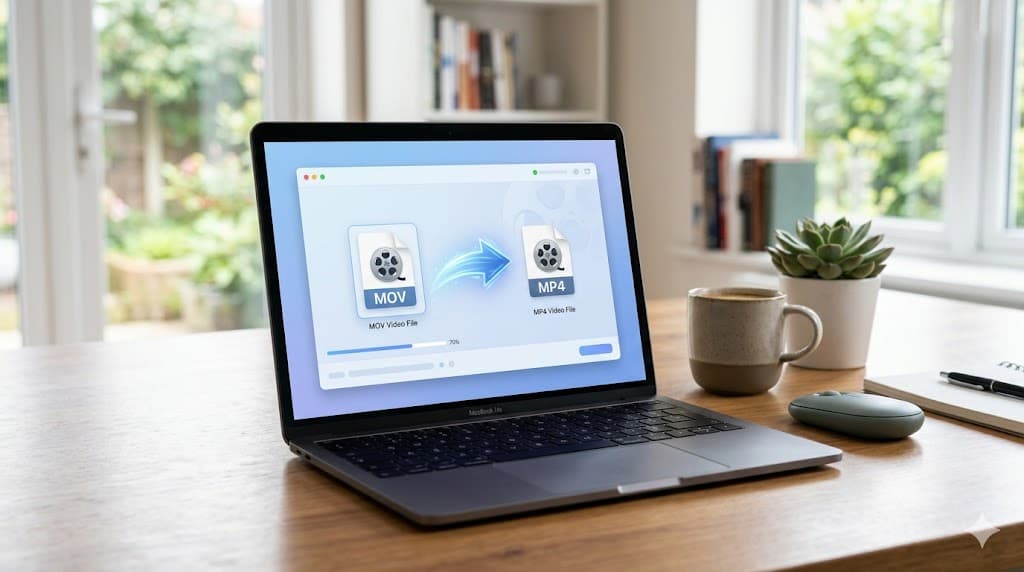
How to Convert MOV to MP4 Free Online (No Software Needed)
You recorded a video on your iPhone or Mac, and now it won't play somewhere — a Windows PC, a web app, a video editor, or a client's machine. The file is a .mov, and the thing you're trying to use wants .mp4. It's one of the most common video headaches around, and the fix is genuinely simple. You don't need to download anything, and you don't need to know what a codec is.
Quick answer: Upload your MOV file to a free online converter, pick MP4 as the output, download the result. Done in under a minute for most files.
Why MOV Files Don't Always Play Everywhere
MOV is Apple's format — it's the default output of iPhones, QuickTime, and most Mac recording software. It's a perfectly good format, actually. Modern MOV files usually use the same H.264 or H.265 video codec as MP4; the difference is mostly in the container, not the video itself.
The problem is that MOV is tied to Apple's ecosystem. Windows Media Player has limited support. Many web platforms, video editors, and older Android apps simply expect MP4. Some social media uploaders choke on MOV too. So even though your video looks fine on your Mac, it breaks somewhere downstream.
Converting MOV to MP4 is really just rewrapping the video — not re-encoding it from scratch. Which is why a good converter does it fast and without any visible quality change.
How to Convert MOV to MP4 Online — Step by Step
Here's the straightforward path:
- Open the converter. Go to ConvertFleet's free video converter — no account needed to try it, no install, works in any browser.
- Upload your MOV file. Drag it in or click to browse. Files stay in your browser session; they're not stored permanently.
- Select MP4 as the output format. If you see codec options, H.264 is the safest choice — it plays on virtually everything.
- Click Convert. For a typical 100 MB video, expect a minute or two depending on your connection and the file's length.
- Download the MP4. Click the download link when it's ready. That's your file — same video, new container, ready for wherever you need it.
If you have several MOV files, you can convert them one by one for free, or batch them with a free account (more on that in a moment).

What Happens to the Quality?
This is the question most people have, and it's a fair one. The honest answer: if the MOV file already uses H.264 video (which most modern iPhone videos do), converting to MP4 should produce no noticeable quality loss. You're changing the wrapper, not reprocessing the video frames.
If the MOV uses ProRes or another high-quality codec (common with professional cameras or screen recorders), the converter will re-encode to H.264 for MP4 output. You'll get a smaller file, and the result will look great on screens — but it's not bit-for-bit identical to the original. For most use cases that's completely fine. If you're doing professional video post-production and need lossless output, keep the original MOV for editing and only export MP4 for delivery.
One thing to avoid: converting the same file multiple times. Each re-encode introduces tiny losses. Convert once, from the original, and you'll be fine.
Large Files and Slow Uploads
The main friction with online converters is upload time. If you're on a slow connection and your file is several gigabytes, it's going to take a while no matter what tool you use — that's just the physics of moving data.
A few things that help:
- Trim the clip first if you only need part of it. A 10-minute clip is much smaller than a 60-minute one.
- Use a wired connection instead of Wi-Fi if upload speed is the bottleneck.
- Convert during off-peak hours when server load is lower.
- For bulk work, the ConvertFleet API handles large files well and doesn't require you to sit watching a browser tab.

Converting MOV to MP4 in Bulk or Automatically
If converting one-off files is your whole use case, the free tool covers it. But a lot of people end up in the same situation repeatedly: videos from a phone, a screen recorder, or a camera that always outputs MOV, and they need MP4 every time for the same downstream workflow.
That's where automation makes sense. The ConvertFleet File Conversion API supports 177+ formats including MOV to MP4. You can wire it into n8n or Make to automatically convert incoming video files — from a Google Drive folder, an email attachment, a webhook trigger, whatever fits your workflow. Instead of manually uploading each file, the conversion just happens as part of the pipeline.
For developers building apps or internal tools: it's a simple HTTP call. POST the file (or a URL pointing to it), specify the output format, get back the converted MP4. No library to install, no FFmpeg to configure on your server.
FAQ
Is MOV or MP4 better?
Neither is objectively better — they're different containers often wrapping the same video. MOV is native to Apple devices and gives you certain metadata and editing advantages in Apple software. MP4 is the universal format that plays everywhere. For delivery and sharing, MP4 wins on compatibility. For editing on a Mac, keeping MOV is fine.
Will converting lose my audio track?
No. A proper MOV to MP4 converter carries the audio across. If your MOV has multiple audio tracks, a good converter keeps the primary one. If you notice missing audio after conversion, the source MOV may have had a non-standard audio codec — try a different converter or re-export the original from the source app.
Can I convert MOV to MP4 on a phone?
Yes. Any browser-based converter works on iOS and Android — you don't need a desktop. Open the converter page in your phone's browser, upload from your camera roll or files app, and download the result. For large files, Wi-Fi is better than mobile data.
Are online converters safe for private videos?
Reputable browser-based converters process files temporarily and don't store them permanently. ConvertFleet's conversion happens in your browser session — files aren't kept after you download the result. That said, for anything truly confidential, review the privacy policy of any tool you use before uploading.
Do it now (and automate it later)
One-off? Try the free converter right now — no account needed to start. Convert MOV to MP4 free on ConvertFleet
Doing this a lot, or inside a workflow? Automate MOV-to-MP4 conversion end-to-end with the ConvertFleet File Conversion API — 177+ formats, works in n8n/Make/Zapier, free tier to start. See the File Conversion API · plans & pricing.
MOV to MP4 is one of those conversions that should take thirty seconds, not thirty minutes of troubleshooting. Now it does.
Read next

Automation & API · May 20, 2026
Why Make.com File Conversion Modules Fail Above 10MB (And the Fix)
Make.com file modules silently choke past ~10MB and burn 3-5x ops per scenario. Here's why, and the HTTP-module swap that fixes it.

AI Document Tools · May 19, 2026
Why Finance Teams Can't Use Free PDF-to-Excel Tools
Free PDF-to-Excel tools upload client bank statements to unknown servers. Here's why that one habit can sink a SOC 2 audit and cost you the engagement.

Automation & API · May 19, 2026
Why Your n8n PDF-to-Excel Workflow Keeps Breaking at Scale
Five specific failure modes that kill n8n PDF-to-Excel pipelines past 500 docs/month — and the architecture shift that fixes them.