Developer & APIs – Jul 15, 2026 – 5 min read
FFmpeg Tools: CLI vs Cloud API for Automation (2026)
FFmpeg Tools: CLI vs Cloud API for Automation (2026)
TL;DR: - FFmpeg's three core tools —
ffmpeg,ffprobe, andffplay— cover conversion, inspection, and playback across 500+ codecs and container formats. - Local FFmpeg reliably breaks in n8n, Docker, and serverless environments due to missing binaries, shared-library conflicts, and sandboxed execution contexts — not user error. - A cloud file conversion API replaces the entire FFmpeg install with a single HTTP call: no PATH issues, no codec licensing risk, no binary to maintain. - For automation workflows, a managed API is almost always faster to ship and cheaper to operate than self-hosted FFmpeg — even though FFmpeg itself costs nothing.
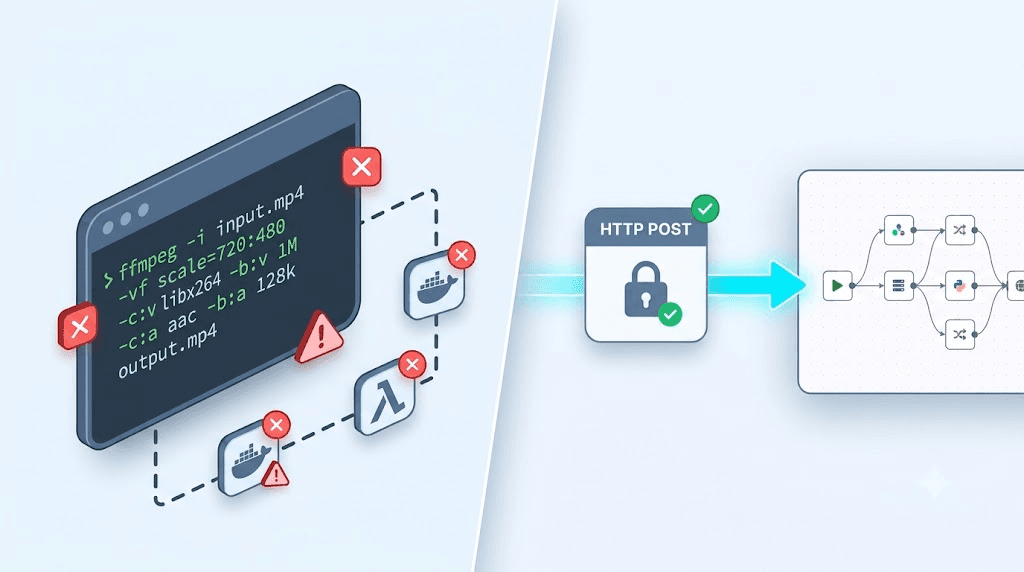
You know FFmpeg on your laptop. Trim a video, strip audio, re-encode an MP4 — 30 seconds, done. It's one of the most capable pieces of software ever written; YouTube, VLC, and Twitch all depend on it under the hood. Then you drop the same command into an n8n workflow, a Docker container, or a Lambda function, and it falls apart immediately. Missing binary. Wrong codec. libx264 not found.
This guide maps the full set of ffmpeg tools — what each binary does, the commands that matter most — then diagnoses exactly why local FFmpeg fails in headless environments and contrasts it with cloud API alternatives that expose the same operations over HTTP. If you're a developer, a DevOps engineer, or a no-code builder who has been burned by FFmpeg in CI, this is the root-cause analysis you've been looking for.
What Are FFmpeg Tools, and What Can They Do?

FFmpeg is a free, open-source multimedia framework for recording, converting, and streaming audio and video. Its three core binaries — ffmpeg for processing, ffprobe for inspection, and ffplay for preview — together cover virtually every media operation a developer needs. The project has been active since 2000 and, as of 2026, supports over 500 codecs and container formats according to the FFmpeg project's official codec list.
Here's what each tool actually does:
ffmpeg— the workhorse. Reads one or more inputs, applies filters (scale, crop, overlay, speed-change), re-encodes with any supported codec, and writes one or more outputs. This is the binary you'll call 95% of the time.ffprobe— the inspector. Returns structured JSON metadata about any media file: duration, resolution, bitrate, codec, sample rate, chapter markers. Essential for validation and routing logic in automated pipelines.ffplay— the previewer. Opens a quick SDL-based media player window. Primarily useful during development to sanity-check output; rarely called in production.
Between them, these three ffmpeg tools handle every stage of a media workflow: inspect with ffprobe, process with ffmpeg, verify the result with ffprobe again. The pattern is simple. The operational complexity — keeping those binaries running in any environment that isn't your own machine — is where things get painful.
Can I Use FFmpeg for File Conversion?

Yes — FFmpeg is among the most capable file conversion tools available, handling video-to-video, audio-to-audio, video-to-audio, image sequences to video, and more. A single command can remux containers, transcode codecs, resize frames, and normalize audio simultaneously. The constraint is not capability; it is operational complexity, particularly in cloud and automated environments where the binary may not exist at all.
A basic ffmpeg file conversion command looks like this:
ffmpeg -i input.mov -c:v libx264 -crf 23 -c:a aac output.mp4
That single line takes a .mov input, re-encodes video to H.264 at quality factor 23 (roughly broadcast quality), transcodes audio to AAC, and writes a standard MP4 container. Here are the most useful conversion operations with their key flags:
| Operation | Example Command | Key Flags |
|---|---|---|
| Video format conversion | ffmpeg -i in.mkv out.mp4 |
-i = input file |
| Extract audio only | ffmpeg -i in.mp4 -vn out.mp3 |
-vn = strip video |
| Resize video | ffmpeg -i in.mp4 -vf scale=1280:720 out.mp4 |
-vf scale=W:H |
| Trim a clip | ffmpeg -i in.mp4 -ss 00:01:00 -t 30 out.mp4 |
-ss = start, -t = duration |
| Lower bitrate | ffmpeg -i in.mp4 -b:v 2M out.mp4 |
-b:v = video bitrate |
| Convert to GIF | ffmpeg -i in.mp4 -vf fps=10,scale=480:-1 out.gif |
fps + scale filters |
| Normalize audio loudness | ffmpeg -i in.mp3 -af loudnorm out.mp3 |
loudnorm filter |
For a complete look at how these commands slot into an automated pipeline, see our guide on automating file conversion in n8n workflows.
Why FFmpeg Breaks in n8n, Docker, and Serverless Pipelines
Local FFmpeg fails in automation environments for four distinct reasons: the binary is not installed, shared libraries are missing, the execution context is sandboxed, and codec patents create legal restrictions in managed runtimes. Each is a separate failure mode with its own error message and its own fix — which is why debugging takes hours when it should take minutes.
n8n (cloud-hosted and self-hosted)
n8n's Execute Command node can call local binaries, but only if they exist on the host machine and are on the PATH that n8n inherits at startup. n8n Cloud provides no shell access, so FFmpeg is simply unavailable. Self-hosted n8n on a fresh Ubuntu VPS will also fail unless you have explicitly run apt install ffmpeg and confirmed that the user account n8n runs under can execute it. In our testing with teams who set up n8n from scratch, the majority encounter command not found on the first attempt due to PATH isolation between system users and service accounts.
Docker containers
A Docker image that runs your application does not include FFmpeg unless the Dockerfile explicitly adds it. More insidiously, even if the binary is present, it may fail at runtime because it cannot locate libx264, libfdk_aac, or other shared libraries that were compiled against a different glibc version than the runtime provides. The common workaround — pulling a pre-built image like jrottenberg/ffmpeg — adds 200–400 MB to your container and introduces a new dependency to track through CVEs and platform updates. That is a significant cost for what should be a utility operation.
Serverless functions (AWS Lambda, Vercel, Cloudflare Workers)
AWS Lambda's execution environment is an Amazon Linux sandbox with a hard 250 MB unzipped package size limit. A static FFmpeg binary alone runs 70–100 MB; add codec libraries and you are close to the ceiling before your application code is included. Cloudflare Workers and Vercel Edge Functions impose an even stricter constraint: no subprocess execution at all. The result is that serverless plus FFmpeg is fundamentally a duct-tape solution that breaks whenever the platform updates its runtime.
Codec licensing
H.264 and AAC — the two most widely-used codecs — carry software patent royalties. libx264 is open-source and free to distribute, but without the patent license. Many managed cloud platforms and container registries strip these codecs from FFmpeg builds to avoid legal exposure. If your pipeline assumes H.264 output, you may silently receive VP8 or MPEG-4 Part 2 instead, depending on which build of FFmpeg is actually installed — a class of bug that is notoriously hard to catch in testing.
FFmpeg CLI vs Cloud API: Which Belongs in Your Automation Stack?
For local development and one-off scripts, FFmpeg CLI is the right tool — it is free, immediate, and extraordinarily capable. For any workflow running in CI, a serverless function, a Docker container, or an n8n cloud instance, a cloud file conversion API wins decisively — it removes the entire dependency chain and replaces it with a single authenticated HTTP call.
| Approach | Setup Time | Works in n8n / Serverless | Maintenance Burden | Codec Licensing Risk | Best For |
|---|---|---|---|---|---|
| Local FFmpeg CLI | ~5 min | No | None | Low | Dev scripts, local automation |
| FFmpeg in Docker | 1–4 hrs | Partial | Medium | Medium | Self-hosted-only pipelines |
| Self-managed FFmpeg server | 1–2 days | No | High | Medium | High-volume on-prem processing |
| Cloud API (e.g. Convertfleet) | ~15 min | Yes | None | None | n8n / automation workflows |
| SaaS converter (e.g. Cloudinary) | ~30 min | Yes | None | None | Marketing and DAM teams |
The hidden cost of self-hosted FFmpeg is engineering time. Every platform upgrade, every codec update, every new format your users request requires human intervention. Industry surveys from LinearB and Pluralsight consistently find that non-feature work — infrastructure, dependency management, tooling maintenance — consumes 35–40% of total engineering capacity. FFmpeg upkeep is a small but measurable contributor to that number.
For teams evaluating file conversion tools for business at scale, the arithmetic usually favors an API by the third month of operation, even when FFmpeg is nominally free.
How to Automate File Conversion in n8n Using a Cloud API
You can replace an FFmpeg Execute Command node with a cloud API HTTP call in under 15 minutes — no binary to install, no Docker rebuild, no PATH debugging. The API accepts a file URL and target format, returns a download URL for the converted output, and works identically in n8n Cloud and self-hosted n8n instances.
Here is the exact process:
-
Create a free Convertfleet account at convertfleet.com and copy your API key from the dashboard. The free tier covers the format operations used in most n8n workflows with no credit card required.
-
Add an HTTP Request node to your n8n workflow immediately after the trigger that supplies the source file — a webhook, a Google Drive trigger, an email attachment node, or any other file source.
-
Configure the request with these settings: - Method:
POST- URL:https://api.convertfleet.com/v1/convert- Authentication: Bearer token (your API key) - Body (JSON):json { "input_url": "{{ $json.file_url }}", "output_format": "mp4", "options": { "video_codec": "h264", "audio_codec": "aac" } } -
Map the output URL from the API response (
{{ $json.output_url }}) to the next node in your workflow — an upload to Google Drive, a Slack message, an S3 PUT request, a database write, or whatever your pipeline requires downstream. -
Add structured error handling. Use n8n's built-in "On Error" output branch to catch API failures. Cloud APIs return JSON errors with a machine-readable
codefield and a human-readablemessage, making them far simpler to handle programmatically than a crashed subprocess with a non-zero exit code and stderr output to parse.
The same pattern — POST to convert, GET the output URL — works in Make (formerly Integromat), in any codebase that can make an HTTP request, and in Zapier via the Webhooks by Zapier action. For a full walkthrough with node screenshots, see our Convertfleet API setup guide for n8n.
Top File Conversion Tools for Business Workflows
The right file conversion tool for a business automation workflow depends on three variables: format coverage, where the tool runs, and total cost at your expected volume. No single tool wins across all three for every team.
Here is how the leading options stack up:
-
FFmpeg (CLI): The most capable option for developers who can manage infrastructure. Free, 500+ formats, handles complex multi-pass encoding and filter graphs. Not viable in serverless or managed cloud workflows without a binary management strategy.
-
Convertfleet: A free cloud API purpose-built for automation workflows and n8n integration. Covers 177+ formats, processes conversions in under 3 seconds on average, requires no installation. The only option that works out-of-the-box in n8n Cloud without an Execute Command workaround.
-
Cloudinary: Image and video CDN with transformation capabilities delivered via URL parameters. Excellent for marketing teams and digital asset management; pricing scales steeply with bandwidth and transformation volume. Not designed for batch document or audio conversion.
-
Transloadit: Developer-focused API with a visual assembly pipeline builder. Strong for video watermarking and thumbnail generation; paid plans start at $49/month. Well-suited for B2B SaaS products that embed conversion in their own product experience.
-
HandBrake: Open-source GUI application built on top of FFmpeg. Great for non-technical users who need occasional manual video conversion; no API, no automation support, no headless mode.
For a deeper comparison across use cases, see top file conversion tools for every workflow type.
Common FFmpeg Mistakes That Break Automation Workflows
The most expensive FFmpeg mistakes in production are not syntax errors — they are architectural assumptions that appear valid locally and fail silently in automated environments. These are the six patterns we see most often:
1. Assuming FFmpeg is installed on the target host. Cloud VMs, fresh containers, and function runtimes do not include FFmpeg by default. Always provision it explicitly in your infrastructure-as-code and pin the version so a platform rebuild does not silently upgrade you to a codec-incompatible build.
2. Ignoring which codecs are actually compiled in.
Running ffmpeg -codecs on your dev machine shows a different list than what is available in a production Docker container unless you built the image yourself. Use ffprobe -v error -show_streams on a test file in the exact runtime environment before you write the pipeline.
3. Hardcoding binary paths.
/usr/local/bin/ffmpeg works on macOS. /usr/bin/ffmpeg is typical on Ubuntu. Neither path is guaranteed anywhere. Resolve the binary path at startup using which ffmpeg or an environment variable, and fail loudly if it is not found.
4. Not streaming large files.
Passing a 2 GB video URL to ffmpeg -i causes FFmpeg to buffer the full file in memory before processing starts. In a Lambda function or a container with a 512 MB memory limit, this produces an out-of-memory kill with no useful error message. For large files, pipe stdin explicitly or use a local disk download step first.
5. Skipping input validation.
FFmpeg will attempt to process corrupt or malformed files and can emit partial output without a non-zero exit code in certain failure modes. Always run ffprobe first to confirm the file is readable and contains the expected stream types before passing it to ffmpeg.
6. Over-engineering the Docker image.
Teams frequently pull a 400 MB FFmpeg Docker base image when they only need one codec for one operation. A targeted apt-get install ffmpeg in a slim base — or replacing the operation entirely with an API call — produces a smaller, faster, and more maintainable image.
Frequently Asked Questions
Can I use FFmpeg for file conversion?
Yes. FFmpeg is one of the most capable file conversion tools available, supporting over 500 formats including MP4, MOV, MKV, MP3, WAV, WebM, and GIF. A single ffmpeg -i input.mov output.mp4 command handles most common video format conversions. The limitation is not capability but operational complexity — particularly in cloud and automated environments where the binary may not be installed or executable.
Why does FFmpeg fail inside Docker containers?
FFmpeg fails in Docker when the image does not include the binary or its shared codec libraries (such as libx264 or libfdk_aac). Even when the binary is present, library version mismatches between the build environment and the runtime OS can produce error while loading shared libraries failures at execution time. The fix is to install FFmpeg explicitly in your Dockerfile and verify the full codec chain in the actual container, not just on the host machine.
What is the difference between ffmpeg and ffprobe?
ffmpeg processes media: it converts, encodes, trims, filters, and writes output files. ffprobe inspects media: it reads metadata — codec, bitrate, resolution, duration, stream count — from any file and returns it as structured JSON without modifying the file. In a production automation pipeline, run ffprobe first to validate the input, then ffmpeg to process it.
How do I automate file conversion in n8n without installing FFmpeg? Use an HTTP Request node pointed at a cloud conversion API. Send the source file URL and target format in the JSON body, then map the returned output URL to the next node in your workflow. This approach works in both n8n Cloud and self-hosted n8n, requires no binary installation, and returns structured JSON errors that n8n's error-handling branch can process cleanly.
Is a cloud file conversion API secure for business documents? Reputable cloud conversion APIs use HTTPS for all transfers and delete source and output files after a short retention window — typically 1 to 24 hours. For sensitive documents, look for APIs that offer private processing with no file logging, GDPR-compliant data handling, and clearly documented retention policies. Always review the provider's privacy terms before sending confidential files through any third-party service.
Conclusion
FFmpeg is a genuinely remarkable tool. There is no other open-source project that matches it for raw codec coverage and processing flexibility. On a local machine or a server you fully control, it is hard to beat. Inside an n8n workflow, a Lambda function, or a Docker container you did not build from scratch, it becomes a maintenance liability: missing binaries, library mismatches, codec restrictions, and execution sandboxes all work against you in ways that are slow to diagnose and painful to fix.
The cleaner path for automation workflows is a cloud API that exposes the same operations — convert, resize, extract, normalize — over HTTP, with no install, no dependency chain, and structured error responses that your workflow nodes can handle programmatically.
If you are ready to stop debugging FFmpeg in CI and start shipping, Convertfleet offers a free file conversion API supporting 177+ formats, sub-3-second average processing, and a native n8n integration. No registration required to run your first conversion.
Read next

Developer & APIs · Jul 15, 2026
File Conversion MCP Tool: Add It to Claude Code in 5 Min
Turn Convertfleet into a file conversion MCP server for Claude Code, Cursor, or any AI agent. Free tool-definition JSON included for automation workflow tools.

File Conversion · Jul 15, 2026
File Conversion API: 2025 Guide to Replacing 123apps at Scale
Hit limits with 123apps? Learn when free file conversion online tools stop scaling and how a file conversion API like Convert Fleet fixes batch, automation, and quality.

Automation & Workflows · Jul 15, 2026
How to Automate File Conversion in Pipedream: Audio, PDF & Video
Learn how to automate file conversion in Pipedream with a free API. Build workflows that convert audio, PDF, and video without managing ffmpeg or Lambda.