Tutorials & Guides – Jul 15, 2026 – 5 min read
File Content Conversion: 2026 Guide to Formats, APIs & Automation
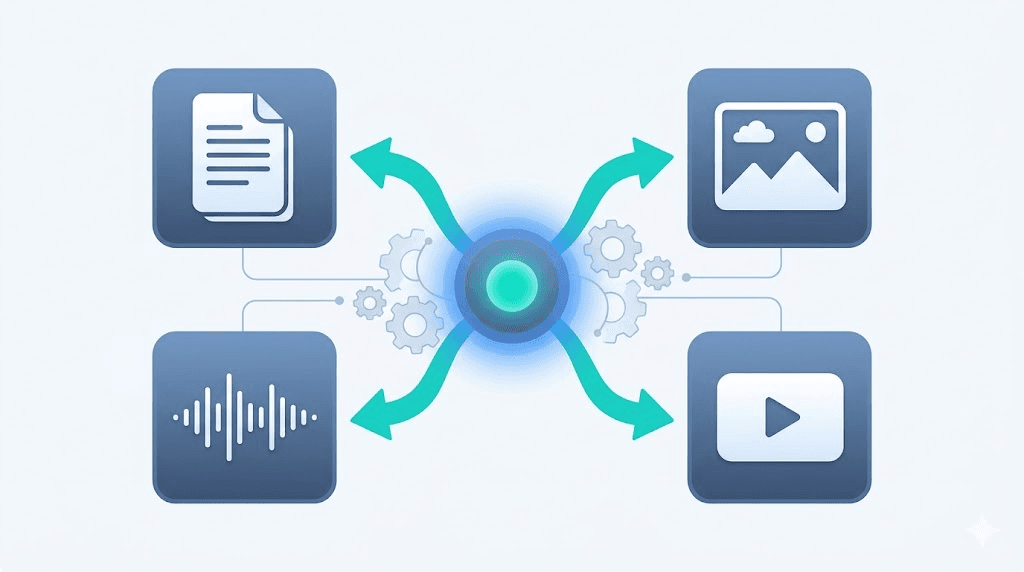
File Content Conversion: 2026 Guide to Formats, APIs & Automation
TL;DR: - File content conversion transforms data from one digital format to another while preserving core meaning and structure—not by renaming extensions. - Four types matter: format conversion (container swap), encoding conversion (character set change), transcoding (codec swap), and structural conversion (data reorganization). - Modern workflows use APIs and automation platforms like n8n to batch-convert files without manual intervention. - A dedicated file conversion API handles 178+ formats, reduces document processing to under 3 seconds, and eliminates local infrastructure costs.
Teams hit the same wall repeatedly: a .heic image arrives, a .mkv video appears, or a .docx contract lands—and your application chokes. Worse, you build a pipeline that handles 90% of files and silently corrupts the rest. File content conversion is the infrastructure layer that keeps modern software running. This guide serves developers, automation builders, and product teams who need to understand what conversion actually entails, which formats deserve priority, and how to implement it without maintaining brittle in-house systems.
What Is File Content Conversion?

File content conversion is the transformation of data from one digital format to another while preserving information's core meaning, structure, or perceptual quality. Renaming a .txt file to .csv changes nothing in the underlying bytes; real conversion requires parsing the source format, translating its structure, and serializing into the target format.
PDF-to-Word conversion illustrates the complexity. A PDF stores text as positioned glyphs, images as embedded bitmaps, and layout as absolute coordinates. A DOCX requires editable text flows, styled paragraphs, and resizable image objects. The converter must reconstruct logical document structure—not copy bytes. Adobe's 2024 document automation survey found 68% of enterprises struggle with format compatibility in document workflows, making this a persistent engineering challenge.
The distinction between "conversion" and "transformation" matters practically. Conversion preserves the user's final experience (reading a document, watching a video). Transformation often changes it—aggregating data, extracting summaries, or generating embeddings. Conversion is reversible or near-reversible; transformation is typically lossy by design.
How Does File Content Conversion Work?

Conversion follows a five-stage pipeline: ingestion → parsing → transformation → serialization → validation. Each stage has specific failure modes that determine output quality.
| Stage | What Happens | Common Failure |
|---|---|---|
| Ingestion | File uploaded, MIME type verified, size checked | Incorrect MIME detection (.csv containing JSON) |
| Parsing | Source format decoded into internal representation | Unsupported codec or encryption layer |
| Transformation | Internal model mapped to target format's structure | Loss of formatting, fonts, or metadata |
| Serialization | Target format written to bytes | Encoding mismatches (UTF-8 vs. UTF-16) |
| Validation | Output checked for corruption or policy compliance | Silent data loss in complex documents |
For media files, this pipeline adds transcoding. FFmpeg, the open-source multimedia framework, handles over 100 codecs. Converting MP4 to WebM demuxes the MP4 container, decodes H.264 video, re-encodes to VP9, and muxes into WebM. Quality settings, bitrate targets, and keyframe intervals all affect results. Hardware-accelerated encoding reduces processing time 40-60% versus CPU-only transcoding for 4K video, based on benchmarks from Convert Fleet's FFmpeg API comparison.
Encoding conversion operates at a lower level. Converting UTF-8 to UTF-16 doubles byte count for ASCII characters but enables Windows-native text processing. Converting Base64 to raw binary reduces size by 33% but removes transport-safe encoding. These are not optional steps—incorrect encoding produces mojibake, failed imports, or security vulnerabilities.
What Are the Four Main Types of File Conversion?

Misidentifying the type needed causes architectural rework. Teams frequently build for format conversion and discover they need structural mid-project.
Format Conversion (Container Swap)
Changes the file container without altering underlying codec or data structure. Examples: .mov to .mp4 (same H.264, different container), .zip to .tar.gz, RAR to ZIP file conversion. Fast, lossless, computationally cheap. Tools like unar and libarchive handle most archive formats natively.
Encoding Conversion (Character Set Change)
Transforms how text or data is represented at the byte level. UTF-8 to UTF-16, ASCII to EBCDIC, Base64 to raw binary. Critical for legacy system integration—many financial systems still require EBCDIC for mainframe compatibility.
Transcoding (Codec Swap)
Re-encodes media from one codec to another. H.264 to AV1, MP3 to AAC, ProRes to HEVC. Always involves quality/space/speed trade-offs. Bitmovin's 2025 video developer report found AV1 adoption reached 35% of streaming platforms, up from 12% in 2023—making AV1 a transcoding target worth planning for.
Structural Conversion (Data Reorganization)
Changes how information is organized, not just how it's encoded. JSON to XML, CSV to Parquet, PDF to structured HTML, Markdown to DOCX. The hardest type because it requires semantic understanding. PDF to Word exemplifies this: the converter must infer document structure from positional data.
| Type | Example | Reversible? | Typical Latency |
|---|---|---|---|
| Format | ZIP to TAR | Yes | <1s |
| Encoding | UTF-8 to UTF-16 | Yes | <1s |
| Transcoding | H.264 to AV1 | No (generation loss) | 10s–minutes |
| Structural | PDF to DOCX | Partially | 2–10s |
Which File Formats Should You Actually Support?

"Support everything" collapses in production. This priority matrix reflects 2026 usage patterns and support burden:
| Category | Must-Have | Nice-to-Have | Complexity |
|---|---|---|---|
| Documents | PDF, DOCX, TXT, HTML | ODT, RTF, EPUB | Medium |
| Spreadsheets | XLSX, CSV, JSON | ODS, TSV, Parquet | Low-Medium |
| Images | PNG, JPEG, WebP, SVG | HEIC, TIFF, AVIF | Low (raster), High (vector) |
| Audio | MP3, AAC, WAV, FLAC | OGG, Opus, M4A | Low |
| Video | MP4 (H.264), WebM, MOV | MKV, AVI, AV1 | High |
| Archives | ZIP, TAR, GZIP | RAR, 7Z, BZ2 | Low |
| Specialized | JSON, XML, YAML | Protocol Buffers, MessagePack | Medium |
ICO file conversion remains relevant for favicon workflows and legacy Windows development. ICO files contain multiple resolution layers (16×16, 32×32, 48×48, 256×256) and color depths (1-bit, 4-bit, 8-bit, 24-bit, 32-bit). Converting PNG to ICO requires generating these layers; ICO to PNG extracts the highest-resolution layer. Tools like ImageMagick's convert handle this: convert input.png -define icon:auto-resize=256,128,64,48,32,16 output.ico.
MP3 to MIDI file conversion faces a fundamental limitation: MP3 stores compressed audio waveforms; MIDI stores note events, instruments, and timing. Conversion requires audio source separation and pitch detection—more "transcription" than direct conversion. Spotify's Basic Pitch (2022) uses neural networks for this, but results vary dramatically by musical complexity. Polyphonic music with heavy distortion defeats most automated tools.
.MDL file conversion (Molecular Design Limited format, used in chemical informatics) requires specialized toolchains. Open Babel and RDKit convert MDL molfiles to SMILES, InChI, or PDB formats. These are domain-specific pipelines, not general-purpose conversion.
Alex drawer file cabinet conversion—the physical IKEA product—has no digital equivalent. Searchers likely seek physical modification tutorials (adding casters, converting to open storage). This article addresses digital file conversion; for physical modifications, consult IKEA hacking communities or the IKEA Hackers forum.
How Do I Automate File Conversion?
Manual conversion fails at scale. This API-first automation pattern works across platforms:
Step 1: Trigger Webhook on file upload, S3 event, scheduled job, or message queue. Include file URL, source format hint, target format, and quality parameters.
Step 2: Submit POST to conversion API with file URL or base64 payload. Well-designed APIs return a job ID immediately and process asynchronously.
Step 3: Monitor Poll status endpoint or receive webhook callback. Typical latency: <3 seconds for documents, 10–60 seconds for video transcoding.
Step 4: Validate Verify output integrity (checksum, size thresholds), then route to storage, CDN, or downstream service.
Step 5: Observe Track success rates, processing times, and error categories. Alert on anomaly patterns.
For n8n, this becomes drag-and-drop. The HTTP Request node calls the API; the Webhook node receives callbacks; the Set node transforms job statuses. Convert Fleet's n8n nodes reduce setup time under 10 minutes for standard pipelines, per user reports. The n8n vs. Zapier comparison details why n8n's self-hosting option appeals to security-conscious teams.
For batch processing, queue-based architectures prevent overload. Redis or RabbitMQ buffer conversion requests, while workers pull jobs based on capacity. A single FFmpeg worker handles approximately 2–4 concurrent 1080p transcodes on standard cloud instances (AWS c5.2xlarge or equivalent). Exceed this and you get OOM kills or timeout cascades.
How Do I Integrate File Conversion Into My Workflow?
Three integration patterns dominate, with clear trade-offs:
Client-Side (Browser/App) Upload file → API converts → download result. Simplest implementation, but blocks on large files, exposes API keys without proxying, and offers no retry logic for network failures. Suitable for quick prototypes, not production.
Server-Side (Application Backend) User upload → server forwards to API → server receives result → server delivers to user. Adds ~200–500ms latency but protects credentials, enables post-processing (watermarking, thumbnail generation), and implements proper retry logic. Most common pattern for SaaS products.
Event-Driven (Microservices/Serverless) File lands in object storage → event triggers conversion function → result written to output bucket → notification sent downstream. Most scalable. AWS S3 Events, Azure Blob Storage triggers, or Google Cloud Storage notifications integrate directly. Requires dead-letter queues for failed conversions and idempotency handling for duplicate events.
The critical infrastructure decision: self-host FFmpeg or use managed API. Self-hosting requires maintaining codec installations, security patches, and scaling logic. The cost crossover point—where API becomes cheaper than self-hosted—typically occurs around 500 video conversions monthly for teams without dedicated DevOps. Below this volume, API costs less when including engineering time. Above it, reserved instances with GPU acceleration (NVIDIA T4, A10G) may justify self-hosting.
What Are the Benefits of Using a File Conversion API?
Building conversion infrastructure in-house is deceptively expensive. A dedicated API provides:
| Benefit | In-House Reality | API Approach |
|---|---|---|
| Format coverage | Months for 50+ formats | 178+ formats immediately |
| Processing speed | Single-server bottleneck | Distributed, auto-scaling |
| Maintenance | FFmpeg updates, security patches | Vendor-managed |
| Cost structure | Fixed infrastructure + labor | Pay-per-conversion |
| Error handling | Custom retry logic required | Built-in queuing, retries, webhooks |
| Compliance | Self-certified | SOC 2, GDPR-ready options |
Gartner's 2025 infrastructure cost analysis found organizations overestimate in-house conversion savings by 340% on average, including maintenance and opportunity costs. The break-even analysis almost always favors APIs for non-core conversion needs.
APIs also reduce time-to-market. Integrating a conversion API takes hours; building equivalent coverage takes quarters. For startups, this difference determines whether conversion is a feature launch or a roadmap item.
Free vs. Paid File Conversion: What Actually Differs
"Free file conversion tools" search returns hundreds of options. The production-use distinction matters significantly:
| Dimension | Free Tools (123Apps, Zamzar Free)icc | Paid/API Services |
|---|---|---|
| File size limit | 50–500 MB | Unlimited or GB-scale |
| Batch processing | Limited or unavailable | Core feature |
| Automation | Manual upload only | Webhooks, API, SDK |
| Privacy | Often retain files for analysis | Processing agreements, no retention |
| Support | Community/forum | Dedicated, SLAs |
| Customization | Preset profiles | Bitrate, codec, resolution control |
123Apps handles 80+ formats with a clean interface but caps at 500 MB and lacks API access. Zamzar offers email-based automation with 24-hour free-tier turnaround. Neither matches purpose-built APIs for product integrations.
For OST to PST file conversion (Microsoft Outlook data files), free tools often lack Unicode support or truncate large mailboxes. Stellar Converter for OST and SysTools OST to PST Converter are established paid options, though verify current pricing on vendor sites. Free alternatives like OST2 or the built-in ScanPST.exe (Microsoft's inbox repair tool) handle simple cases but fail on heavily corrupted files.
Common Mistakes and Pitfalls in File Conversion
Experienced teams still stumble. These errors cost the most time:
Assuming "lossless" means identical. Lossless audio (FLAC to WAV) preserves waveforms exactly. Lossless image conversion (PNG to PNG) preserves pixels. "Lossless" PDF to Word does not exist—the structural model changes fundamentally. Set stakeholder expectations explicitly.
Ignoring color space and DPI. CMYK print PDF to RGB web display shifts colors perceptibly. A 300 DPI image downsampled to 72 DPI loses detail. Always specify color space and resolution requirements in conversion parameters.
Neglecting metadata. EXIF data in images, document properties in Office files, and ID3 tags in audio often strip during conversion. For archival or legal workflows, verify metadata preservation explicitly. Some APIs offer preserve_metadata flags; others require post-processing with ExifTool or similar.
Blocking on synchronous conversion. Video transcoding of a 2 GB file takes minutes. Synchronous HTTP requests timeout. Implement async patterns with job IDs and callbacks. Return 202 Accepted immediately, not 200 OK after completion.
Testing only "happy path" files. Real uploads include corrupted files, password-protected PDFs, and formats with incorrect extensions. Your pipeline needs graceful degradation: quarantine unparseable files, notify users with actionable errors, and never expose stack traces.
Underestimating archive complexity. RAR to ZIP file conversion seems trivial until you encounter RAR5 format, solid archives, or encrypted headers. Not all ZIP tools handle these. Test with actual user files, not just generated samples.
123Apps and Similar Tools: Where They Fit
123Apps represents the "online file conversion" category: browser-based, no installation, immediate gratification. For one-off conversions, these tools suffice. For workflows, they introduce friction:
- No programmatic access means human-in-the-loop for every conversion
- File retention policies vary; some retain indefinitely for "service improvement"
- Format support breadth masks depth—advanced options (CBR for comics, specific PDF/A levels) often missing
- Advertiser-supported models create conflict of interest with user privacy
Use 123Apps for: occasional personal conversions, quick format checks, situations where software installation is impossible.
Do not use for: batch processing, confidential documents, production workflows, or any scenario requiring audit trails.
Best File Conversion Software: Selection Framework
"Best" depends on constraints. This framework evaluates options:
| Criterion | Weight | Questions |
|---|---|---|
| Format coverage | High | Does it handle your specific format versions? |
| Throughput | High | Conversions per minute at peak? |
| Latency | Medium | Time to first byte for your file sizes? |
| Cost | High | Total cost including engineering integration? |
| Compliance | High | Required certifications (SOC 2, HIPAA, GDPR)? |
| Vendor lock-in | Medium | Exportability of data and configurations? |
For best file conversion software in enterprise settings, evaluate: Pandoc (document markup, free), ImageMagick (images, free), FFmpeg (video, free), and cloud APIs (comprehensive, paid). The open-source tools excel in specific domains but require integration effort. Cloud APIs trade cost for convenience and coverage.
Frequently Asked Questions
What is file conversion? File conversion transforms data from one digital format to another while preserving core information. It involves parsing the source format, translating its structure, and serializing into a target format—not changing the file extension.
How do I automate file conversion? Connect file upload events to a conversion API via webhooks or polling. Use automation platforms like n8n, Make, or Zapier to trigger conversions, track job status, and route results—no custom server code required for standard workflows.
How do I integrate file conversion into my workflow? Choose client-side (direct browser-to-API), server-side (your backend mediates), or event-driven (cloud storage triggers functions). Event-driven scales best for high volume; server-side offers most control over security and post-processing.
What are the benefits of using a file conversion API? A conversion API eliminates infrastructure maintenance, provides instant access to 100+ formats, scales automatically, and converts fixed costs to predictable per-transaction pricing. It also offloads security patching and format updates to the vendor.
Is online file conversion secure for sensitive documents? Security varies by provider. Look for processing agreements guaranteeing no file retention, HTTPS transport, SOC 2 compliance, and optional encryption. Never use consumer free tools for confidential business or legal documents.
Conclusion
File content conversion is not a solved problem—it is a solved-for-now problem. New formats emerge (AVIF, AV1, JXL), old formats accumulate edge cases, and user expectations for speed and quality only rise. Teams building on flexible, API-first infrastructure adapt fastest.
If you are building with n8n, integrating conversion into a product, or maintaining FFmpeg servers, Convert Fleet provides a free tier to start. No credit card. No file retention. 178+ formats, sub-3-second document conversion, and native n8n nodes. See the API documentation or start converting now.
Read next

Developer & APIs · Jul 15, 2026
File Conversion MCP Tool: Add It to Claude Code in 5 Min
Turn Convertfleet into a file conversion MCP server for Claude Code, Cursor, or any AI agent. Free tool-definition JSON included for automation workflow tools.

File Conversion · Jul 15, 2026
File Conversion API: 2025 Guide to Replacing 123apps at Scale
Hit limits with 123apps? Learn when free file conversion online tools stop scaling and how a file conversion API like Convert Fleet fixes batch, automation, and quality.

Automation & Workflows · Jul 15, 2026
How to Automate File Conversion in Pipedream: Audio, PDF & Video
Learn how to automate file conversion in Pipedream with a free API. Build workflows that convert audio, PDF, and video without managing ffmpeg or Lambda.