Developer & APIs – Jul 15, 2026 – 5 min read
File Conversion API: Pre-Process Files for AI Pipelines
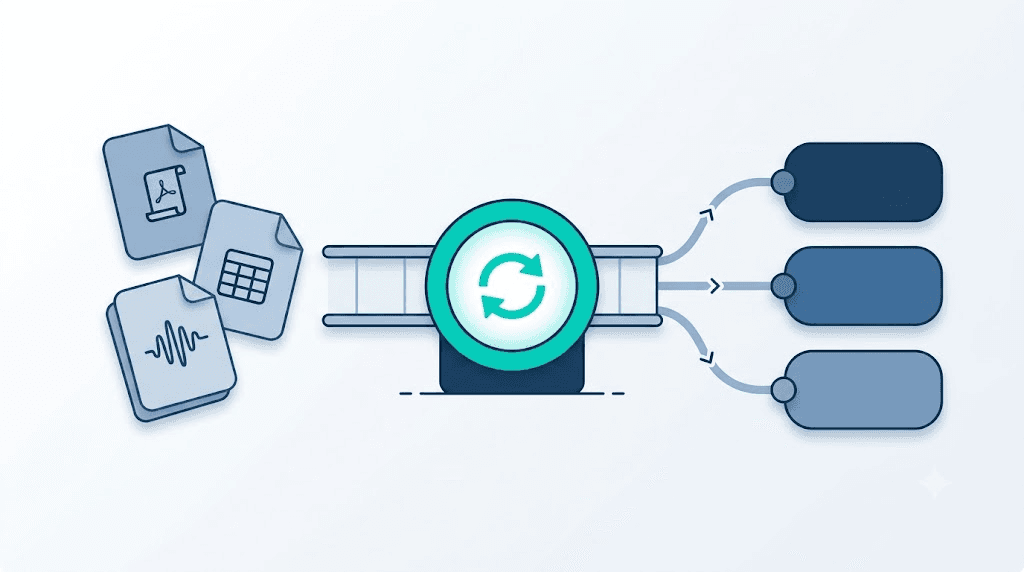
How to Pre-Process Files for AI Pipelines: Converting PDFs, Images & Audio Before Sending to GPT-4o, Claude or Gemini
TL;DR: - GPT-4o, Claude, and Gemini each enforce a narrow MIME type allowlist — sending a DOCX to Claude or an OGG to Whisper returns a hard 400 error or, worse, silent empty output. - A file conversion API converts PDFs, Office docs, audio, and images to the exact format each model requires before the inference call — one REST endpoint replacing three or four point tools. - The n8n "Convert to File" node serialises JSON data into CSV/HTML/text. It does NOT convert file formats. Format conversion requires an HTTP Request node calling an external API. - The Power Automate "Convert file" SharePoint action only works on files already in SharePoint or OneDrive, converts to PDF only, has no batch mode, and is one-directional — it breaks for external files and high-volume pipelines. - ConvertFleet offers a free file conversion API across 177+ formats with no rate limits, PDF/A-compliant output, native n8n compatibility, and a single REST endpoint for documents, images, and audio.
You're building an AI automation pipeline. A file lands in Google Drive. Your n8n workflow triggers, grabs the binary, ships it to Claude for summarisation, and pushes the result to Notion. It fails. The file is a DOCX. Or a scanned PDF with zero text layer. Or a 35 MB WAV recording that blows the Whisper size limit before decoding even starts.
This is the most common silent killer in AI agent workflows in 2026. The missing step is file pre-processing — using a reliable file conversion API to convert every input to the exact MIME type the target model accepts, before the inference call. Solve this once and the rest of the pipeline holds.
This guide is for developers and no-code builders using n8n, Make, Power Automate, or custom code to build AI agents. You'll finish knowing exactly what each major model accepts, how to automate pre-processing in your tool of choice, which free APIs survive real production load, and the eight mistakes that break most teams' pipelines.
Why Do AI Models Reject Your Files?

AI models are format-specific by design. Each model's API enforces a MIME type allowlist at the edge — anything outside it throws a 400 error immediately, or worse, returns a blank or hallucinated response with no indication of what actually went wrong. Format mismatch is the most common source of silent failures in AI automation pipelines, and it is entirely preventable.
GPT-4o accepts images as JPEG, PNG, GIF, or WEBP via the Vision endpoint. Through the Assistants API file search tool, it accepts PDF and 19 other types including plain text and most code file extensions — but not DOCX, XLSX, or PPTX natively (OpenAI supported files, 2024). Audio goes through the Whisper endpoint: MP3, MP4, MPEG, M4A, WAV, and WEBM are accepted, up to a hard 25 MB per file ceiling enforced before any decoding begins.
Claude (Anthropic) accepts PDF and plain text for documents, plus JPEG, PNG, GIF, and WEBP for images. No DOCX. No audio. No video. Feed Claude a raw Word document and the API returns a 400 immediately — there is no silent degradation.
Gemini 1.5 Pro has the broadest native support: PDF, images (JPEG, PNG, WEBP, HEIC, HEIF), audio (MP3, WAV, FLAC, AAC, OGG Vorbis, OPUS), and video (MP4, MOV, AVI, MPEG). Files above a threshold must be uploaded via a separate File API endpoint before the inference call, with a 2 GB per-file hard limit and a maximum audio duration of approximately 9.5 hours per request (Google AI Gemini File API, 2024).
According to Retool's State of AI in the Enterprise 2024 report, 64% of developers cite input data quality and format issues as the primary bottleneck to deploying AI features in production — ahead of model quality and inference latency. This is not an edge case. It is the norm.
The gap between "the format files arrive in" and "the format the model requires" is where pipelines fail. A file conversion API closes that gap before any model call is made.
What Is a File Conversion API?

A file conversion API is a REST endpoint that accepts a file in one format and returns it in another — DOCX to PDF, TIFF to JPEG, OGG to MP3 — without local software, FFmpeg binaries, or conversion servers to maintain. You POST the binary or a source URL, declare the target format, and GET back the converted file. Most documents under 50 MB return in under three seconds.
For AI pipeline builders, the four core use cases are:
- Document normalisation: DOCX, XLSX, PPTX, HTML, and RTF to PDF or plain text before Claude or GPT-4o processing.
- Image format conversion: TIFF, BMP, HEIC, and HEIF to JPEG or PNG before vision endpoint calls.
- Audio transcoding: any codec to MP3 or WAV at the right bitrate and sample rate before Whisper or Gemini speech input.
- PDF text extraction: stripping a searchable PDF to its raw text content before token-counting, chunking, or vector embedding — an order of magnitude faster than a full document format conversion.
A well-designed free file conversion API handles all four through a single endpoint and one API key. Your automation stack does not grow one vendor per media type.
The API call pattern for a REST API for PDF conversion is consistent across providers:
POST /v1/convert
Authorization: Bearer YOUR_API_KEY
Content-Type: multipart/form-data

file=<binary_data>
target_format=pdf
Response: binary PDF in the body, or a time-limited download URL in the JSON response depending on provider design. Either integrates cleanly with n8n's HTTP Request node binary output mapping.
AI Model File Compatibility Matrix
Use this as your pre-flight check before building any AI file pipeline. "Recommended Conversion" shows the target format for each unsupported input.
| Input Format | GPT-4o | Claude 3.x | Gemini 1.5 | Recommended Conversion |
|---|---|---|---|---|
| DOCX | ❌ | ❌ | ❌ | → PDF or plain text |
| XLSX | ❌ | ❌ | ❌ | → CSV or plain text |
| PPTX | ❌ | ❌ | ❌ | |
| RTF / ODT | ❌ | ❌ | ❌ | → PDF or plain text |
| EML / MSG | ❌ | ❌ | ❌ | → plain text or PDF |
| PDF (text-based) | ✅ | ✅ | ✅ | — use as-is |
| PDF (scanned/image) | ❌ | ❌ | ❌ | → OCR → plain text |
| TIFF / BMP | ❌ | ❌ | ✅ | → JPEG or PNG |
| HEIC / HEIF | ❌ | ❌ | ✅ | → JPEG |
| MP3 (≤ 25 MB) | ✅ Whisper | ❌ | ✅ | — use as-is |
| MP3 (> 25 MB) | ❌ | ❌ | ✅ | → compress or chunk |
| WAV | ✅ Whisper | ❌ | ✅ | — use as-is |
| OGG / FLAC / OPUS | ❌ | ❌ | ✅ | → MP3 for Whisper |
| MP4 (video) | ❌ | ❌ | ✅ | — or extract audio track |
| HTML | ❌ | ❌ | ❌ | → PDF or plain text |
The single most common production failure: teams pulling files from Google Drive in n8n, where Drive exports Google Docs as DOCX by default, then sending that binary directly to Claude. The fix is one HTTP Request node calling a pdf conversion API between the Drive trigger and the Claude node — five minutes of work that eliminates the most frequent failure mode in AI document pipelines.
How to Pre-Process Files for GPT-4o, Claude, and Gemini: Step-by-Step
The canonical pre-processing pattern is: detect actual MIME type → check against model allowlist → convert if needed → validate output bytes → enforce size limits → call the model. Apply it regardless of orchestration layer.
Step 1 — Detect the real MIME type. Don't trust the file extension. In n8n, the binary data object exposes $binary.<fieldName>.mimeType. In Python, use python-magic; in Node.js, use the file-type package. Both read the magic bytes embedded in the file header. A user-renamed report.pdf.docx or a system-exported output.jpg that is actually a TIFF will fool extension checks every time. The content-type header from an HTTP response is more reliable but still spoofable at the source.
Step 2 — Check against your target model's allowlist. Use the matrix above. If the MIME type is already accepted, skip conversion and proceed to step 5.
Step 3 — Call your file conversion API. POST the binary with the target format declared. For documents going to Claude, target application/pdf. For Whisper, target audio/mpeg. For vision models, target image/jpeg for photos and image/png for screenshots, diagrams, or anything with text that requires lossless rendering.
Step 4 — Validate the converted output. Assert the response status is 2xx and the returned file is non-zero bytes. Zero-byte PDFs and corrupt WAVs process without API error — the model receives nothing and returns an empty or hallucinated response. Checking byte count before proceeding prevents silent failures.
Step 5 — Enforce size limits before the model call. Whisper enforces 25 MB hard before any processing. A one-hour stereo recording at 128 kbps MP3 is approximately 58 MB — it will be rejected. Compress to mono at 16 kHz (Whisper's recommended sample rate) or split into 10-minute segments. GPT-4o Vision accepts up to 20 MB per image, maximum 10 images per request.
Step 6 — Pass the converted binary to your AI node. In n8n, map the binary output of the HTTP Request conversion node directly to the file input of your OpenAI or Anthropic node. In code, pass the bytes or returned URL to the model SDK's file parameter.
Step 7 — Cache converted outputs for recurring files. Hash the source file bytes (MD5 or SHA-256) and store the converted output in your database keyed against that hash. Workflows with recurring inputs — the same weekly report, the same contract template, the same product FAQ PDF — see 40–60% reduction in conversion API calls after implementing this caching pattern.
The n8n "Convert to File" Node: What It Actually Does
The n8n "Convert to File" node serialises structured JSON data — arrays and objects — into file-like outputs: CSV, HTML, binary text, iCal, or ODS. It does not convert file formats, cannot transcode audio, and has no knowledge of MIME types. Every n8n builder who hits this confusion loses hours to it.
What the node is actually for: you have an array of rows from a database query and want to produce a CSV file as workflow output. Or a JSON object you need rendered as formatted text for an email attachment. This is the node. It is a data serialisation tool.
The correct n8n pattern for format conversion — DOCX to PDF, MP3 to WAV, TIFF to JPEG — uses an HTTP Request node pointing at an external API:
[Trigger]
  → [HTTP Request: GET file binary]
  → [HTTP Request: POST to /v1/convert]
  → [AI Node: GPT-4o / Claude / Whisper]
Configure the conversion request node exactly as follows:
| Setting | Value |
|---|---|
| Method | POST |
| URL | https://api.convertfleet.com/v1/convert |
| Authentication | Header Auth — Authorization: Bearer YOUR_KEY |
| Body Content Type | Form-Data (Multipart) |
Form field: file |
{{ $binary.data }} mapped from previous node |
Form field: target_format |
pdf / mp3 / jpeg |
| Response Format | Binary |
Map the binary response directly to the file input of your AI node. No Code node needed, no credential type gymnastics.
The "Convert to File" node appears first in n8n search results for file conversion because of its name. It is the most googled n8n file conversion dead end. The node exists to wrap data, not to transcode existing files. Know this upfront and skip the two-hour detour.
For a complete walkthrough — including handling Google Drive exports and Slack attachments — see the n8n PDF automation workflow guide.
Power Automate: Convert File to PDF — The SharePoint Action and Its Limits
The Power Automate "Convert file" action in the SharePoint connector converts DOCX, XLSX, and PPTX to PDF inline — no external API call, no extra connector required. It is fast for simple Microsoft 365 document pipelines. Four hard limitations make it the wrong choice for production AI automation at any significant volume.
How the action works: in a flow, the SharePoint connector exposes a "Convert file" action — this is what people mean by the "power automate convert file to pdf action" or "power automate convert file action pdf." You pass it a file ID from SharePoint or OneDrive and declare the target format. PDF is the only supported output. The action calls Microsoft's internal document conversion service and returns PDF bytes. The Power Automate SharePoint convert file action PDF output can then be passed to an AI connector, stored in SharePoint, or sent via email.
Limitation 1 — SharePoint-only source. Files must already be in SharePoint or OneDrive. External inputs — email attachments, HTTP webhook payloads, files from Dropbox or Box — require an upload step first, adding latency and a permanent dependency on SharePoint as an intermediate store. This alone disqualifies the action for most cross-platform pipelines.
Limitation 2 — Conversion fidelity gaps. The power automate convert file action to pdf output handles standard DOCX and PPTX layouts reliably. Complex XLSX files with custom fonts, merged cells, embedded charts, or multi-sheet layouts render inconsistently. Legal documents, financial models, and branded proposals often require higher fidelity than the action delivers.
Limitation 3 — No batch mode. The action runs one file per invocation. Converting 50 attachments means 50 sequential action calls, or a parallel branch pattern that hits Power Platform's concurrency limits (typically capped at 50 parallel branches on standard plans). At scale, this becomes a throughput wall.
Limitation 4 — One-directional only. There is no native PDF to Office conversion API equivalent in Power Automate. AI workflows that generate output requiring delivery as an editable DOCX — a common pattern in contract drafting, report generation, and proposal automation — need an external REST call regardless. Once you're already making an HTTP connector call, you may as well use a dedicated rest api for pdf conversion for all conversions and gain format coverage, fidelity, and bi-directional support.
When to use the SharePoint action: simple one-directional conversion, files already in SharePoint, low volume (under a few hundred files per day), standard layout complexity. For everything else, use an HTTP connector against an external conversion API — it works identically across Power Automate, n8n, Make, and code.
FFmpeg API: Audio and Video Pre-Processing for AI
An FFmpeg API wraps audio and video transcoding into a single HTTP call, eliminating the need to run FFmpeg binaries in serverless environments, manage codec version compatibility across deployments, or harden a conversion server against malformed input files. Codec diversity is the hardest part of audio pre-processing: a contact centre produces G.711 PCM, Opus, or G.722 depending on the telephony platform; a podcast pipeline ingests MP3, AAC, and FLAC depending on the editing tool; Whisper accepts none of the telephony codecs natively.
Before sending audio to OpenAI Whisper: - Accepted: MP3, MP4, MPEG, M4A, WAV, WEBM — OGG Vorbis, FLAC, AAC standalone, G.711, G.722, and Opus are all rejected - Hard size limit: 25 MB enforced before any decoding begins - Performance recommendation: mono audio at 16 kHz. OpenAI's Whisper benchmarks show less than 0.3% WER (word error rate) degradation when downsampling from 44.1 kHz stereo — the improvement in human speech recognition accuracy is negligible while file size drops 75–85%. A 60-minute recording at 128 kbps stereo MP3 (≈ 58 MB) compresses to approximately 9 MB at 16 kHz mono.
Before sending audio to Gemini 1.5 Pro: - Accepted: MP3, WAV, FLAC, AAC, OGG Vorbis, OPUS, AIFF, PCM — the broadest input support of any major model - Maximum audio duration: approximately 9.5 hours per request (Google AI documentation, 2024) - Recommendation: mix multi-channel audio to stereo before upload — Gemini's speech understanding is calibrated for 1–2 channel input
The FFmpeg API call for Whisper pre-processing:
POST /v1/convert
Content-Type: multipart/form-data

file: [audio binary]
target_format: mp3
audio_channels: 1
audio_sample_rate: 16000
audio_bitrate: 32k
Running FFmpeg directly requires a server with the binary installed, dependency management across environments (the CVE history on FFmpeg is extensive — buffer overflows on malformed media input are a documented attack surface), and maintenance when codec flags change between major versions. An FFmpeg API handles all of that behind the endpoint. Pass the parameters, get back a model-ready file in under three seconds for files under 100 MB.
One additional pattern worth knowing: for transcription and audio analysis tasks, extract the audio track from an MP4 before sending. This reduces file size by 80–90% compared to the full video and cuts processing time proportionally. Use an extract_audio=true parameter or equivalent flag.
Best PDF API for Document Conversion and Signing at Scale
At scale, a production-grade PDF API needs to handle three operations in sequence: convert the source document to PDF with high layout fidelity, optionally OCR image-based PDFs to produce a searchable text layer, and deliver PDF/A-compliant output that passes validation at the signing platform. Most tools handle one of the three reliably.
Conversion fidelity at volume is where most free-tier APIs break first. Complex XLSX layouts — merged cells, conditional formatting, embedded charts, custom fonts — require a rendering engine with full Excel compatibility, not a headless LibreOffice instance (the default backend for most low-cost conversion services). The gap shows immediately on financial models, branded reports, and structured data exports. If your pipeline processes legal or financial documents, test a real sample against the conversion API before committing.
OCR pipeline integration is the second requirement. A scanned contract, invoice, or medical form is a JPEG dressed up as a PDF — it has no text layer. Before Claude or GPT-4o can summarise it, you need an OCR pass. A complete pdf conversion api exposes both a conversion endpoint and an OCR endpoint on the same authentication flow so you aren't managing two separate billing relationships and two separate API keys.
PDF/A compliance is the third requirement, and the one that breaks signing workflows without warning. The production AI document pattern is: source file arrives → convert to PDF → AI processes → route to signing platform. DocuSign, Adobe Sign, and Dropbox Sign all validate PDF/A-1b conformance at envelope creation — a non-compliant PDF is silently rejected or triggers an error that surfaces far downstream from the actual conversion step. Always verify PDF/A conformance if your converted output feeds a signing step.
Volume economics: Adobe PDF Services charges $0.10 per document above the 500-document free tier. At 10,000 documents per month — a moderate volume for any automated document workflow — that's $975/month for conversion alone, before signing costs. An API with no per-conversion pricing changes the economics entirely at this scale. For regulated enterprise environments where the Adobe brand matters to procurement, the premium is defensible. For engineering teams building internal automation, it is not.
Free vs. Paid File Conversion APIs: Honest Comparison
The decisive factors for choosing a free file conversion API for production automation are: format coverage across document, image, and audio types; rate limit policy on the free tier; and whether PDF/A-compliant output is included. Most "free" APIs cap out within days of any real workflow.
| API | Free Tier | Formats | Rate Limits | n8n Ready | Audio Support | PDF/A Output |
|---|---|---|---|---|---|---|
| ConvertFleet | Yes, unlimited | 177+ | None | ✅ Native | ✅ Full | ✅ |
| Cloudmersive | 800 calls/month | ~60 | Hard daily cap | Via HTTP | ❌ | Partial |
| PDF.co | 100 credits/month | PDF-focused | Yes | Via HTTP | ❌ | ✅ |
| Adobe PDF Services | 500 docs, then $0.10/doc | PDF/Office | Yes | Via HTTP | ❌ | ✅ Regulated |
| ILovePDF API | No free tier | PDF-focused | Paid only | Via HTTP | ❌ | ✅ |
| Zamzar API | 100 MB/month | 150+ | Yes | Via HTTP | ✅ | ❌ |
| Convertio API | Minimal trial | 300+ | Strict caps | Via HTTP | Partial | ❌ |
The stacking cost problem. Teams running separate tools for PDF conversion, image resizing, and audio transcoding typically accumulate $80–$200/month across three to four SaaS subscriptions. A file conversion api free tier that consolidates all three media types under one API key eliminates all those line items. For teams at high volume, the more important question is which API's paid tier has no per-conversion pricing — because per-page or per-document billing compounds fast above 5,000 documents per month, regardless of how generous the free tier looks.
Common Mistakes When Pre-Processing Files for AI Pipelines
Eight failure patterns appear in production AI automation workflows. Most are invisible until they surface as silent failures in the model response.
1. Trusting the file extension, not the MIME type. A .jpg can be a TIFF container. A .mp4 can be an AVI. A .pdf can be entirely image-based with zero extractable text. Validate the MIME type by reading the magic bytes before routing, not the filename.
2. Ignoring scanned PDFs. A scanned PDF contains a photograph of a page. Claude returns blank content with no error code. GPT-4o can describe the visual appearance but cannot extract structured text reliably. You need an OCR step first — your file conversion API's OCR endpoint or a dedicated service. This is the most cited cause of "Claude returns empty responses" in AI developer forums.
3. Missing the 25 MB Whisper ceiling. A 30-minute call recording at 128 kbps stereo MP3 is approximately 28 MB — just over the limit. HTTP 413 errors from OpenAI are swallowed silently in many pipeline configurations. Compress to mono at 16 kHz before sending, or split into 10-minute segments.
4. Converting when extraction is sufficient. Sending a 200-page PDF through a full PDF-to-DOCX conversion before extracting text is unnecessary. A PDF text extraction endpoint returns clean text in milliseconds. Full format conversion takes several seconds per document and consumes more API quota.
5. Not caching repeated conversions. If the same Slack attachment or shared policy document triggers your pipeline multiple times per day, reconverting on every run burns API calls and adds latency. Hash the source file bytes (MD5 or SHA-256) and cache the converted output. Recurring-input workflows see 40–60% reduction in conversion API calls after implementing this.
6. Using the n8n "Convert to File" node for format conversion. This node serialises JSON data into CSV, HTML, or text. It cannot convert DOCX to PDF, MP3 to WAV, or TIFF to JPEG. Detailed above, but worth repeating — it costs teams hours every week across the builder community.
7. Sending full video when only audio is needed. Extracting the audio track from an MP4 before sending reduces file size by 80–90% and cuts processing time proportionally for any transcription or audio analysis task.
8. Skipping PDF/A validation before signing workflows. Non-conformant PDFs — converted with low-fidelity tools — are silently rejected by DocuSign, Adobe Sign, and Dropbox Sign at envelope creation. Verify PDF/A-1b conformance if the converted output feeds a signing step, not after the pipeline fails in production.
Frequently Asked Questions
What is the best free file conversion API for n8n workflows?
ConvertFleet is the strongest choice for n8n: 177+ formats, no rate limits on the free tier, HTTP Request node integration without custom code, and document, image, and audio support under a single API key. Cloudmersive (800 calls/month) and PDF.co (100 credits/month) cap out within days of any real automation workflow. Zamzar supports audio but caps the free tier at 100 MB/month total.
How do I convert PDF files inside an n8n workflow?
Add an HTTP Request node after your file trigger. Set the method to POST, configure the body as Form-Data (Multipart), map your binary PDF to a file field, and set target_format to pdf or txt as needed. Map the binary response to your AI node's file input. The n8n "Convert to File" node is not relevant here — it serialises JSON data. See the n8n PDF automation workflow guide for a complete configuration walkthrough.
Which file conversion API has no rate limits on the free tier?
ConvertFleet. Every other provider in this comparison applies a hard monthly or daily cap. Cloudmersive (800/month), PDF.co (100 credits), Zamzar (100 MB/month), and Convertio all impose limits that any real automation workflow exceeds within the first week of running.
How do I stop paying $200 a month for multiple file conversion SaaS tools?
Consolidate to a single API that handles documents, images, and audio under one auth. Teams running separate PDF conversion, image processing, and audio transcoding tools accumulate $80–$200/month across three or four vendors. A multi-format API with no per-conversion pricing eliminates all those line items simultaneously. See the ConvertFleet pricing page for what the free tier covers at volume.
When should I use Power Automate's "Convert file" action versus an external REST API?
Use the native SharePoint action when files are already in SharePoint or OneDrive, you only need Office-to-PDF (one direction), layout complexity is standard, and daily volume is low. For external file sources, high volume, bi-directional conversion, audio transcoding, OCR, or PDF/A compliance requirements, use an HTTP connector against an external rest api for pdf conversion. The HTTP connector approach also works identically across Power Automate, n8n, Make, and custom code — the SharePoint action is platform-locked and direction-locked.
What is the difference between the n8n "Convert to File" node and a file conversion API?
The "Convert to File" node takes structured JSON data and outputs it as CSV, HTML, iCal, or binary text. It is a data serialisation tool. A file conversion API takes an existing binary file in one format — DOCX, MP3, TIFF — and returns it in a different format. Completely different operations. For AI pipeline pre-processing, you need the API.
What formats can I send to Gemini 1.5 Pro that Claude and GPT-4o reject?
Gemini 1.5 Pro natively accepts OGG Vorbis, OPUS, FLAC, and AAC audio — all rejected by Whisper. It also accepts HEIC and HEIF images, MP4 video, and TIFF. If your pipeline targets Gemini specifically, conversion requirements drop significantly compared to Claude or GPT-4o-only pipelines. The main gap that persists: DOCX, XLSX, and PPTX are rejected across all three models.
Conclusion
File pre-processing is the unglamorous step that makes AI pipelines reliable. Format mismatch is not an edge case — it is the default state when files arrive from the real world into a pipeline built around model-specific format requirements. Fix the plumbing and the model call stops being unreliable.
The pattern is: detect the real MIME type, convert to what the model accepts, validate non-zero output, enforce size limits, then call the AI. The only thing that makes this painful is a file conversion API with rate limits, per-conversion pricing, coverage gaps across media types, or non-compliant PDF output that breaks downstream signing workflows.
ConvertFleet handles 177+ formats — PDFs, Office documents, images, audio, and video — through a single REST endpoint, with no rate limits on the free tier, PDF/A-compliant output, and native n8n compatibility out of the box. If you're building AI agents and want to eliminate the file compatibility wall permanently, it is the fastest starting point.
Read next

Developer & APIs · Jul 15, 2026
File Conversion MCP Tool: Add It to Claude Code in 5 Min
Turn Convertfleet into a file conversion MCP server for Claude Code, Cursor, or any AI agent. Free tool-definition JSON included for automation workflow tools.

File Conversion · Jul 15, 2026
File Conversion API: 2025 Guide to Replacing 123apps at Scale
Hit limits with 123apps? Learn when free file conversion online tools stop scaling and how a file conversion API like Convert Fleet fixes batch, automation, and quality.

Automation & Workflows · Jul 15, 2026
How to Automate File Conversion in Pipedream: Audio, PDF & Video
Learn how to automate file conversion in Pipedream with a free API. Build workflows that convert audio, PDF, and video without managing ffmpeg or Lambda.