Developer & APIs – Jul 15, 2026 – 5 min read
File Conversion API: What It Is, How It Works & When to Build vs Buy
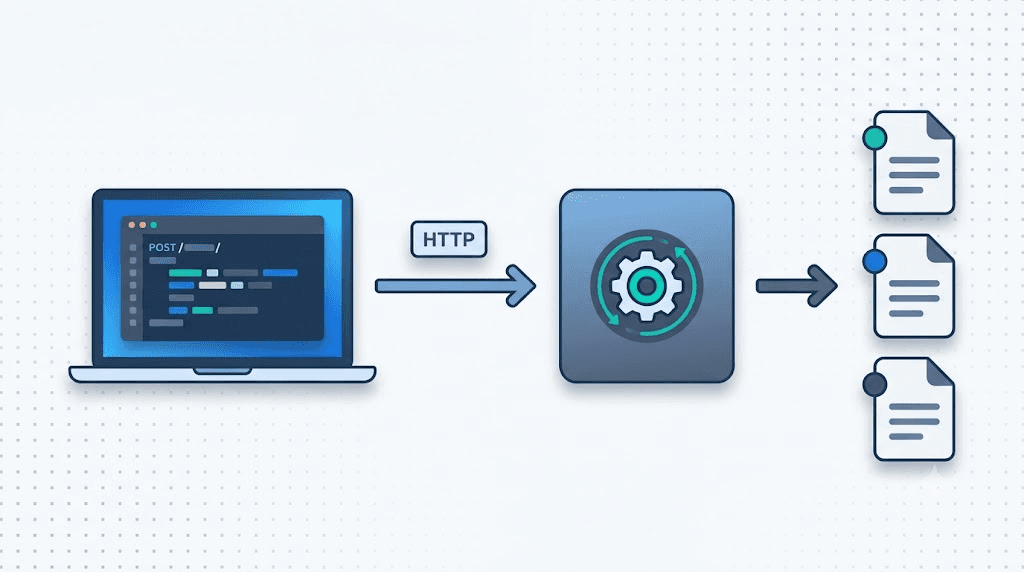
TL;DR: - A file conversion API accepts a file via HTTP, transforms it to a target format using a dedicated engine, and returns the result — no desktop software, no manual steps. - The full round-trip (upload → queue → transform → deliver) completes in under 3 seconds for most document and image conversions, per benchmarks from CloudConvert and Zamzar (2024). - FFmpeg remains the de-facto open-source engine for audio/video; wrapping it in an API layer eliminates server management and makes it callable from any HTTP client or workflow tool. - The build-vs-buy break-even sits around 5,000 conversions/month — below that, a free API tier almost always beats maintaining your own conversion infrastructure.
What Is a File Conversion API?

A file conversion API is a web service that accepts a source file — via multipart upload or publicly accessible URL — applies a format transformation using a conversion engine, and returns the converted output or a download URL over HTTP.
The defining characteristic is programmatic access: you trigger conversions with code, not clicks. The API manages the runtime — codec libraries, memory allocation, concurrent job queuing — so your application doesn't have to care about any of it.
In practice, a minimal request looks like this:
POST /convert
Content-Type: multipart/form-data
Authorization: Bearer YOUR_API_KEY

file=<your_document.docx>
target_format=pdf
Response:
{
  "status": "success",
  "download_url": "https://api.convertfleet.com/output/abc123.pdf",
  "conversion_time_ms": 1180
}
Three components make this work:
- Ingestion layer — validates MIME type, enforces file size limits, assigns a job ID.
- Processing engine — the actual conversion binary (LibreOffice for Office docs, Ghostscript for PDF rasterization, FFmpeg for audio/video, ImageMagick for images).
- Delivery layer — returns the output as a binary stream, base64-encoded string, or a time-limited signed download URL.
Enterprise-grade APIs add a queue between ingestion and processing to absorb burst traffic without dropping jobs. This is why a well-built file conversion API handles a spike from 10 to 10,000 concurrent conversions the same way — the caller never sees the difference.
How Does a REST File Conversion API Work End-to-End?

A REST file conversion API processes every request through four discrete stages: upload, queue, transform, and deliver. For a standard PDF-to-DOCX conversion, the full round-trip takes under 3 seconds on well-provisioned infrastructure.
Here's each stage in detail:
1. Upload. Your client sends a POST request with the source file as multipart form data, or passes a publicly accessible file URL. The API validates the MIME type against the hop-by-hop content type, checks the file size against limits, and assigns a unique job ID.
2. Queue. The job enters a processing queue. Synchronous APIs process small files immediately and hold the HTTP connection open. Async APIs (better for files over 5MB or batch jobs) return the job ID immediately — you poll a /status/{job_id} endpoint and fetch the result when status === "complete".
3. Transform. The conversion engine processes the file. The engine used depends on the format pair: LibreOffice for Office-to-PDF, Ghostscript for PDF rasterization, FFmpeg for any audio or video transcode, ImageMagick for image format changes. This is the stage where conversion fidelity is determined — not by the API wrapper, but by the underlying engine and its configuration.
4. Deliver. The API returns the output. For files under ~2MB, inline binary or base64 works fine. For larger outputs, the API returns a signed URL with a 1–24 hour TTL — your application downloads from it directly or passes it to the next step in a workflow.
One detail worth internalizing: two APIs supporting the same format pair can produce noticeably different output quality because they use different engines or engine configurations. A provider using LibreOffice with a well-tuned font substitution config will render a DOCX-to-PDF more faithfully than one using a generic headless renderer. Always test your specific file types with a real-world sample before committing to a provider.
File Conversion API vs. Desktop Tool vs. Shell Script: Which Should You Use?
The core difference is where conversion runs and who maintains the runtime. A desktop tool runs locally and requires manual interaction, a shell script wraps a CLI binary you provision and patch yourself, and an API offloads both execution and maintenance to a managed service.
| Dimension | Desktop Tool | Shell Script (FFmpeg / LibreOffice CLI) | File Conversion API |
|---|---|---|---|
| Scalability | Single machine, manual | Server-bound, manual scaling | Auto-scales with demand |
| Maintenance burden | App updates | OS, binary, dep patches | Managed by provider |
| Integration surface | Manual / GUI only | Custom scripting per language | Standard HTTP (any language/tool) |
| Format breadth | Limited to installed app | Limited to installed binaries | 100–200+ formats |
| Avg. conversion time | 2–15s (local I/O) | 1–10s | Under 3s (parallel processing) |
| Cost at 1,000 conv/month | Time cost only | Compute + ongoing dev time | $0 on free tiers |
| Works in n8n / Make / Zapier | No | No (no native HTTP node fit) | Yes — standard HTTP Request node |
| Works on Windows and Mac | App-dependent | Requires local install | Yes — platform-agnostic |
The table makes the integration decision concrete: if you're building automations in n8n, Make, or Zapier, a shell script is not a realistic option. These tools communicate over HTTP. An API is the only path that fits natively — and it eliminates the class of bugs that comes from managing binary versions across dev, staging, and production environments.
For file conversion software for Windows or Mac use cases where a developer is running one-off conversions locally, a CLI tool is perfectly fine. The moment you need that conversion to happen inside a pipeline or at the request of an end user, an API is the correct abstraction.
How to Automate File Conversion: A Step-by-Step Tutorial
Automating file conversion means wiring a conversion API into your stack so that conversions trigger on events — a file upload, a form submission, a scheduled task — without manual steps. Here's a complete integration using the Convert Fleet API inside an n8n workflow:
- Get your API key. Sign up at Convertfleet.com — the free tier requires no credit card and covers 177+ formats out of the box.
- Add an HTTP Request node in n8n. Set method to
POST, URL tohttps://api.convertfleet.com/convert. - Configure the request body. Set the body type to
multipart/form-data. Map thefilefield to the binary output of a preceding node (e.g., a Google Drive or Dropbox download node). Settarget_formatto your desired output format (e.g.,pdf,docx,mp3). - Add your auth header. Under Headers, add
Authorization: Bearer YOUR_API_KEY. Store the key in n8n's built-in credential vault — never hardcode it in the workflow JSON. - Parse the response. The API returns a JSON body including
download_url. Use an n8n Set node to extract this value and pass it downstream. - Connect the output. Feed the
download_urlto whatever comes next — a Google Drive upload node, an email attachment, a Slack file share, or a webhook to another system. - Add error handling. Attach an n8n Error Workflow. If
status !== "success"or the HTTP node returns a 4xx/5xx, log the job ID and send a Slack alert. Silent failures in file conversion pipelines are a common cause of data loss in production automations.
For batch file conversion, wrap this flow in an n8n Split in Batches node over a list of file URLs. The API processes jobs in parallel on its end — your workflow stays simple.
The same pattern applies directly in Make (HTTP module) and Zapier (Webhooks by Zapier) without any custom connectors. Most teams have a working file conversion integration in under 30 minutes.
Can I Use FFmpeg for File Conversion?
FFmpeg is the most capable open-source tool for audio and video conversion — it handles virtually every codec and container format, and it's the engine behind most serious media processing pipelines. The limitation is that FFmpeg runs as a CLI binary, which means it requires server access and someone to manage it.
According to the FFmpeg project, the library supports over 400 codecs and 150 container formats. No other open-source tool comes close for video — H.264 to H.265 transcoding, HLS stream packaging, frame extraction, audio normalization, subtitle embedding, GIF creation from video clips. If you're doing any media processing, FFmpeg is involved somewhere.
The operational problem: running FFmpeg yourself means provisioning servers, managing binary versions across environments, writing your own concurrency and queueing logic, and debugging cryptic codec errors that surface only on specific input files. A single 4K video transcode can saturate a 4-core server for 10–15 minutes. At scale, this becomes an infrastructure management job, not a feature.
Convert Fleet offers a purpose-built FFmpeg API that exposes FFmpeg's full capability over HTTP. You send FFmpeg command parameters in the request body and receive the processed output — no server required. This is the recommended approach for FFmpeg file conversion inside n8n workflows or any environment where you don't control the server.
Common FFmpeg conversions accessible via API:
- Video transcoding: MP4 → WebM, MOV → MP4, AVI → H.265
- Audio extraction: MP4 → MP3, WAV → AAC, video → FLAC
- GIF creation: video clip segment → optimized GIF
- Thumbnail generation: extract a frame at a specific timestamp
- Stream normalization: standardize sample rate, bitrate, or resolution across a media library
If your workflow touches audio or video at any point, a hosted FFmpeg API removes a significant operational burden and makes your pipeline portable — it runs identically in n8n Cloud, a self-hosted instance, or a custom backend.
How Much Does File Conversion Cost?
File conversion API pricing follows three models: per-conversion, per-page (common for document APIs), and subscription. At low volume, free tiers cover most use cases. At scale, the total cost of ownership almost always favors a managed API over a self-hosted solution.
| Monthly Volume | Self-Hosted (server + dev time) | Paid API (mid-tier) | Convert Fleet |
|---|---|---|---|
| Up to 500 conversions | ~$50–$150 (server + ~2h dev/mo) | ~$5–$15 | Free tier |
| 5,000 conversions | ~$150–$300 | ~$25–$50 | See pricing |
| 50,000 conversions | ~$400–$800 | ~$100–$200 | See pricing |
| 500,000 conversions | ~$1,500+ (auto-scaling infra) | ~$500–$1,500 | See pricing |
The self-hosted numbers include server costs and a conservative estimate for ongoing maintenance: patching LibreOffice across OS updates, handling edge-case files that break the renderer, monitoring queue depth. In practice, teams consistently underestimate this burden. A corrupted DOCX from a vendor, an unexpected font, or a LibreOffice version incompatibility with a new OS package can cost an afternoon's engineering time — and these incidents happen more often than teams predict before they've run a conversion pipeline in production for six months.
The break-even for most teams is around 5,000 conversions/month. Below that threshold, a free or low-cost API wins on total cost of ownership almost without exception. Above it, the comparison is more nuanced — but a managed API still wins unless conversion is a core feature of your product and you have a dedicated platform team.
For teams evaluating the cheapest file conversion API options: start with a provider that has a meaningful free tier, test fidelity on your actual file types, and only pay when you need volume or SLA guarantees.
Build vs. Buy: A Decision Framework for Developers
The build-vs-buy decision for file conversion comes down to three variables: format breadth required, conversion volume, and available engineering bandwidth. Most teams get this wrong by treating it as a one-time cost comparison — the real cost is ongoing maintenance, not initial build time.
Build your own pipeline when: - You convert exactly one format pair (e.g., always DOCX → PDF) with a single, stable open-source tool - You process over 1M conversions/month and have a dedicated platform team whose job includes this infrastructure - Compliance requires all file processing to occur within your own environment (regulated industries, air-gapped systems) - You need deeply custom output — bespoke PDF templates with dynamic layout, pixel-perfect watermarking, proprietary format support
Use an API when: - You need 5+ format pairs across documents, images, audio, or video - Your engineering team is under 15 people and file conversion is not your core product - You're integrating with n8n, Make, Zapier, or any HTTP-based automation tool - You want to ship in days, not weeks, and stay unblocked on the thing that actually matters - You want zero infrastructure to own for this feature — no alerts, no patches, no postmortems
One heuristic that holds in practice: if you've ever pasted a Stack Overflow answer to fix a LibreOffice font substitution error at midnight, you should be using a file conversion API. That fix will need to be applied again again on the next OS upgrade, the next LibreOffice major version, and for the next developer who joins your team and sets up a local environment differently.
Common Mistakes When Integrating a File Conversion API
Most file conversion integration bugs aren't random — they follow predictable patterns. Here are five that surface repeatedly, and how to sidestep each.
1. Validating file extension instead of MIME type. A .pdf file is not always a PDF — a renamed .png will pass extension validation but break the conversion engine. Validate the actual file signature (magic bytes: %PDF- for PDF, \x89PNG for PNG) before forwarding to the API, especially when accepting files from untrusted sources.
2. Using synchronous calls for large files. A 40MB PowerPoint with embedded videos can take 8–15 seconds to convert. Synchronous HTTP calls time out in most workflow tools before the job finishes. Switch to async mode (post the job, receive a job ID, poll for status === "complete") for any file over 5MB.
3. Skipping fidelity testing on real files. An API might claim DOCX-to-PDF support, and it might work perfectly on a clean test document — and then mis-render a client's file with a custom embedded font and a complex header. Test your specific file types with production-representative samples before deployment, not after.
4. Hardcoding API keys in workflow exports. n8n and Make workflows are routinely shared as JSON exports for documentation or onboarding. A hardcoded API key inside that JSON is a credential leak waiting to happen. Use the workflow tool's native credential vault — n8n Credentials, Make Connections — and reference the credential by name in the HTTP node.
5. No failure path for conversion errors. Even well-maintained APIs occasionally reject a malformed or DRM-protected file. Without a failure path, your workflow silently drops the file and moves on. Build an error branch: log the job ID and input file identifier, alert via Slack or email, and queue for manual review.
File Conversion API for Developers: Architecture Patterns
Developers integrating a file conversion API face the same three architectural decisions regardless of stack: sync vs async, polling vs webhooks, and direct upload vs URL pass-through. Getting these right determines whether your integration is reliable or brittle.
Sync vs. Async. Sync is simpler — you hold the HTTP connection open and receive the converted file directly. It works for files under 5MB that convert in under 10 seconds. Async is mandatory for anything larger or slower: you receive a job ID, poll or webhook for completion, then fetch the result. Most production systems should default to async — it decouples your app's reliability from conversion latency.
Polling vs. Webhooks. Polling is easier to implement but wastes requests and introduces latency (you check every N seconds, so average wait is N/2). Webhooks push the result to you the instant conversion finishes. The trade-off: webhooks require a public endpoint and idempotency handling (the same webhook may fire twice). For n8n and Make, both patterns work natively — webhooks via the Webhook node, polling via the HTTP Request node on a Schedule trigger.
Direct Upload vs. URL Pass-Through. Direct upload means your server receives the file, then forwards it to the API — you pay bandwidth twice and hold the file in memory. URL pass-through means you put the file in cloud storage (S3, Google Drive, Dropbox), generate a pre-signed URL, and pass that URL to the API. The API fetches directly from storage. For files over 10MB, URL pass-through is almost always the right choice — it reduces your server load, cuts bandwidth costs, and eliminates a failure mode (your server timing out on a large upload).
Frequently Asked Questions
What is a file conversion API? A file conversion API is a web service that accepts a source file via HTTP request and returns it converted to a target format. The API manages the conversion engine, processing queue, and output delivery — your application only needs to send an HTTP request with the file and desired output format, and handle the response. No local software installation or server management is required.
How do I automate file conversion in n8n or Make?
Add an HTTP Request node to your workflow. Set the method to POST, point it at the API endpoint, and configure the body as multipart/form-data with the source file and target_format parameter. Add your API key as a bearer token in the Authorization header. The response includes a download_url you can pass directly to the next step — a cloud storage upload, an email attachment, or a webhook. Most integrations are live in under 30 minutes.
Can I use FFmpeg for file conversion without managing a server? Yes — via a hosted FFmpeg API. Services like Convert Fleet expose FFmpeg's full codec and container support over HTTP, so you send FFmpeg parameters in a request and receive the processed audio or video output without provisioning infrastructure. This is the recommended approach for FFmpeg-based conversion inside n8n, Make, or Zapier workflows.
How much does a file conversion API cost? Most providers offer free tiers covering 100–500 conversions/month — enough for development and low-traffic production use. Paid tiers typically range from $0.001 to $0.05 per conversion depending on file type and volume. At under 5,000 conversions/month, a free or low-cost API almost always costs less than maintaining self-hosted conversion infrastructure when engineering time is factored in.
What file formats does a conversion API support? Enterprise-grade conversion APIs support 100–200+ formats across documents (PDF, DOCX, XLSX, PPTX, ODS), images (PNG, JPEG, WebP, TIFF, SVG), audio (MP3, WAV, AAC, FLAC, OGG), video (MP4, MOV, WebM, AVI, MKV), and specialized formats (EPUB, HTML, Markdown, CSV). Convert Fleet supports 177+ formats through a single API endpoint, covering the full range of document, image, audio, and video conversion use cases.
What is the best file conversion API for developers? The best API depends on your format mix, volume, and integration environment. For developers in n8n, Make, or Zapier, look for: a free tier for testing, standard HTTP auth (not custom SDKs), async job support with webhooks, and documented engine transparency (which underlying tool handles each format pair). Test output fidelity on your actual files before committing — spec sheets don't reveal rendering edge cases.
Conclusion
A file conversion API removes the conversion layer as a source of operational risk in your stack. It's not a shortcut — it's the correct architectural choice for any team that needs reliable, multi-format conversion without owning the runtime that makes it work.
If you're evaluating options, the right test is simple: pick your five most common format pairs, run them through a candidate API with production-representative files, and measure output fidelity and latency. The free tier on Convert Fleet covers 177+ formats with no registration required — it's a reasonable starting point for that test, and for most teams, it's where the evaluation ends.
Read next

Developer & APIs · Jul 15, 2026
File Conversion MCP Tool: Add It to Claude Code in 5 Min
Turn Convertfleet into a file conversion MCP server for Claude Code, Cursor, or any AI agent. Free tool-definition JSON included for automation workflow tools.

File Conversion · Jul 15, 2026
File Conversion API: 2025 Guide to Replacing 123apps at Scale
Hit limits with 123apps? Learn when free file conversion online tools stop scaling and how a file conversion API like Convert Fleet fixes batch, automation, and quality.

Automation & Workflows · Jul 15, 2026
How to Automate File Conversion in Pipedream: Audio, PDF & Video
Learn how to automate file conversion in Pipedream with a free API. Build workflows that convert audio, PDF, and video without managing ffmpeg or Lambda.