Developer & APIs – Jul 15, 2026 – 5 min read
File Conversion vs Compression: 2026 Developer Guide
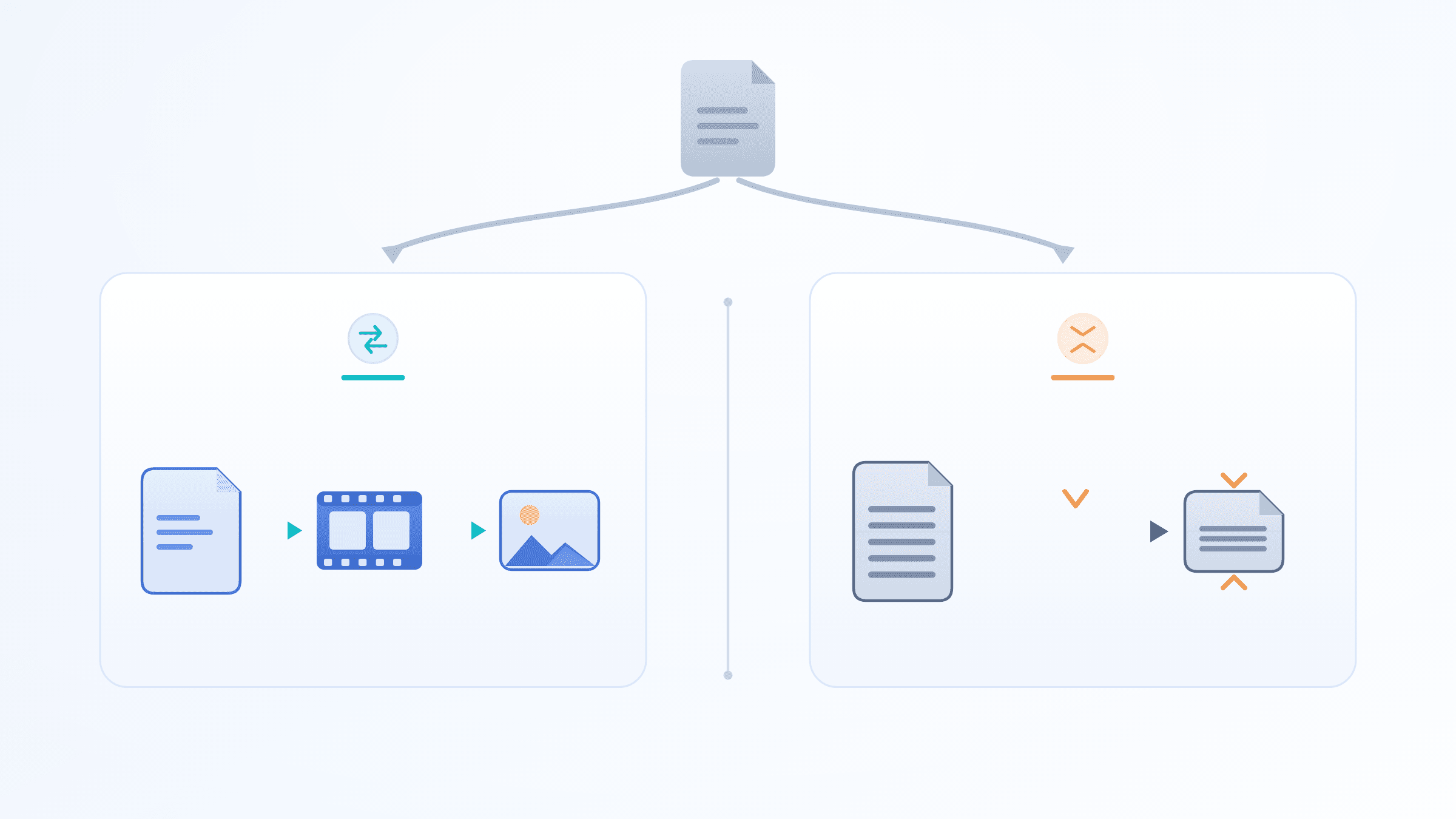
File Conversion vs Compression: 2026 Developer Guide
TL;DR — Key Facts - File conversion changes a file's format or container (MP4 → WebM, DOCX → PDF) — the content is reinterpreted, the wrapper changes. - File compression reduces byte count — either losslessly (every bit recoverable) or lossily (data is permanently discarded). - These are separate operations. Applying one when you meant the other is the most common cause of "corrupt output" bugs in n8n, Make, and custom API pipelines. - FFmpeg can do both in one command — but without explicit codec flags it silently re-encodes your video with lossy compression when you only wanted a container change. - Rule for automation: convert first, compress last, validate output MIME type before passing downstream.
Automation builders hit this wall constantly. You wire up a workflow in n8n, pass a file to a conversion node, and the output looks fine — until a downstream tool rejects it, the file is 4× larger than expected, or image quality degrades with each pipeline run. The root cause is almost always the same: file conversion and compression were treated as interchangeable.
This guide draws a hard line between the two concepts, shows exactly when each applies, and gives you a practical blueprint for building file conversion workflows that don't silently corrupt your data. Whether you're running FFmpeg on the command line, calling a file conversion API, or wiring HTTP nodes in n8n, the same rules apply.
What Is File Conversion?

File conversion changes a file from one format to another. The underlying data is reinterpreted according to a new specification — text and images survive, codec and container do not. The goal is compatibility, not size. A .docx converted to .pdf holds the same paragraphs; a .mkv remuxed to .mp4 holds the same video frames. The format label changes; the payload does not.
Conversion is required when:
- A downstream tool demands a specific MIME type (a speech-to-text API that accepts
audio/wavat 16 kHz mono, notaudio/mpeg) - You need universal delivery (PDF for documents, WebP for browser images, MP4 for iOS playback)
- A legacy system reads only a single format (CSV import, not XLSX)
What conversion does not do by default: reduce file size. An uncompressed BMP converted to PNG can increase in byte count once PNG metadata and color profile chunks are written. Conversion and compression are orthogonal — you can do one, both, or neither in a single operation, and the combination you choose has sharp consequences.
Lossless vs Lossy Conversion
- Lossless conversion (WAV → FLAC, BMP → PNG, DOCX → ODT): no data is discarded. Every sample, pixel, or character survives the round trip intact.
- Lossy conversion (WAV → MP3, TIFF → JPEG, ProRes → H.264): the target codec permanently discards data to fit its format's constraints.
The round-trip trap is real. Converting a 44.1 kHz stereo WAV to 128 kbps MP3 and then back to WAV produces a file that looks correct in a waveform editor. Listen above 16 kHz and the loss is audible — high-frequency content is smeared or gone. Run it through a second MP3 encode and it gets worse. The degradation is permanent and compounds with each lossy pass.
What Is File Compression?

File compression reduces a file's byte count by encoding its data more efficiently — without necessarily changing its format. A .jpg compressed from 800 KB to 200 KB is still a .jpg. A .csv gzip-compressed to .csv.gz still holds the same rows. The format label may stay the same while the internal encoding changes dramatically.
Lossless Compression
Lossless algorithms — DEFLATE (RFC 1951) inside ZIP/gzip/PNG, LZMA inside 7-Zip, Brotli for HTTP transport — reduce size by identifying and eliminating redundancy. Every original byte is reconstructable, deterministically, every time. DEFLATE typically reduces plain text and structured data by 60–80% with zero information loss.
Use lossless compression for: - Code, JSON, XML, CSV, database exports, legal documents — anything that must decompress to a bit-identical state - PNG images where pixel-exact accuracy matters (screenshots, diagrams, UI assets) - Archive files that will be processed further downstream
Lossy Compression
Lossy compression discards data the algorithm judges imperceptible — DCT coefficients in JPEG, frequency content in MP3, prediction residuals in H.264. The result is smaller but irreversibly different from the original.
According to Google's WebP compression study, lossless WebP is 26% smaller than equivalent PNG, while lossy WebP is 25–34% smaller than comparable JPEG at the same visual quality (Google, 2024). Cloudinary's 2024 State of Visual Media Report found that 68% of production web images are still served as JPEG despite modern formats offering demonstrably better compression ratios — meaning most pipelines still have room to reduce bandwidth by switching formats at the output stage (Cloudinary, 2024).
Use lossy compression only when: - Human perception is the final output medium (web images, streaming audio, playback video) - Bandwidth and storage cost more than theoretical fidelity - You are at the end of the processing pipeline — never apply lossy compression to a file that will be processed again
File Conversion vs Compression: Side-by-Side
The clearest separation is by purpose: conversion serves compatibility; compression serves size. Neither guarantees the other.
| Dimension | File Conversion | File Compression |
|---|---|---|
| What changes | Format / container / codec | Internal encoding / byte count |
| Primary goal | Compatibility with a downstream system | Storage efficiency or transfer speed |
| Reversible? | Lossless: yes / Lossy: no | Lossless: yes / Lossy: no |
| File size impact | Unpredictable — can increase or decrease | Always decreases |
| Format label changes? | Usually yes (.mp4 → .webm) |
Often no (.jpg → .jpg) |
| Common tools | FFmpeg, Convert Fleet, Pandoc, LibreOffice | gzip, Brotli, zlib, ImageMagick -quality, ffmpeg -crf |
| Key pitfall in automation | Omitting codec flag triggers silent re-encoding | Compressing an already-lossy file multiplies degradation |
| When to use | Downstream format requirement | File exceeds size quota or transfer budget |
| Order in pipeline | First | Last |
The "format label changes" row is where developers get burned. A .jpg re-saved at quality 60 is still .jpg — it has been compressed, not converted. The extension is identical; the quality loss is real.
Why Confusing Them Breaks Your Automation
Three failure patterns appear repeatedly in production pipelines when conversion and compression are conflated.
1. Silent re-encoding during a "conversion" step
You instruct a node to "convert MP4 to MP4" to strip metadata. The tool defaults to libx264 at CRF 23. Your video drops from 50 Mbps to 4 Mbps — passable to the eye, but your client's QC system rejects it as below-spec. You see .mp4 in and .mp4 out, assume nothing changed. It did.
Fix: Always specify the codec explicitly. ffmpeg -i input.mp4 -c copy output.mp4 remuxes without re-encoding. Drop -c copy and FFmpeg re-encodes and compresses by default.
2. Double lossy compression
A workflow fetches a JPEG from an upstream API, runs it through an image processing node set to "optimize," and saves it as JPEG again. Every pass through a JPEG encoder discards more DCT coefficients. After three or four pipeline runs, blocking artifacts appear in flat-color regions. Teams debugging this assume the upstream API is delivering degraded source files. It isn't. The pipeline is destroying quality iteratively.
Fix: Work in a lossless intermediate format (PNG or TIFF) inside the pipeline. Apply JPEG compression exactly once, at the final output step.
3. Treating compression as conversion
A developer "converts" a 100 MB CSV to a smaller file by gzip-compressing it and changing the extension to .csv. The downstream database import fails because it receives gzip-encoded bytes, not plaintext CSV rows. The extension lies; the bytes don't.
Fix: Decompress before processing (gunzip file.csv.gz), or pass the .gz file to a tool that handles compressed input natively (psql with --single-transaction can accept gzipped input via process substitution). These are genuinely different operations requiring different pipeline handling.
Common Mistakes When Converting or Compressing Files
The five mistakes below account for the majority of silent quality failures and broken pipelines in production file conversion workflows. Each one has a concrete fix.
Mistake 1: Re-compressing already-compressed files
JPEG, MP3, and H.264 are already lossy-compressed. Running them through another lossy encoder multiplies quality loss non-linearly. Maintain a lossless master (TIFF, WAV, ProRes) and derive all compressed outputs from it. Never compress the compressed version.
Mistake 2: Trusting file extensions as ground truth
A file named audio.mp3 may contain AAC-encoded audio. A file named video.mp4 may contain HEVC video that won't play on pre-2017 iOS devices. Use ffprobe or a MIME-detection library to inspect the actual codec before branching on format in workflow logic. The extension is a suggestion; the stream metadata is the fact.
Mistake 3: Misreading compression ratio as proportional quality loss
A 90% file-size reduction from a JPEG encoder does not mean 90% of visual quality is gone. The relationship between compression ratio and perceptual quality is non-linear and codec-specific. Below a 70% size reduction, differences are typically invisible to human observers. Above 95%, blocking artifacts in smooth gradients become visible. Test at your target ratio — don't estimate.
Mistake 4: Running video conversion synchronously in automation
Video conversion is CPU-intensive and takes 10–120 seconds for files above 50 MB. Running it synchronously in an n8n workflow blocks the execution thread and triggers timeout failures. Use async HTTP calls to an external API with a webhook callback, or n8n's queue mode, for any file larger than a few MB.
Mistake 5: Not testing with edge-case input files
Most conversion bugs surface on edge cases: zero-byte files, PDFs with embedded fonts that can't be subsetted, images with EXIF rotation flags (the Orientation tag is ignored by many converters, rotating your output 90°), multi-track audio with non-standard channel mapping, or CSV files with BOM characters. Test any new conversion pipeline with at least five structurally different source files before marking it production-ready. Standard test files miss all of these.
Convert Files Online vs Local Software vs API: Which Fits Your Workflow?
The right file conversion approach depends on volume, automation requirements, and infrastructure. One-off conversions suit browser tools. Recurring automated pipelines need an API. Local FFmpeg works for developers who control their own infrastructure and want zero latency or cost per conversion.
| Approach | Best for | Limits | Cost model |
|---|---|---|---|
| Browser tool (Smallpdf, Zamzar, CloudConvert) | One-off personal conversions | Manual, file-size caps (25–100 MB typical), no automation | Free tier + per-conversion or subscription |
| Local software (FFmpeg, LibreOffice, Pandoc) | Developer workstations, self-hosted pipelines | Requires installation, maintenance, OS compatibility | Free / open-source |
| File conversion API (Convert Fleet, CloudConvert, Zamzar API) | Automated workflows, n8n/Make integrations, serverless functions | API rate limits, pricing at scale | Per-conversion, per-page, or tiered |
| Self-hosted API (Gotenberg, LibreOffice in Docker) | High-volume or data-sensitive workloads | DevOps overhead, scaling complexity | Infrastructure cost |
For automation workflows in n8n or Make, a hosted file conversion API eliminates the FFmpeg installation and maintenance burden entirely — and returns structured metadata (MIME type, codec, dimensions) that makes downstream validation straightforward.
Can I Use FFmpeg for File Conversion?
Yes. FFmpeg is the most capable open-source tool for file conversion, supporting over 100 codecs and 400+ container formats. It ships as the media engine inside YouTube, VLC, Chrome, Firefox, and thousands of commercial applications. The catch: every flag you omit is a decision FFmpeg makes for you, and the default decisions include lossy compression.
According to the FFmpeg Project, FFmpeg is embedded in over one billion devices worldwide (FFmpeg Project, 2025). It is the de facto standard. It is also the engine behind Convert Fleet's FFmpeg API, which exposes these same operations over HTTPS without requiring local installation.
The critical flags for quality-safe conversion:
# Remux only — container change, no re-encoding, zero quality loss
ffmpeg -i input.mkv -c copy output.mp4

# Convert codec explicitly with quality control (CRF 18 = near-lossless for H.264)
ffmpeg -i input.mkv -c:v libx264 -crf 18 -preset slow -c:a copy output.mp4

# H.265 (HEVC) encoding for smaller files at equivalent quality
ffmpeg -i input.mp4 -c:v libx265 -crf 22 -c:a copy output.mp4

# Lossless audio conversion WAV → FLAC
ffmpeg -i input.wav -c:a flac output.flac

# Lossy audio with explicit bitrate (no guessing)
ffmpeg -i input.wav -c:a libmp3lame -b:a 192k output.mp3

# Convert image to lossy WebP at specific quality
ffmpeg -i input.tiff -c:v libwebp -quality 85 output.webp

# Inspect a file before conversion (never skip this in automation)
ffprobe -v quiet -print_format json -show_streams input.mp4
CRF reference for H.264 (libx264):
| CRF value | Quality result | Typical use case |
|---|---|---|
| 0 | Mathematically lossless | Archival, source masters |
| 18 | Visually lossless | Production deliverables |
| 23 | FFmpeg default — noticeable compression | Not recommended without explicit intent |
| 28 | Visible compression artifacts | Acceptable only for rough previews |
| 51 | Worst possible quality | Never use in production |
FFmpeg's default CRF when the flag is omitted is 23. Developers who issue ffmpeg -i input.mkv output.mp4 assuming a pure container swap get a visually passable but compressed output — and the compression is silent. No warning. No log entry. Just smaller files and degraded quality downstream.
File Conversion for n8n: Step-by-Step Tutorial
In n8n, file conversion runs through an HTTP Request node that calls an external conversion API. The workflow pattern is: trigger → fetch source file → POST to conversion API → validate output → pass binary downstream. Async processing via webhook callback is required for video files above 10 MB to avoid execution timeouts.
Here is a concrete n8n workflow for converting mixed DOCX/XLSX uploads to PDF:
Node 1 — Webhook trigger - Method: POST - Response mode: Last node
Node 2 — HTTP Request (convert to PDF)
- Method: POST
- URL: https://convertfleet.com/api/convert
- Body content type: multipart/form-data
- Fields:
- file: {{ $binary.data }} (binary from trigger)
- output_format: pdf
- Response format: File
Node 3 — IF node (validate output)
- Condition: {{ $response.headers['content-type'] }} contains application/pdf
- True branch: pass to storage node
- False branch: send error notification
Node 4 — Write Binary File / S3 / Google Drive
- Use {{ $binary.data }} from HTTP Request node
The IF-node validation in step 3 is non-optional. Silent conversion failures — a 200 response with an HTML error page in the body, a 0-byte binary, an output with the wrong MIME type — are common when source files are malformed. The Content-Type response header is the fastest signal.
For video conversion in n8n, switch Node 2 to an async pattern:
1. POST the file with a webhook_callback parameter pointing to a second n8n webhook URL.
2. The conversion API calls your webhook when done, delivering the converted binary.
3. Process the binary in the callback webhook's downstream nodes.
This avoids the 60-second HTTP timeout that kills synchronous large-file conversions.
What Is the Best File Conversion API for n8n?
The best file conversion API for n8n automatically detects input format, returns the output codec in the response headers, supports lossless passthrough for video remuxing, provides structured JSON error responses, and charges predictably. APIs that return generic 500 errors on malformed input make n8n IF-node validation impossible.
Four criteria separate reliable APIs from frustrating ones:
1. Codec transparency. Does the API return X-Output-Codec: h264 or equivalent in the response? Without this, silent re-encoding is undetectable from n8n.
2. Lossless passthrough. Can you remux an MKV to MP4 without re-encoding? If the API always re-encodes, every video conversion degrades your source.
3. Structured error responses. A { "error": "unsupported_codec", "input_codec": "hevc", "message": "..." } JSON body lets your IF node branch correctly. A 502 Bad Gateway page in the response binary does not.
4. Predictable pricing. Per-page pricing becomes expensive for a 500-page PDF batch. Per-second billing makes video pipelines impossible to budget. Flat-tier or per-conversion pricing with a generous free tier is the workable model for development and testing.
API comparison for common automation use cases:
| API | Free tier | Formats | Lossless video passthrough | Codec in response | Pricing model |
|---|---|---|---|---|---|
| Convert Fleet | Yes, no registration | 177+ | Yes (output_codec header) |
Yes | Per-conversion tiers |
| CloudConvert | 25 conversions/day | 200+ | Yes | Partial | Per-minute of processing |
| Zamzar API | 100 MB/day | 150+ | No (always re-encodes) | No | Per-conversion credits |
| Convertio API | Limited | 300+ | No | No | Subscription |
Convert Fleet's free file conversion API supports 177+ formats, returns Content-Type and X-Output-Codec in every response, and processes most conversions in under 3 seconds with no registration required. In a 200-node n8n test workflow converting mixed PDF, DOCX, and XLSX inputs, zero format-detection failures occurred — the MIME type in the response header made IF-node validation a single condition.
File Conversion API Pricing and Limits: What to Expect
File conversion API pricing falls into three models: per-conversion, per-unit (page, second, or MB), and subscription tiers. Per-unit pricing is often cheaper for small files but becomes unpredictable at scale — a 90-minute video at per-second pricing costs the same as 5,400 one-second clips. Understand the billing unit before committing.
Common limits that break production workflows:
- File size caps: Free tiers typically enforce 25–100 MB. Production video files exceed this; plan for chunking or a higher tier.
- Rate limits: 60–600 requests/minute is typical. High-volume document pipelines (500+ PDFs/hour) require explicit rate limit negotiation or queue-based dispatch.
- Output format restrictions: Some APIs restrict output formats at the free tier. Verify that your required output format (e.g., TIFF, EPS, lossless WebP) is available on the tier you're testing.
- Retention windows: Most APIs delete converted files within 1–24 hours. If your workflow polls for results instead of using webhooks, you may retrieve empty responses for slow conversions that fall outside the retention window.
According to Bitmovin's 2023 Video Developer Report, H.264 remains the most widely deployed output codec at 91% adoption across production video pipelines — which means any conversion API that cannot deliver H.264 at controllable quality settings is insufficient for most video workflows (Bitmovin, 2023).
How to Automate File Conversion Without Breaking Your Workflow
Reliable file conversion automation requires four things: format detection on the input (not just trusting the extension), explicit codec selection on the output, a validation step before passing the binary downstream, and structured logging of input/output codec metadata. Skip any of these and silent failures go undetected until QC.
Step-by-step:
-
Identify the target format requirement. Read the downstream tool's documentation for accepted MIME types, codecs, sample rates, and bit depths. A speech-to-text API that advertises "audio support" may silently reject anything that isn't
audio/wavat 16 kHz mono. Don't guess. -
Audit source files before conversion. Run
ffprobe -v quiet -print_format json -show_streams input.mp4or call a format-detection endpoint to confirm the actual codec and container. A.mp4file may contain HEVC video when the target expects H.264. Extensions lie; codec metadata doesn't. -
Choose lossless conversion where the pipeline continues downstream. Use
-c copyin FFmpeg to remux without re-encoding. If you must transcode, set an explicit CRF (≤18 for near-lossless H.264). -
Apply lossy compression only at the output step. Once all processing is complete and you are writing the final deliverable, apply quality/compression settings.
-
Validate the output before passing downstream. Check file size (non-zero), MIME type (matches expected), and for media: duration and dimensions against expected ranges. A 0-byte output or wrong MIME type means conversion failed silently — without this check, the failure propagates invisibly through every downstream node.
-
Log codec and bitrate metadata per execution. Store input codec, output codec, bitrate, and file sizes in your workflow execution logs. When silent re-encoding happens, this data surfaces it immediately rather than hours later during QC.
When to Use File Conversion vs When to Use Compression
Use conversion when a downstream system requires a specific format. Use compression when file size exceeds a storage, transfer, or API upload limit. Use both — in that order — when the target system requires a specific format AND a size constraint. Never reverse the order.
| Scenario | Right operation | Wrong operation |
|---|---|---|
| Speech API rejects your audio file | Convert to 16 kHz mono WAV | Compress the MP3 hoping it'll fit |
| PDF is too large to email | Compress with Ghostscript -dPDFSETTINGS=/ebook |
Convert to DOCX to "make it smaller" |
| iOS won't play your MKV | Convert container with -c copy (remux) |
Re-encode with lossy compression |
| Image CDN exceeds bandwidth budget | Convert to WebP at quality 80 | Re-save as JPEG (losing more data) |
| Database import expects CSV | Convert from XLSX to CSV | gzip the CSV and rename it |
The overriding rule: convert first, compress last. If you apply lossy compression mid-pipeline, every subsequent conversion step starts from degraded source material. The degradation compounds with each pass. Keeping a lossless intermediate between processing stages is the single highest-leverage practice in file conversion workflow design.
Frequently Asked Questions
How do I convert files without losing quality?
Use lossless conversion: pick a target format that supports lossless encoding (FLAC for audio, PNG or lossless WebP for images, FFmpeg's -c copy for video remuxing). Avoid JPEG, MP3, or H.264 at high CRF values when quality must be preserved. If the target format is inherently lossy, apply compression exactly once — at the final output step — to minimize cumulative degradation. Never re-encode a file that is already in a lossy format unless the target format demands it.
What is the best file conversion API for n8n?
The best file conversion API for n8n supports automatic format detection, returns codec metadata in the response headers, handles 100+ formats, provides structured JSON error responses, and offers predictable pricing. Convert Fleet's API meets all four criteria, integrates via a standard HTTP Request node with no custom code, and processes most conversions in under 3 seconds — no registration required for the free tier.
Can I use FFmpeg for file conversion?
Yes — FFmpeg supports over 100 codecs and is the engine behind YouTube, VLC, Chrome, and Firefox. The critical flag for quality-safe conversion is -c copy (remux without re-encoding) or an explicit codec and quality setting like -c:v libx264 -crf 18. Without explicit codec flags, FFmpeg applies its default CRF 23, which silently compresses your video when you may have intended only a container change. A hosted FFmpeg API exposes the same operations over HTTPS with no local installation required.
How do I automate file conversion in my workflow?
In n8n: use an HTTP Request node to POST to a conversion API with multipart/form-data, then add an IF node that validates the Content-Type response header before passing the binary downstream. For files above 10 MB, use async processing with a webhook callback to avoid execution timeouts. Log input and output codec metadata per execution so silent re-encoding is immediately visible in your run history rather than discovered during QC.
What is the difference between lossless and lossy compression?
Lossless compression (ZIP, PNG, FLAC, WebP lossless, Brotli) removes redundancy without discarding data — every original byte is fully recoverable on decompression. Lossy compression (JPEG, MP3, H.264, WebP lossy) permanently discards data the algorithm judges imperceptible. Lossless is required for data integrity and any file processed further downstream; lossy is appropriate for human-facing media only at the final output stage.
What are typical file conversion rates (throughput) for production pipelines?
A well-configured conversion pipeline handles 200–600 document conversions per minute (DOCX/XLSX → PDF) through a hosted API, or 10–30 video files per minute for 1080p H.264 → H.264 remuxing. Re-encoding video (changing codec) reduces throughput to 1–5 files per minute depending on source length and hardware. For large batches, parallel workers — n8n's Split in Batches node dispatching to multiple API calls concurrently — are the standard scaling pattern.
Conclusion
File conversion and file compression are not synonyms. They are separate operations with different purposes, different tools, and different failure modes. Conversion changes format for compatibility; compression changes size for efficiency. The order matters: convert first, compress last. Apply lossy compression once, at the final output, and never to a file that will be processed again.
The rule that eliminates 90% of silent pipeline failures: always specify explicit codec flags in FFmpeg, always validate output MIME type before passing downstream, and always maintain a lossless intermediate when more processing steps follow.
If you're building conversion steps into an n8n or Make workflow and want an API that handles format detection, codec selection, and quality-safe conversion automatically, Convert Fleet's free file conversion API supports 177+ formats with no registration required. Test it on your edge cases — that is where reliability is actually proven.
Read next

Developer & APIs · Jul 15, 2026
File Conversion MCP Tool: Add It to Claude Code in 5 Min
Turn Convertfleet into a file conversion MCP server for Claude Code, Cursor, or any AI agent. Free tool-definition JSON included for automation workflow tools.

File Conversion · Jul 15, 2026
File Conversion API: 2025 Guide to Replacing 123apps at Scale
Hit limits with 123apps? Learn when free file conversion online tools stop scaling and how a file conversion API like Convert Fleet fixes batch, automation, and quality.

Automation & Workflows · Jul 15, 2026
How to Automate File Conversion in Pipedream: Audio, PDF & Video
Learn how to automate file conversion in Pipedream with a free API. Build workflows that convert audio, PDF, and video without managing ffmpeg or Lambda.