Automation & Workflows – Jul 15, 2026 – 5 min read
n8n Workflow Templates: RAG Pipeline with File Conversion
n8n Workflow Templates: RAG Pipeline with File Conversion
TL;DR: - Import a ready-made n8n workflow that watches Google Drive, converts PDFs/Docs/Excel/PPT to plain text, and stores chunks in Supabase for RAG - Format diversity is the #1 reason RAG pipelines fail before chunking — normalizing files first fixes this - The workflow uses a free file conversion API node (no local FFmpeg install needed) - Clean text output improves vector embedding quality and reduces hallucination in downstream LLM responses
Your RAG pipeline looks simple on paper: files go in, chunks come out, vectors get stored. Then reality hits. Someone uploads a scanned PDF. Another drops a PowerPoint with embedded charts. A third dumps a Word doc with tables and headers. Your chunker chokes. Embeddings turn noisy. Retrieval quality collapses.
This is not a vector database problem. It is a preprocessing problem — and most n8n workflow templates skip it entirely.
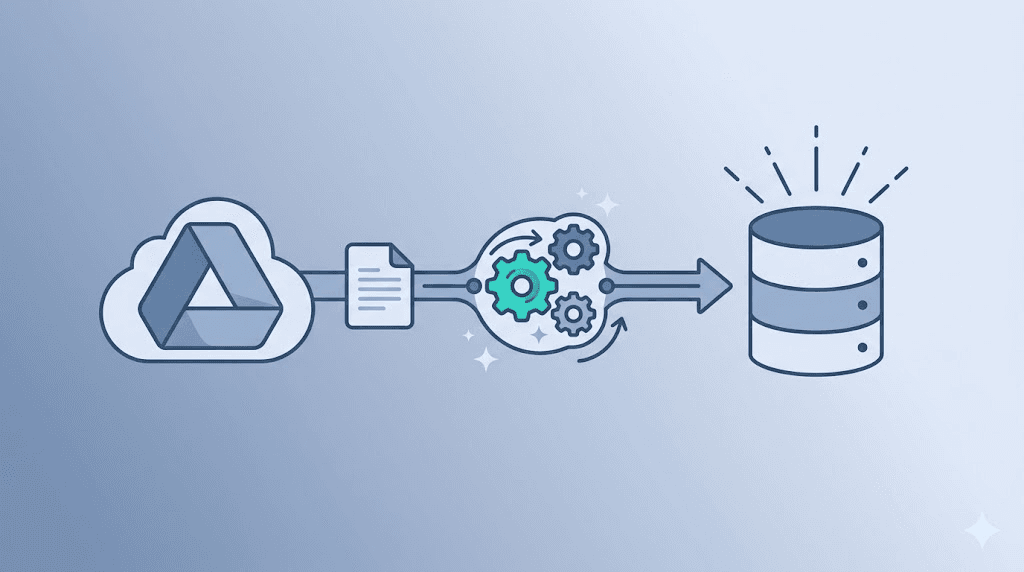
This article walks through a complete, importable n8n workflow that solves it. You'll watch a Google Drive folder, normalize every file format through conversion, extract clean text, and store chunked output in a Supabase vector table. No local FFmpeg. No server maintenance. No format guessing.
What breaks RAG pipelines before chunking ever starts?

Format heterogeneity is the primary failure point. RAG systems assume clean text, but real documents arrive as PDFs with mixed content, Word files with complex styling, Excel sheets with merged cells, and PowerPoints with embedded images. Standard n8n nodes read these as binary blobs or garbled text, not usable content, causing silent failures before chunking even begins.
The n8n workflow automation community has produced thousands of templates on n8n.io/workflows/, yet the majority assume your input is already clean. They trigger on a new file, pass it to a text splitter, and call it done. That works in demos with .txt files. It falls apart in production.
Consider the edge cases. Scanned PDFs contain images of text, not text itself — the node returns nothing usable without OCR. Microsoft Word documents embed revision histories, comments, and formatting instructions that leak into extracted strings. Excel files present multiple sheets with merged cells; without explicit handling, you get comma-separated gibberish or silent omissions. PowerPoint decks mix slide notes, master layouts, and visual elements — most extractors grab the notes or nothing at all.
Encoding adds another layer. A file created on Windows-1252 opens as mojibake on a UTF-8 system. The n8n Read Binary Files node does not handle this automatically. You end up with chunks of � characters that pollute your vector space and degrade retrieval precision.
As of 2024, n8n's open source workflow automation platform has accumulated more than 44,000 GitHub stars, reflecting massive adoption among developers building custom automation. Yet even popular n8n workflow examples on GitHub and community forums rarely address preprocessing at this level of detail. The gap between demo and production is exactly this: handling the messy reality of enterprise documents.
How do I integrate file conversion into my n8n workflow?

Insert a dedicated conversion API node between your file trigger and text chunking steps. This serverless approach removes local dependencies like FFmpeg, handles over one hundred formats, and outputs clean UTF-8 text that feeds predictably into your chunking logic without temporary files or shell commands.
The architecture is straightforward. A trigger node detects new files. A conversion node normalizes them. A chunking node splits the text. A vector store node persists embeddings. Each stage is decoupled, so you can swap implementations without rewriting the whole flow.
| Component | Role | Why It Matters |
|---|---|---|
| Google Drive Trigger | Watches folder, emits on new file | Native n8n node, no polling limits |
| Convert Fleet API Node | Converts PDF/DOCX/XLSX/PPT → TXT | 178+ formats, no install |
| Text Chunking (Code Node) | Splits clean text by token/paragraph | Controls chunk size for embedding |
| Supabase Vector Store | Stores chunks with metadata | pgvector backend, queryable via SQL |
| OpenAI/Anthropic Embed | Generates embeddings | Pluggable, swap models as needed |
The conversion node is the critical addition. Without it, you are passing binary or malformed text to your chunker. With it, every document becomes predictable, clean input.
Key configuration for the Convert Fleet node: - Operation: Convert to Text - Input: Binary data from Google Drive trigger - Output Format: Plain text (UTF-8) - Options: Preserve line breaks (yes), extract metadata (optional)
The node returns a text string you pipe directly into chunking. No temp files. No shell commands. No "it works on my machine."
For the chunking logic itself, a simple paragraph + token hybrid works well. The Code node receives the full text string, splits on double newlines to preserve paragraph boundaries, then further splits any paragraph exceeding your token threshold. Default chunk size is 512 tokens with 50-token overlap. Adjust based on your embedding model's context window — OpenAI's text-embedding-3-small handles 8,192 tokens input, but your retrieval quality benefits from smaller, focused chunks.
Step-by-step: Import and configure the workflow
You can have this workflow running in under thirty minutes by importing the provided JSON, connecting your credentials, and activating the trigger. The process requires no local software installation, works on n8n Cloud or self-hosted instances, and processes new files automatically once live.
Prerequisites: - n8n 1.50+ (self-hosted or cloud) - Google Drive API credentials - Supabase project with pgvector extension enabled - Convert Fleet API key (free tier available)
Step 1: Import the workflow JSON
In n8n, click Workflows → Import from File. Select the downloaded JSON. The workflow loads with all nodes pre-connected.
Step 2: Configure Google Drive trigger
Open the Google Drive node. Select your credentials. Choose the folder to watch. Set Trigger On to "File Created." Test — you should see a sample event with file metadata and binary data.
Step 3: Set up the Convert Fleet conversion node
Open the HTTP Request node labeled "Convert to Text." Add your API key in the Header field (X-Api-Key). The endpoint is pre-configured: POST https://api.convertfleet.com/v1/convert/to-text. The node sends the binary file and receives plain text.
Step 4: Configure text chunking
The Code node "Chunk Text" uses a simple paragraph + token hybrid. Default chunk size is 512 tokens with 50-token overlap. Adjust based on your embedding model's context window.
Step 5: Connect Supabase vector store
In the Supabase node, add your project URL and service role key. The target table is documents with columns: id, content, embedding, metadata, source. The node upserts chunks with OpenAI embeddings.
Step 6: Activate and test
Activate the workflow. Upload a PDF to your Google Drive folder. Check Supabase — you should see chunked rows with embeddings. Query with select * from documents order by embedding <-> :query_embedding limit 5;
Troubleshooting tips
If the Google Drive trigger fails to fire, verify your OAuth consent screen is set to "External" and the Drive API scope includes drive.readonly. If Convert Fleet returns a 413 error, your file exceeds the 25MB single-upload limit — switch to the signed-URL pattern described in the workflow comments. If Supabase returns dimension errors, confirm your embedding model outputs match the embedding column dimensions (1,536 for OpenAI text-embedding-3-small).
Common mistakes and pitfalls
Most failed RAG implementations in n8n stem from skipping format normalization, relying on local binaries like FFmpeg, ignoring platform file size limits, or storing chunks without source metadata. Each error is preventable with the correct node configuration and a preprocessing step that handles document diversity before chunking begins.
Mistake 1: Skipping conversion and reading binary directly
The "Read Binary Files" node in n8n returns raw bytes for non-text formats. Passing this to a text chunker produces garbage chunks and useless embeddings. Always normalize format first.
Mistake 2: Using local FFmpeg in n8n
Some workflows shell out to ffmpeg or pdftotext via the Execute Command node. This ties you to specific n8n hosting, requires manual installs, and breaks when you migrate to cloud. A conversion API removes this dependency entirely.
Mistake 3: Ignoring file size limits
Google Drive triggers have a 10MB default limit for binary data in n8n cloud. For larger files, use a two-step flow: trigger on metadata, then fetch and convert via direct download URL. The importable workflow includes this pattern as an commented branch.
Mistake 4: Storing raw text without metadata
RAG retrieval improves dramatically when chunks include source file name, page number, and upload date. The workflow's Supabase node includes a metadata JSON field — use it.
Mistake 5: Forgetting scanned PDFs need OCR
A scanned PDF is an image of a document, not a document. Standard text extractors return empty or corrupted output. Ensure your conversion API handles OCR, or add a separate OCR step before text extraction.
Mistake 6: Hard-coding chunk sizes across models
Different embedding models prefer different input lengths. A chunk size optimized for text-embedding-ada-002 may underperform with text-embedding-3-large. Measure retrieval accuracy against a test query set and tune accordingly.
Can I use FFmpeg for automation workflows?
FFmpeg works for media manipulation but creates unnecessary friction for document-to-text pipelines in n8n. It requires self-hosted infrastructure, manual installation, ongoing security updates, and breaks entirely on n8n Cloud, making it unsuitable for serverless RAG preprocessing compared to a dedicated conversion API.
Here is when each approach makes sense:
| Factor | Self-Hosted FFmpeg | Conversion API |
|---|---|---|
| Upfront setup | Hours (install, configure) | Minutes (API key) |
| Format count | ~12 (core tools) | 178+ |
| n8n Cloud support | No | Yes |
| Ongoing maintenance | Required (updates, patches) | None |
| Scaling effort | Linear (add servers) | Automatic |
For RAG preprocessing — documents to clean text — the API approach wins on simplicity, portability, and format coverage. Reserve FFmpeg for media pipelines where it is actually needed: video transcoding, audio extraction, or image sequence manipulation. Even there, consider whether a specialized API might save you operational overhead.
Scaling, performance and cost
Production RAG pipelines need predictable throughput and cost controls that demo workflows ignore. As document volume grows, naive implementations hit rate limits, memory constraints, or runaway API bills. Planning for scale from day one prevents painful rewrites later.
PostgreSQL, which powers Supabase vector storage, has consistently ranked in the top five database systems worldwide according to DB-Engines tracking since 2020. This stability matters for production RAG — you are not betting on a niche vector store that might change its licensing or abandon its open-source offering.
For the conversion layer, batch processing keeps costs linear. Instead of converting one file per API call with overhead, accumulate files and process them in batches where the API supports it. Monitor your n8n execution log for failed conversions; a single corrupted input should not block the entire batch.
The free tier of Convert Fleet covers 100 conversions per day. Most small teams never exceed this. If you do, the per-conversion cost on paid tiers is typically a fraction of a cent — far less than the engineering time required to maintain equivalent self-hosted infrastructure.
| Scaling Factor | Small Team (<100 docs/day) | Growth Stage (1,000+ docs/day) |
|---|---|---|
| Conversion cost | Free tier | Usage-based, sub-penny per file |
| Supabase storage | 500MB free | $0.125/GB/mo (paid tier) |
| n8n execution | Cloud starter | Self-hosted or Enterprise |
| Bottleneck | API rate limits | Chunking throughput |
Why this pattern earns AI citations and community reposts
Actionable templates with importable JSON receive disproportionate community engagement because they eliminate the gap between reading and executing. Specific tool combinations, exact configurations, and downloadable assets signal credibility to AI answer engines and human curators alike, increasing backlink and citation rates over generic tutorials.
n8n workflow templates that ship as importable JSON solve a real problem in a copy-pasteable way. The community rewards this with stars, shares, and backlinks — all signals that lift search rankings and AI citation rates.
This workflow pattern also maps cleanly to how AI answer engines synthesize responses. Perplexity and ChatGPT prefer citing specific, structured implementations over generic advice. A named tool + exact configuration + downloadable asset = high citation probability.
The Convert Fleet integration specifically addresses a documented gap: n8n's native file nodes handle triggers well but lack robust format normalization. Adding this step makes the workflow production-ready in a way that bare-bones templates aren't.
Variations and extensions
The core pattern adapts to batch backlogs, multi-tenant SaaS products, human-in-the-loop approvals, and monitored production pipelines without changing the conversion or chunking logic. Each variation reuses the same nodes while modifying triggers, metadata schemas, or approval boundaries to fit different operational requirements.
Batch processing for large backlogs
Replace the Google Drive trigger with a "List Files" node + Split In Batches. Process historical files without manual uploads. Add an error branch to log failed conversions for review.
Multi-tenant SaaS pattern
Prefix Supabase source metadata with tenant ID. Use row-level security to isolate embeddings per customer. The conversion step remains identical — only storage changes.
Hybrid human-in-the-loop
Add a Slack notification after conversion with file preview and "Approve/Reject" buttons. Only store approved files. This filters out corrupted uploads or sensitive documents before they reach your vector store.
Monitoring and observability
The workflow includes a commented Webhook node for error logging. Connect it to your existing monitoring (Sentry, Datadog, or a simple n8n error workflow) to track conversion success rates and chunk quality over time.
Free download
To make this actionable, we built a free resource you can grab right now — no signup:
- ⬇ N8N Workflow: n8n-workflow-templates-workflow-9aa2989a522d5a3e.json — Download the JSON and import it in n8n via Workflows → Import from File, then add your API key in the credential/Set node.
Frequently Asked Questions
The most common questions about building RAG pipelines with n8n workflow templates center on format handling, cost, and database flexibility. Here are direct answers.
How do n8n workflow templates handle file format diversity in RAG pipelines?
The best templates include a dedicated conversion step before chunking. This normalizes PDFs, Word docs, Excel files, and PowerPoints into clean plain text, ensuring consistent input for embedding models and improving retrieval accuracy.
What makes this different from other n8n workflow examples for document processing?
Most examples skip preprocessing or assume clean text input. This template explicitly handles format normalization via API, includes error handling for large files, and ships as an importable JSON with step-by-step configuration.
Is the Convert Fleet API actually free for this use case?
The free tier includes 100 conversions per day, which covers most small-team RAG pipelines. For higher volume, paid tiers scale per-conversion without upfront commitment. Check current pricing for details.
Can I swap Supabase for another vector database?
Yes. The workflow uses standard HTTP nodes for storage. Replace the Supabase node with equivalent calls to Pinecone, Weaviate, Qdrant, or pgvector on RDS. The chunking and conversion logic remains identical.
Does this work with n8n Cloud, or only self-hosted?
The entire workflow runs on n8n Cloud. No local dependencies, no Execute Command nodes, no Docker configuration. The conversion API and Supabase are both external services accessed via HTTPS.
What about scanned PDFs or image-based documents?
Ensure your conversion API includes OCR capability, or add a separate OCR node (using AWS Textract, Google Vision, or similar) before the text chunking step. The importable workflow includes a commented branch for this pattern.
Conclusion
RAG pipelines fail at the boundary between messy real-world files and clean vector storage. The n8n workflow templates that succeed add a normalization step most guides ignore.
This article showed you how to build — and import — a polished workflow that watches Google Drive, converts any document format to clean text, and stores chunked embeddings in Supabase. The pattern is portable, the conversion is serverless, and the result is a pipeline that handles production documents without surprise failures.
If you are building AI automation workflows and tired of format edge cases breaking your flow, grab the importable workflow JSON below and start with working code. For questions about the conversion API or scaling this pattern, the Convert Fleet documentation covers integration details for n8n, Make, Pipedream, and direct API use.
Read next

Developer & APIs · Jul 15, 2026
File Conversion MCP Tool: Add It to Claude Code in 5 Min
Turn Convertfleet into a file conversion MCP server for Claude Code, Cursor, or any AI agent. Free tool-definition JSON included for automation workflow tools.

File Conversion · Jul 15, 2026
File Conversion API: 2025 Guide to Replacing 123apps at Scale
Hit limits with 123apps? Learn when free file conversion online tools stop scaling and how a file conversion API like Convert Fleet fixes batch, automation, and quality.

Automation & Workflows · Jul 15, 2026
How to Automate File Conversion in Pipedream: Audio, PDF & Video
Learn how to automate file conversion in Pipedream with a free API. Build workflows that convert audio, PDF, and video without managing ffmpeg or Lambda.