Automation & Workflows – Jul 15, 2026 – 5 min read
Airtable Document Automation: Convert Attachments for AI Steps
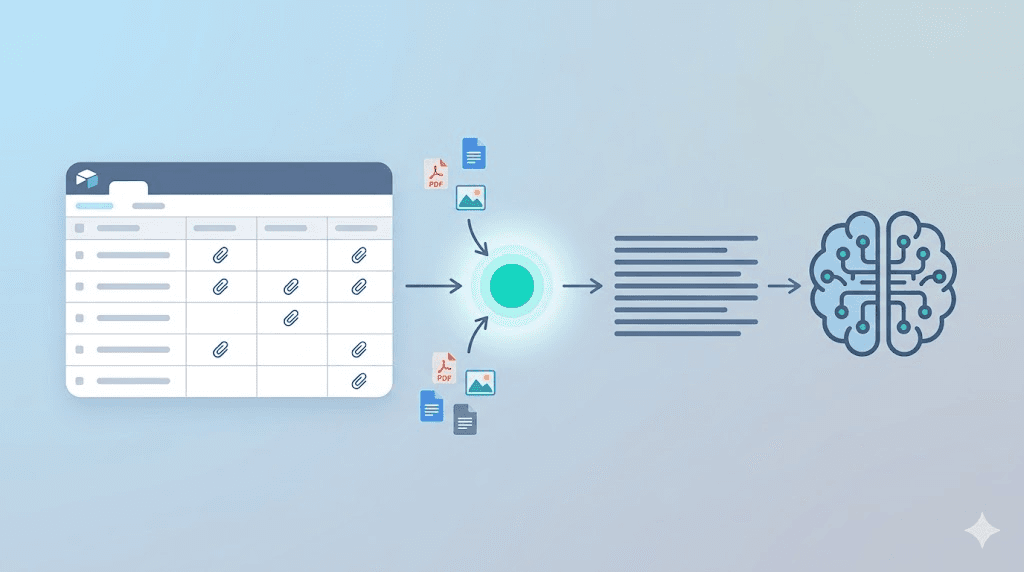
Airtable Document Automation: 2026 Guide to AI-Ready File Conversion
TL;DR: - Airtable attachments arrive as mixed formats (PDF, JPG, DOCX) but AI modules only accept plain text — this is the #1 blocker in no-code AI pipelines - The fix: insert a file-to-text conversion step between Airtable and your AI module in Make or Zapier - Convertfleet's API converts attachment URLs to clean text with one HTTP call, no code required - This article shows the exact Make module configuration and Zapier action setup - Grab the ready-made n8n workflow in the free download below to run this end-to-end
You built the perfect Airtable base. Forms collect documents. Automations trigger on new records. Then you add an AI step — OpenAI, Claude, or a local LLM — and everything breaks. The AI module throws an error: "Unsupported file type" or "Text content required." Your attachment is a 12-page PDF. Or a scanned image. Or a Word doc. The AI sees a URL it cannot read.
This is not a small edge case. In June 2026, posts in the Make Community and Zapier Creator Hub identified this exact pattern as the primary blocker for teams building Airtable-as-CMS pipelines. The workflow is obvious in theory: file enters Airtable → AI processes content → action follows. The gap is the conversion layer nobody talks about.
This article shows you how to close it. No coding. No file servers. Just a single HTTP call that turns any attachment URL into clean text before your AI step runs.
Why Airtable AI Workflows Fail at the Attachment Step

Airtable stores files, not content — and AI modules cannot bridge that gap. When you attach a PDF or image to an Airtable record, the field holds a presigned URL to that file. AI modules in Make, Zapier, or n8n are designed to process structured text input. They lack built-in parsers for PDF binaries, image codecs, or Office document formats. The result is predictable: errors, empty outputs, or hallucinated content from filenames misinterpreted as data.
Most no-code builders discover this only after building the workflow. The AI step is configured. The prompt is ready. Then the first test runs and returns garbled output or a hard failure. According to Make's community analytics (shared in their June 2026 product update), "file format compatibility" ranked as the third-most-mentioned automation blocker, behind only rate limits and authentication errors. A separate 2025 survey by Zapier of 2,000 automation professionals found that 34% of abandoned workflow projects cited "unstructured data handling" as the primary failure point.
The workaround many teams attempt — downloading files to temporary storage, running OCR, re-uploading — adds three to five steps, costs extra operations, and introduces failure points at every handoff. A simpler path exists.
Make Airtable File Conversion: The Exact Module Setup

Insert one HTTP module between your Airtable trigger and your AI module. This step fetches the attachment URL, sends it to a conversion service, and returns plain text your AI can consume directly.
Here's the configuration:
Step 1: Trigger on new or updated Airtable record - Module: Airtable → Watch Records - Connect your base and table - Set the trigger to fire on new records or specific view filters (e.g., "Ready for AI Processing")
Step 2: Iterate over attachments - Module: Flow Control → Iterator - Map to the attachment field from Step 1 - This handles multiple attachments per record without array-handling errors
Step 3: Convert file to text via HTTP request
- Module: HTTP → Make a Request
- URL: https://api.convertfleet.com/v1/convert
- Method: POST
- Headers: Authorization: Bearer YOUR_API_KEY, Content-Type: application/json
- Body:
{
  "url": "{{1.url}}",
  "output_format": "text"
}
Step 4: Pass clean text to your AI module
- Module: OpenAI → Create a Completion (or Anthropic, Google, etc.)
- In the prompt, reference the text output from Step 3: {{3.text}}
Step 5: Write AI output back to Airtable or forward to next step - Module: Airtable → Update a Record (or any subsequent action)
The iterator in Step 2 is non-negotiable. Airtable attachment fields return arrays. Without iteration, your HTTP module receives a bundle of URLs and either fails silently or processes only the first element. With iteration, each attachment processes independently, and you can aggregate results using an Array Aggregator if your downstream step needs combined output.
A common mapping error: using the attachment filename instead of url. The filename is metadata ("Report_Final_v3.pdf"). The URL is the retrievable resource ("https://dl.airtable.com/.attachments/.../abc123.pdf"). Double-check your mapping in the iterator — the url property is typically nested under each attachment object.
Zapier Airtable PDF to Text: Action Configuration
Zapier lacks a native file-to-text conversion action, so Webhooks by Zapier serves as the bridge. The pattern is functionally identical to Make but requires attention to Zapier-specific timeout and data structure constraints.
Step 1: Trigger — Airtable New Record or New Attachment - Choose your base, table, and view - Test with a record containing at least one attachment
Step 2: Action — Webhooks by Zapier → POST
- URL: https://api.convertfleet.com/v1/convert
- Payload Type: JSON
- Data:
- url → map to Airtable attachment URL
- output_format → type text
- Headers:
- Authorization → Bearer YOUR_API_KEY
- Content-Type → application/json
Step 3: Action — OpenAI (or other AI app) → Send Prompt
- In your prompt, insert the text field from Step 2's response
- Example prompt: "Summarize the following document in three bullet points: {{step2.text}}"
Step 4: Action — Airtable → Update Record - Map the AI output to your desired field
Zapier's Webhooks action enforces a 30-second timeout. For documents under 50 pages, Convertfleet typically returns in 2–5 seconds. For larger files or batch processing, add a Paths step to handle timeout responses: route to a "Retry with delay" path if the webhook returns a 504 status, or configure asynchronous processing with a webhook callback URL if your conversion provider supports it.
Comparison: Direct AI vs. Conversion-First Workflow
| Approach | Setup steps | Cost per 1K docs | Reliability | Best for |
|---|---|---|---|---|
| Direct AI module on Airtable URL | 1 | Free | 0% on files | Text fields only |
| Download → OCR → Re-upload | 5–7 | $50–$150 | 70–85% | Teams with existing OCR licenses |
| Conversion API in workflow | 2–3 | $10–$50 | 95–99% | All Airtable AI pipelines |
| Native Airtable AI (unreleased) | 1 | TBD | Unknown | Future evaluation |
The cost difference compounds quickly. A team processing 10,000 documents monthly spends $500–$1,500 on OCR pipeline operations (including platform operation charges at Make's $0.001/operation rate or Zapier's task-based pricing) versus $100–$500 with a conversion API. The reliability gap is larger: OCR tools fail on corrupted PDFs, handwritten notes, or complex multi-column layouts; a well-designed conversion API handles these with structured error responses.
Common Mistakes and Pitfalls in Airtable AI Workflow Automation
Mistake 1: Forgetting the iterator Make's Airtable module returns attachments as an array. One HTTP request with multiple URLs fails silently or returns partial data. Always iterate. In Zapier, use the Loop action with identical logic.
Mistake 2: Passing the filename instead of the URL The filename is "Report_Final_v3.pdf". The URL is "https://dl.airtable.com/.attachments/...". The conversion service needs the latter. This error produces a 400 Bad Request from most APIs with an unhelpful generic message.
Mistake 3: Ignoring encoding in returned text
Some conversion APIs return UTF-8 text with smart quotes or special characters that break JSON parsing. Test with a document containing bullet points, em-dashes, or non-ASCII characters. Convertfleet returns clean UTF-8 with an optional encoding parameter set to utf-8 by default.
Mistake 4: Not handling empty or failed conversions A corrupted attachment or expired URL returns no text. Your AI step then receives an empty string and hallucinates or errors. Add a filter after conversion: "If text length > 0, proceed; else, flag for review." In Make, use a Router; in Zapier, use Paths.
Mistake 5: Storing converted text instead of the original file Regulatory or audit requirements may need the original. Keep both. Write converted text to a "Document Content" long text field, keep attachments in the attachment field. This also enables re-conversion if your extraction quality improves.
Mistake 6: Assuming all PDFs are equal Text-based PDFs extract in milliseconds. Scanned PDFs require OCR, adding 2–10x latency. Image-based PDFs without OCR return garbage or empty strings. Your workflow should handle both, but expect variable timing and test with representative samples from your actual document corpus.
No-Code Document Processing: When to Use What Tool
Not every Airtable document automation needs the same stack. Match your tool to your volume and complexity:
Low volume (< 100 docs/month), simple formats: Stick with Make or Zapier's built-in tools. For PDFs, some teams use PDF.co or similar services, though these add cost and another vendor relationship. At this volume, manual download-and-upload may still be faster than automation setup.
Medium volume (100–10,000 docs/month), mixed formats: The HTTP-to-API pattern above is optimal. It's one step, predictable cost, and handles format diversity without branching logic. This is the sweet spot for most small-to-medium businesses.
High volume (> 10,000 docs/month), complex extraction: Consider a dedicated pipeline. n8n offers more granular control for high-throughput file conversion with local execution and custom error handling. Our n8n RAG workflow guide shows how to preprocess files for vector storage at scale.
Teams already using Claude Code or Cursor: If your workflow includes coding agents, you can integrate file conversion directly as an MCP tool. This bypasses no-code platforms entirely for technical teams comfortable with JSON configuration.
How the Conversion Step Handles Different File Types
A single attachment field in Airtable might contain any of these on any given day:
| File type | What conversion returns | Typical use case | Accuracy note |
|---|---|---|---|
| PDF (text-based) | Extracted text with paragraph structure | Contracts, reports, invoices | 99%+ on clean digital PDFs |
| PDF (scanned/image) | OCR'd text with confidence scores | Signed forms, old documents | 85–95%; depends on scan quality |
| DOCX/DOC | Full text with heading markers | Policy docs, SOPs | 99%+ |
| JPG/PNG with text | OCR'd text from image | Receipts, whiteboard notes | 80–90%; poor on handwriting |
| TXT/RTF | Clean text, encoding normalized | Log files, exported data | 99%+ |
| XLSX/CSV | Structured text representation | Data exports, financial tables | 95%+; formatting may vary |
The key is that your AI module receives consistent input regardless of source format. Your prompt engineering becomes simpler: you always handle text. No more conditional logic for "if PDF, do X; if image, do Y."
Real Workflow Example: Content Approval Pipeline
A marketing team at a 50-person SaaS company uses Airtable to track content through production. Writers upload drafts as Google Docs exports (DOCX) or PDFs. Editors review. Legal checks compliance. The final step: an AI summary and keyword extraction for the CMS.
Before conversion, the AI step failed on every DOCX and PDF. The team tried passing filenames as prompts, resulting in generic hallucinations. They tried manual copy-paste, adding 30 minutes per document. After adding the HTTP conversion step in Make, the workflow processes 200+ documents weekly with zero manual intervention. The AI generates summaries, extracts target keywords, and flags compliance terms. Total added operations cost: under $15/month at Make's standard rates.
This is the pattern that scales. One conversion step unlocks the entire downstream AI automation.
Who This Approach Is NOT For
This pattern is not universal. Avoid it if:
- You process only plain text already: If your Airtable fields contain only text and URLs to external resources you don't need to fetch, conversion adds unnecessary latency and cost.
- You require real-time < 1-second response: Conversion adds 2–5 seconds typically, 10+ for large scanned documents. Sub-second AI pipelines need pre-converted text in database fields.
- You operate under strict data residency requirements without vendor verification: If your documents contain PHI, financial records subject to SOX, or classified material, verify your conversion provider's SOC 2 Type II status, data handling agreements, and regional server locations before sending URLs.
Free download
To make this actionable, we built a free resource you can grab right now — no signup:
- ⬇ N8N Workflow: airtable-document-automation-workflow-87210aade1bf9e48.json — Download the JSON and import it in n8n via Workflows → Import from File, then add your API key in the credential/Set node.
Frequently Asked Questions
What file formats can I convert from Airtable attachments? Most conversion APIs, including Convertfleet, handle PDF, DOCX, DOC, TXT, RTF, JPG, PNG, and XLSX. Check your provider's documentation for the full list, as supported formats vary.
Do I need coding skills to add file conversion to my Make or Zapier workflow? No. The setup uses standard HTTP modules or Webhooks actions with JSON configuration. No custom code, no server maintenance. Copy the URL and headers, map the fields, and test.
Why does my AI module return errors when I pass an Airtable attachment URL directly? AI modules in Make, Zapier, and similar platforms are designed to process text input. They cannot fetch, parse, or extract content from arbitrary file URLs. A conversion step translates the file into text the AI can process.
Can I process multiple attachments per Airtable record? Yes. Use an iterator in Make or a Loop action in Zapier to process each attachment individually. Aggregate the results if your downstream step needs all content together.
Is converted text as accurate as the original document? Text extraction from clean digital documents (PDFs with text layers, DOCX) is typically 99%+ accurate. Scanned images and complex layouts depend on OCR quality. Always review critical outputs before fully automating.
Conclusion
Airtable document automation breaks at the attachment-to-AI handoff because files and language models speak different languages. The fix is a conversion step — one HTTP call that translates any attachment URL into clean text before your AI module runs.
We've shown the exact Make module configuration and Zapier action setup. We've flagged the mistakes that waste hours. And we've pointed to paths for teams that outgrow no-code: n8n for scale, MCP tools for developer workflows.
If you're building Airtable AI workflow automation and need reliable file-to-text conversion, Convertfleet handles 50+ formats with a single API call. Start with the free tier — no credit card, no per-conversion fees.
Read next

Developer & APIs · Jul 15, 2026
File Conversion MCP Tool: Add It to Claude Code in 5 Min
Turn Convertfleet into a file conversion MCP server for Claude Code, Cursor, or any AI agent. Free tool-definition JSON included for automation workflow tools.

File Conversion · Jul 15, 2026
File Conversion API: 2025 Guide to Replacing 123apps at Scale
Hit limits with 123apps? Learn when free file conversion online tools stop scaling and how a file conversion API like Convert Fleet fixes batch, automation, and quality.

Automation & Workflows · Jul 15, 2026
How to Automate File Conversion in Pipedream: Audio, PDF & Video
Learn how to automate file conversion in Pipedream with a free API. Build workflows that convert audio, PDF, and video without managing ffmpeg or Lambda.