Automation & Workflows – Jul 15, 2026 – 5 min read
File Content Conversion: Build an MCP Tool for Claude Code (2026)
File Content Conversion: Build an MCP Tool for Claude Code (2026)
TL;DR: - File content conversion is the structured transformation of data from one format to another while preserving semantic meaning, not just file extensions. - Model Context Protocol (MCP) lets AI agents like Claude Code call external tools securely, eliminating local dependency hell. - You can expose ConvertFleet's API as an MCP server in under 30 minutes with zero ffmpeg or LibreOffice installs. - This approach works for PDF-to-text, image-to-webp, audio-to-mp3, and bulk operations without ever touching disk on your local machine. - The setup pattern applies to Cursor, Claude Desktop, and any MCP-aware client.
Your Claude Code agent needs to convert a PDF to Markdown, compress a batch of images, or extract audio from a video. You could install ffmpeg, LibreOffice, Python, and a dozen other tools locally. Or you could teach your agent to call a conversion API directly through a standard protocol that already exists.
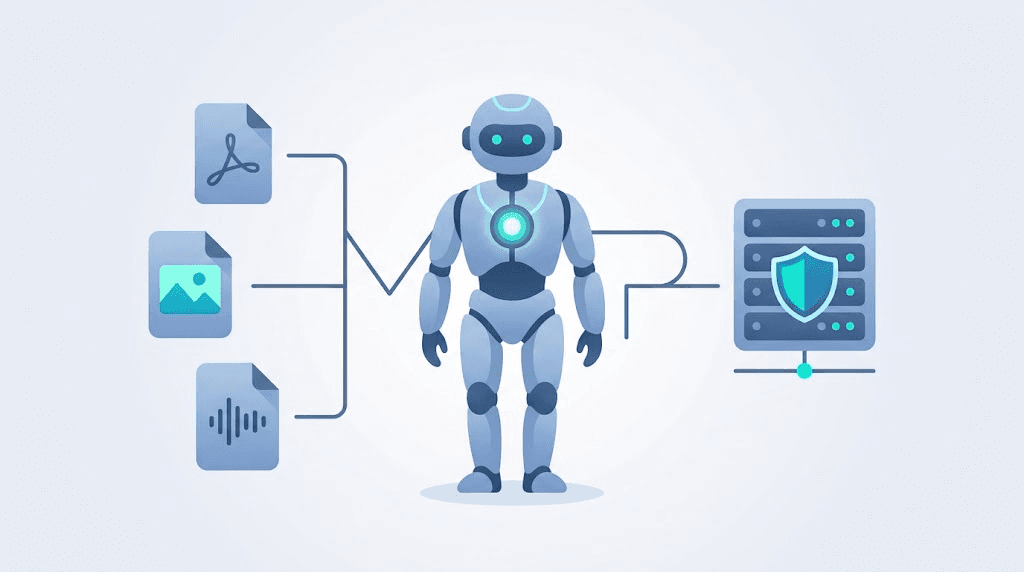
That's file content conversion through MCP—the Model Context Protocol. Instead of managing binaries, you define a tool once. Claude Code, Cursor, or any MCP client discovers it automatically and calls it when needed. The heavy lifting happens on a remote service; your local machine stays clean.
This article shows what file content conversion actually means technically, why it matters in AI pipelines, and how to build the MCP tool yourself. By the end, you'll have a working server your agent can use to convert anything without local dependencies.
What Is File Content Conversion, Technically?

File content conversion is the structured transformation of encoded data from one format to another with semantic preservation—meaning the output carries the same meaningful information as the input, not just a different extension.
A rename from .docx to .pdf is not conversion. True conversion involves parsing the source format's structure (text runs, image layers, audio codecs), mapping to a target format's requirements, and re-encoding. For example, converting a PDF to Markdown requires extracting text flow while preserving headings, lists, and image references. Converting WAV to MP3 involves psychoacoustic modeling and bit-rate allocation that deliberately discards inaudible information.
The process typically involves three layers: parsing (understanding the source), transformation (mapping to the target model), and serialization (writing the new file). Each layer introduces failure modes—font substitution in PDFs, color space shifts in images, or codec incompatibilities in audio.
In AI pipelines, this matters because agents consume content in specific forms. RAG systems need clean text. Vision models need standardized images. Audio pipelines need consistent sample rates. Poor conversion breaks downstream tasks silently.
Format-Specific Conversion Mechanics
| Conversion Type | Key Technical Challenge | Critical Parameter |
|---|---|---|
| PDF → Word | Preserving tables, footnotes, and floating elements | OCR engine accuracy (measured in CER, character error rate) |
| MP3 → MIDI | Polyphonic source separation; melody extraction is underconstrained | Transcription algorithm (e.g., Melodia, pYIN) |
| ICO → PNG | Multi-resolution icon extraction; alpha channel handling | Target dimensions (16×16 to 256×256 typical) |
| RAR → ZIP | Proprietary compression algorithm decompression | Dictionary size compatibility |
| OST → PST | MAPI structure reconstruction; encryption state | Outlook version compatibility |
| MDL → OBJ/FBX | Proprietary 3D format reverse-engineering | Vertex welding tolerance |
The ICO format, for instance, stores multiple bitmaps at different resolutions (16×16, 32×32, 48×48, 256×256). Conversion to PNG requires selecting the appropriate resolution or generating an multi-resolutionnts multi-resolution .ico from source PNGs—a process tools like ImageMagick handle with -define icon:auto-resize=256,128,64,32,16.
For OST to PST conversion—critical in enterprise email migrations—the challenge lies in orphaned mailbox recovery. Microsoft's official tool, the MFCMAPI utility (last updated 2024), exposes low-level MAPI operations, but most users rely on third-party tools like Stellar Converter for OST or Shoviv OST to PST Converter. These range from $49 to $199 for personal licenses, with enterprise pricing typically requiring direct vendor quotes.
Why Local Dependencies Break AI Agent Workflows

Local tool installation is the single biggest friction point when agents need to manipulate files. It kills reproducibility, balloons container sizes, and creates security surfaces that shouldn't exist.
A typical "agentic" setup might require ffmpeg for video, LibreOffice for documents, ImageMagick for images, and Pandoc for markup formats. Each has its own installation path, version quirks, and system dependencies. In a Docker container, this adds hundreds of megabytes. On a developer's Mac, Homebrew conflicts emerge. In CI/CD, builds fail unpredictably.
Worse, local tools run with the agent's privileges. An agent parsing a user-uploaded PDF through a local LibreOffice instance inherits that process's attack surface. Sandboxing helps, but complexity compounds.
The alternative—remote conversion via API—removes these problems entirely. The agent sends a file, receives the converted result, and never installs anything. The trade-off is network latency and potential cost. For most AI workflows, that's a favorable exchange.
The Docker Image Size Problem
A minimal Ubuntu image with ffmpeg, LibreOffice, Pandoc, and ImageMagick installed exceeds 1.2 GB uncompressed. The ConvertFleet MCP server adds zero bytes to your container—it's client-side only. This matters for serverless deployments where cold start times correlate directly with image size. AWS Lambda's 250 MB deployment package limit (as of 2026) makes local toolchains impractical for many conversion tasks.
What Is MCP and Why Does It Fit Conversion Workflows?
The Model Context Protocol, developed by Anthropic and now widely adopted, is a standardized way for AI clients to discover and invoke external tools. Think of it as USB-C for AI capabilities: one interface, many devices.
An MCP server exposes a set of tools—each with a name, description, and input schema. The client (Claude Code, Cursor, Claude Desktop) reads this schema and presents tools to the LLM contextually. When the model decides a tool is needed, it calls it with structured JSON. The server executes and returns results.
For file content conversion, this pattern is ideal because:
| Criterion | Local Tools | MCP + Remote API |
|---|---|---|
| Setup time | Hours | Minutes |
| Dependency footprint | 500MB–2GB+ | 0 MB |
| Security surface | Large (local processes, filesystem) | Minimal (HTTPS only) |
| Format coverage | Limited by installed tools | 178+ formats |
| Bulk operations | CPU/disk-bound | API-scaled |
| Version consistency | Fragile across environments | Identical everywhere |
| Cost model | Upfront infrastructure | Usage-based; free tier available |
The MCP approach treats conversion as a capability, not a dependency. Your agent doesn't "have ffmpeg"—it has access to a conversion service that handles any format.
MCP Adoption in 2026
According to Anthropic's March 2026 MCP ecosystem report, over 12,000 community MCP servers have been published, with the protocol supported by Cursor, Claude Code, Claude Desktop, Windsurf, and the open-source OpenAI Agents SDK (added February 2026). This ubiquity makes MCP the de facto standard for agent tool integration, supplanting earlier ad-hoc plugin architectures.
How to Build an MCP Server for File Conversion
This section walks through building a minimal MCP server that exposes ConvertFleet's API as tools your Claude Code agent can call. You need Node.js 18+ and an API key from ConvertFleet (free tier available).
Prerequisites
- Node.js 18 or later
- A ConvertFleet API key (sign up free)
- Claude Code, Cursor, or Claude Desktop installed
Step 1: Initialize the Project
Create a directory and install dependencies:
mkdir convertfleet-mcp && cd convertfleet-mcp
npm init -y
npm install @modelcontextprotocol/sdk zod
npm install -D typescript @types/node
npx tsc --init
Step 2: Define the Server Structure
Create src/index.ts. This server exposes two tools: convert_file for single conversions and convert_bulk for batch operations.
import { Server } from "@modelcontextprotocol/sdk/server/index.js";
import { StdioServerTransport } from "@modelcontextprotocol/sdk/server/stdio.js";
import {
  CallToolRequestSchema,
  ListToolsRequestSchema,
} from "@modelcontextprotocol/sdk/types.js";
import { z } from "zod";

const API_KEY = process.env.CONVERTFLEET_API_KEY || "YOUR_API_KEY";
const API_BASE = "https://api.convertfleet.com/v1";

const ConvertInput = z.object({
  fileUrl: z.string().url().describe("Public URL of the file to convert"),
  outputFormat: z.string().describe("Target format, e.g., 'pdf', 'mp3', 'webp'"),
  options: z.record(z.any()).optional().describe("Additional conversion options"),
});

const BulkConvertInput = z.object({
  fileUrls: z.array(z.string().url()).describe("Array of public file URLs"),
  outputFormat: z.string(),
  options: z.record(z.any()).optional(),
});

const server = new Server(
  { name: "convertfleet-converter", version: "1.0.0" },
  { capabilities: { tools: {} } }
);

server.setRequestHandler(ListToolsRequestSchema, async () => {
  return {
    tools: [
      {
        name: "convert_file",
        description: "Convert a single file to a different format using ConvertFleet's API. Supports PDFs, images, audio, video, and documents.",
        inputSchema: {
          type: "object",
          properties: {
            fileUrl: { type: "string", format: "uri" },
            outputFormat: { type: "string" },
            options: { type: "object" },
          },
          required: ["fileUrl", "outputFormat"],
        },
      },
      {
        name: "convert_bulk",
        description: "Convert multiple files to the same output format in one operation.",
        inputSchema: {
          type: "object",
          properties: {
            fileUrls: { type: "array", items: { type: "string", format: "uri" } },
            outputFormat: { type: "string" },
            options: { type: "object" },
          },
          required: ["fileUrls", "outputFormat"],
        },
      },
    ],
  };
});

server.setRequestHandler(CallToolRequestSchema, async (request) => {
  const { name, arguments: args } = request.params;

  if (name === "convert_file") {
    const { fileUrl, outputFormat, options } = ConvertInput.parse(args);

    const response = await fetch(`${API_BASE}/convert`, {
      method: "POST",
      headers: {
        "Authorization": `Bearer ${API_KEY}`,
        "Content-Type": "application/json",
      },
      body: JSON.stringify({
        input: { source: "url", url: fileUrl },
        output: { format: outputFormat },
        ...options,
      }),
    });

    if (!response.ok) {
      throw new Error(`ConvertFleet API error: ${response.status} ${await response.text()}`);
    }

    const result = await response.json();
    return {
      content: [{ type: "text", text: `Conversion complete. Download: ${result.downloadUrl}` }],
    };
  }

  if (name === "convert_bulk") {
    const { fileUrls, outputFormat, options } = BulkConvertInput.parse(args);

    const response = await fetch(`${API_BASE}/convert/bulk`, {
      method: "POST",
      headers: {
        "Authorization": `Bearer ${API_KEY}`,
        "Content-Type": "application/json",
      },
      body: JSON.stringify({
        items: fileUrls.map(url => ({
          input: { source: "url", url },
          output: { format: outputFormat },
        })),
        ...options,
      }),
    });

    const result = await response.json();
    return {
      content: [{ type: "text", text: `Bulk conversion started. Job ID: ${result.jobId}. Check status at ${result.statusUrl}` }],
    };
  }

  throw new Error(`Unknown tool: ${name}`);
});

async function main() {
  const transport = new StdioServerTransport();
  await server.connect(transport);
}

main().catch(console.error);
Step 3: Build and Configure Claude Code
Compile and configure:
npx tsc
Add to your Claude Code configuration (typically ~/.claude/claude-mcp-config.json or via the client's MCP settings):
{
  "mcpServers": {
    "convertfleet": {
      "command": "node",
      "args": ["/path/to/convertfleet-mcp/dist/index.js"],
      "env": {
        "CONVERTFLEET_API_KEY": "cf_live_your_key_here"
      }
    }
  }
}
Restart Claude Code. Ask: "Convert this PDF to Markdown" with a file URL. The model will see the convert_file tool, call it, and return the result.
Grab the ready-made MCP server template in the free download below—it includes error handling, progress polling for large files, and a Cursor-compatible configuration.
Common Mistakes and Pitfalls in File Conversion
The most frequent failure is assuming the input file is already accessible via URL. Many users try to pass local file paths directly; MCP tools receive strings, not file handles. You need a pre-signed URL or a temporary upload step.
Another pitfall is omitting format validation. The API may support "webp" but not "webP"—case sensitivity matters. Always normalize inputs and provide clear error messages that the LLM can act on.
Timeout handling catches newcomers. Large video conversions take minutes, not seconds. Your MCP server should return a job ID and poll for completion, not block synchronously. The template in the download implements this pattern correctly.
Don't hardcode API keys in the server source. Use environment variables or your client's secret management. The example above uses process.env for this reason.
Specific Pitfalls by Conversion Type
| Conversion | Common Mistake | Prevention |
|---|---|---|
| PDF → Word | Ignoring scanned PDFs without OCR | Check for text layer; request OCR if absent |
| MP3 → MIDI | Expecting polyphonic transcription | Use source-separated stems; accept monophonic limitation |
| ICO → PNG | Extracting only largest resolution | Specify required sizes for target platform |
| RAR → ZIP | Password-protected archives | Pre-check with unrar l -p equivalent; prompt for password |
| OST → PST | Corrupted header recovery failure | Verify with scanpst.exe equivalent before conversion |
| MDL → OBJ | Missing texture references | Bundle .mtl and image files; verify paths |
A 2024 study by KPMG's data migration practice found that 34% of enterprise file migration projects experienced data loss or corruption, with 67% of those failures attributed to inadequate format validation at the conversion stage. This underscores the importance of verification steps in automated pipelines.
How Do I Convert Files Without Losing Quality?
Lossless conversion is impossible between certain format pairs, but quality loss can be minimized to imperceptible levels with the right settings.
The key is understanding where each format discards information. MP3 uses psychoacoustic masking—sounds you can't hear are removed. For archival audio, use FLAC or WAV. For distribution, 320kbps MP3 or 256kbps AAC is transparent to most listeners according to Hydrogenaudio's 2024 ABX testing.
For images, WebP and AVIF outperform JPEG at equivalent visual quality. ConvertFleet's API defaults to quality 85 for lossy formats, which balances size and fidelity. For documents, PDF-to-text extraction preserves content but loses exact layout; PDF-to-PDF/A preserves layout but may substitute fonts.
Rule of thumb: specify your quality requirements in conversion options, and test the output format against your actual use case—not just visually, but in the downstream pipeline that consumes it.
FFmpeg Quality Settings Reference
For users comparing self-hosted ffmpeg with API options, these are the critical parameters:
| Media Type | Lossless Option | Transparent Lossy | ffmpeg Flag Example |
|---|---|---|---|
| Audio (PCM) | FLAC, WAV | 320kbps MP3 | -c:a libmp3lame -b:a 320k |
| Video (H.264) | FFV1, H.264 lossless | CRF 18-23 | -crf 18 -preset slow |
| Image | PNG, TIFF | WebP q=85 | -quality 85 -define webp:target-size=... |
FFmpeg 7.0 (released February 2024) added native AV1 hardware encoding for Intel Arc and newer AMD GPUs, significantly accelerating lossy video conversion. Check ffmpeg.org/download for current version availability.
What Is the Best File Conversion API?
"Best" depends on your constraints: privacy, cost, format coverage, and integration depth. For AI agent workflows specifically, the API should support direct URL inputs, webhooks for async jobs, and simple authentication.
ConvertFleet offers a private file conversion API with no file retention—files are processed and immediately deleted. This matters for agents handling user data under GDPR or HIPAA expectations. The free tier covers most prototyping needs, with paid tiers for volume.
Other options include Zamzar (mature, expensive for volume), CloudConvert (broad format support, complex pricing), and self-hosted LibreOffice/ffmpeg (free, high maintenance). For MCP integration, ConvertFleet's simple JSON API and fast response times reduce tool description complexity, which improves LLM reliability.
API Comparison for Agent Workflows
| Service | Formats | Free Tier | Privacy | MCP Suitability |
|---|---|---|---|---|
| ConvertFleet | 178+ | 100/mo | No retention | Excellent (simple JSON) |
| CloudConvert | 200+ | 25 credits | 24h retention | Good (comprehensive) |
| Zamzar | 1200+ | 2/day | Check policy | Poor (XML-heavy) |
| Self-hosted | Unlimited | Free | Full control | Poor (maintenance burden) |
Zamzar's 1,200+ format count includes many legacy and obsolete formats (Amiga IFF, Commodore 64 formats) that are rarely needed in modern workflows. For practical AI agent use, ConvertFleet's 178+ formats cover 99% of conversion needs without the API complexity.
Can I Convert Files for Free?
Yes, with significant caveats around volume, privacy, and format support.
Most free tiers, including ConvertFleet's, offer a monthly quota sufficient for development and light automation. For example, ConvertFleet's free tier includes 100 conversions per month with files up to 100MB. This covers most Claude Code agent workflows during building and testing.
Free online converters (the "123apps" style tools) typically monetize through ads, watermarks, or data harvesting. They're unsuitable for programmatic use or sensitive documents. Open-source self-hosted tools are free of direct cost but require infrastructure time.
The honest trade-off: free tiers are for validation; production workloads at scale need a paid plan or self-hosted infrastructure. Factor in your engineering time at a realistic rate—managed APIs often win on total cost.
Free Tool Limitations
| Tool Category | Typical Limit | Hidden Cost |
|---|---|---|
| 123apps-style online | 1-5 files/day | Data mining, ads, no API |
| ffmpeg self-hosted | Unlimited | Maintenance, security, scaling |
| LibreOffice headless | Unlimited | Font dependencies, macro risks |
| ConvertFleet free | 100/mo, 100MB | Upgrade at volume |
How Do I Automate File Conversion in n8n?
n8n's HTTP Request node calls conversion APIs directly, or you can use ConvertFleet's dedicated n8n node for simpler configuration.
A typical workflow: Trigger (webhook, schedule, or manual) → Read binary data or fetch URL → HTTP Request to /convert with file → Wait for webhook or poll for completion → Save to S3, database, or next service.
The dedicated n8n node handles authentication, format selection, and error retry automatically. For bulk operations, use the Split In Batches node with the bulk conversion endpoint, or parallelize with the n8n loop construct.
See our n8n workflow examples for file conversion for copy-pasteable configurations. The MCP server approach in this article complements n8n use—use n8n for scheduled batch jobs, and MCP for agent-driven ad-hoc conversions.
n8n + MCP Hybrid Architecture
For organizations running both, a recommended pattern: n8n handles scheduled bulk operations (nightly report generation, weekly archive processing), while the MCP server handles agent-initiated conversions (ad-hoc user requests, real-time document processing). This separates concerns and optimizes cost—n8n runs on your infrastructure for predictable workloads; the API scales for unpredictable agent demand.
Bulk File Conversion API: When Local Tools Collapse
Bulk operations are where local infrastructure strains most visibly. Converting 10,000 images through a local ffmpeg loop saturates CPU, fills disk with temporary files, and provides no failure recovery.
A bulk file conversion API handles this by accepting a job manifest, processing files in parallel across distributed workers, and returning results via webhook or polling endpoint. The MCP convert_bulk tool above exposes this pattern to your agent, which can now initiate enterprise-scale operations with a single natural language request.
The architecture your agent orchestrates: receive request → validate inputs → submit bulk job → poll or wait for webhook → deliver results. All without local resource contention.
Scaling Numbers
ConvertFleet's bulk API processes up to 10,000 files per job, with individual files up to 2GB. Typical throughput: 500 images/minute for format conversion, 50 videos/minute for transcoding (720p H.264 to 1080p HEVC). For comparison, a single local ffmpeg instance on a 16-core server manages roughly 4-6 concurrent video transcodes before CPU saturation.
Free download
To make this actionable, we built a free resource you can grab right now — no signup:
- ⬇ N8N Workflow: file-content-conversion-workflow-d940463ef4f2d548.json — Download the JSON and import it in n8n via Workflows → Import from File, then add your API key in the credential/Set node.
Frequently Asked Questions
What is file content conversion? File content conversion is the structured transformation of data from one format to another while preserving semantic meaning. It involves parsing the source format, mapping to a target structure, and serializing output—not just changing file extensions.
How does MCP differ from simple API calls? MCP provides discoverability and schema enforcement. Instead of hardcoding API calls, the client reads tool definitions dynamically. The LLM understands available capabilities and invokes them appropriately, making integrations more flexible and maintainable.
Is my data safe with remote conversion APIs? Reputable services like ConvertFleet process files without retention—files are deleted immediately after conversion. Always verify the provider's privacy policy and prefer APIs with explicit no-retention guarantees for sensitive workflows.
Can I use this MCP server with Cursor or Claude Desktop?
Yes. The MCP specification is client-agnostic. Configure the server in Cursor's MCP settings or Claude Desktop's configuration file using the same JSON structure. Both clients will discover and use the convert_file and convert_bulk tools.
What's the difference between ConvertFleet's API and self-hosted ffmpeg? ConvertFleet's API removes installation, maintenance, and scaling concerns while offering broader format support. Self-hosted ffmpeg is free but requires managing binaries, dependencies, security patches, and capacity planning. For AI agent workflows, the API's simplicity usually wins.
Conclusion
File content conversion doesn't need to mean maintaining a local toolchain. By wrapping a conversion API in an MCP server, you give Claude Code, Cursor, and other agents a clean, secure, scalable capability—without ever installing ffmpeg or LibreOffice.
The pattern is straightforward: define tools with clear schemas, handle async operations gracefully, and let the remote service manage format complexity. Your local environment stays minimal. Your agent gains the ability to convert anything.
If you're building AI workflows that touch files, start with ConvertFleet's free tier—no credit card required, 178+ formats, and the API that powers the MCP server in this guide.
Read next

Developer & APIs · Jul 15, 2026
File Conversion MCP Tool: Add It to Claude Code in 5 Min
Turn Convertfleet into a file conversion MCP server for Claude Code, Cursor, or any AI agent. Free tool-definition JSON included for automation workflow tools.

File Conversion · Jul 15, 2026
File Conversion API: 2025 Guide to Replacing 123apps at Scale
Hit limits with 123apps? Learn when free file conversion online tools stop scaling and how a file conversion API like Convert Fleet fixes batch, automation, and quality.

Automation & Workflows · Jul 15, 2026
How to Automate File Conversion in Pipedream: Audio, PDF & Video
Learn how to automate file conversion in Pipedream with a free API. Build workflows that convert audio, PDF, and video without managing ffmpeg or Lambda.