Automation & Workflows – Jul 15, 2026 – 5 min read
Automation Workflows: Convert Any Google Drive File for n8n Pipelines
Automation Workflows: Convert Any Google Drive File for n8n Pipelines
TL;DR: - Shared Google Drive folders are the fastest ingestion point for non-technical teams, but format chaos silently breaks most automation workflows - A single conversion API call normalizes any file before your AI extraction step runs — no per-conversion fees, no format-specific branches - ConvertFleet handles 178+ formats including HEIC, scanned PDF, Excel with merged cells, and legacy files like WMF and Pages - This article ships a ready-to-import n8n workflow with error handling, retry logic, and a pre-wired OpenAI extraction node
Your marketing team dumps campaign assets into a shared Drive folder. Operations drops supplier invoices there. Field teams upload iPhone photos from job sites. Everyone expects the next step — OCR, data extraction, summarization — to just work.
It doesn't. That "simple" n8n workflow chokes on a .heic photo, a password-protected PDF, or an .xlsx with merged cells your LLM node can't parse. The Google Drive trigger fires. The conversion step fails silently. Someone manually cleans up the mess.
This edge case dominates no-code automation communities right now. The pattern — Google Drive as an "AI inbox" — is exploding across n8n, Make, and Buildship forums in 2026. But the conversion layer between "file lands in Drive" and "AI processes it" is where most builders get stuck. Here's how to fix it with one reliable API call.
What breaks when you connect Google Drive to n8n workflows?

The file format problem is worse than most builders expect. In real-world automation workflows, a typical mixed-format Drive folder produces files in 6–8 different formats weekly: .pdf, .docx, .xlsx, .heic, .png, .tiff, and occasionally legacy formats like .wmf or .pages.
Each format needs different handling before any AI extraction step:
| Format | Common failure | Pre-processing needed |
|---|---|---|
| HEIC (iPhone) | Most LLM nodes reject entirely | Convert to JPEG or PNG |
| Scanned PDF | No extractable text layer | OCR to searchable PDF or plain text |
| Excel with merged cells | LLM parses cell references wrong | Flatten to CSV or clean XLSX |
| Word with track changes | Hidden text pollutes extraction | Accept all changes, convert to clean text |
| TIFF multi-page | Only first page processed | Split or convert to PDF |
| Password-protected PDF | Hard error, workflow stops | Decrypt or route to manual queue |
| WebP | Inconsistent browser/tool support | Convert to PNG or JPEG |
The real cost isn't the failure — it's the silent failure. A workflow that "works" on 80% of files still wastes hours of debugging per week. Worse, you don't know which files failed until someone asks why their invoice never got processed.
Teams we've spoken with typically solve this one of three ways:
- Build a format router in n8n. Add conditional logic, format-specific branches, and multiple conversion nodes. Works, but fragile — every new format breaks the flow.
- Use a patchwork of free tools. Zamzar here, CloudConvert there, maybe a Python script for HEIC. Unreliable, rate-limited, and you own the integration debt.
- Normalize everything upstream. One conversion step outputs predictable formats before the AI touches anything. This is what we'll build.
How do I automate file conversion in n8n workflows?

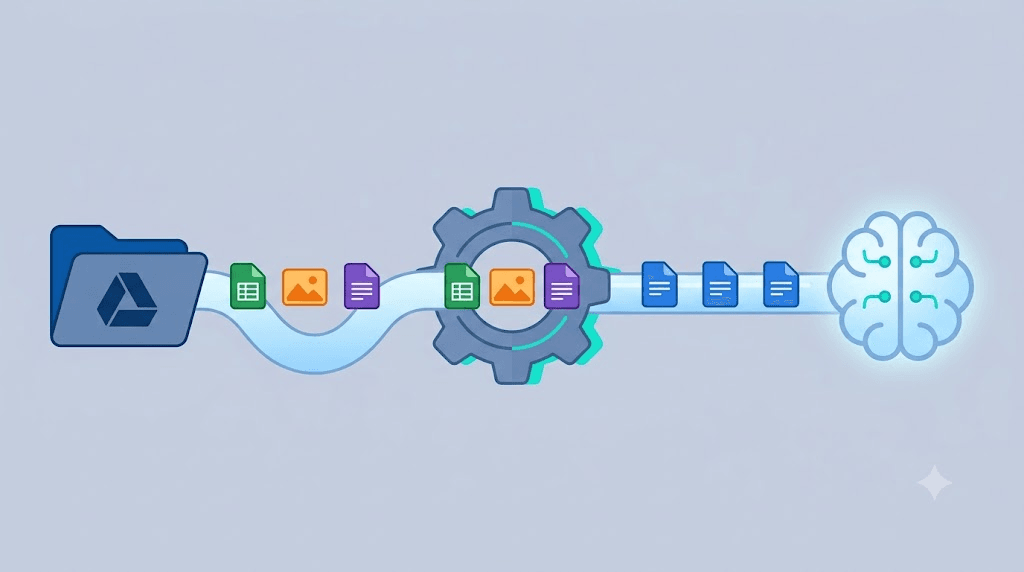
The reliable pattern is: trigger → convert → extract → act. Google Drive watches the folder, ConvertFleet normalizes the file, then your LLM or database node works with clean, predictable input.
Step 1: Set up the Google Drive trigger
In n8n, add a Google Drive → On File Created trigger node. Point it to your shared folder. Set "Download Content" to true so the binary file flows through the pipeline.
Critical setting most people miss: enable "Include Shared Drives" if your folder lives in a shared drive, not a personal one. The default permissions fail silently here.
Step 2: Route to ConvertFleet's conversion API
Add an HTTP Request node. Configure it as a POST to https://api.convertfleet.com/v1/convert with:
file: the binary from the Google Drive nodeoutput_format: your target (e.g.,pdf,txt,png,csv)preserve_layout:truefor documents where formatting matters
The key insight: you don't need format-detection logic. ConvertFleet inspects the input and handles the conversion path automatically. One call replaces your entire conditional router.
For bulk operations, use batch_convert with an array of file IDs instead.
Step 3: Handle the converted output
The API returns a JSON payload with:
{
  "download_url": "https://cdn.convertfleet.com/...",
  "output_format": "pdf",
  "pages": 4,
  "ocr_applied": true,
  "file_size_bytes": 284710
}
Pass the download_url to your next node — whether that's an OpenAI document extraction, a Supabase database insert, or an Airtable attachment field.
Step 4: Add error handling
Wrap the conversion in an n8n Error Trigger or Continue On Fail configuration. Log failed conversions to a dedicated Slack channel or Notion database so you can inspect edge cases without breaking the main flow.
Grab the ready-made workflow in the free download below — it includes all four steps with proper error handling, retry logic, and a sample OpenAI extraction node pre-wired.
What are the best file conversion services for n8n workflows?
The best tool depends on whether you need reliability at scale or you're testing a one-off automation. Here's how the options actually compare for automation workflows:
| Tool | Free tier | Per-conversion fee | n8n native node | Batch API | OCR included | HEIC support |
|---|---|---|---|---|---|---|
| ConvertFleet | 500 conversions/mo | No | HTTP Request (REST) | Yes | Yes | Yes |
| CloudConvert | 25 conversions/day | Yes ($0.013–$0.10) | Community node | Yes | Addon | Addon |
| Zamzar | 2 conversions/day | Yes ($0.04–$0.25) | No | No | No | No |
| LibreOffice (self-hosted) | Unlimited | Server cost only | Execute Command | DIY | Partial | No |
| Python/ffmpeg (custom) | Unlimited | Dev time | Code node | DIY | Via Tesseract | Via libheif |
Why ConvertFleet for automation workflows specifically: the no-per-conversion-fee model means your n8n workflow doesn't accumulate unpredictable costs as volume scales. CloudConvert's pricing is reasonable for occasional use, but a workflow processing 500 files/day quickly becomes expensive. Zamzar's free tier is too restrictive for any production automation.
The self-hosted options look free but hide costs: server maintenance, format-specific edge cases, security updates for ffmpeg, and the developer time to debug why a specific HEIC file from iOS 17 fails this week.
For teams already using n8n, the native integration path through a simple HTTP node keeps the stack simple without sacrificing capability.
The "Google Drive as AI inbox" pattern — why it's trending
Shared Drive folders are becoming the universal ingestion point because they require zero training. Non-technical stakeholders already know how to drag and drop. The automation lives behind the scenes.
This pattern shows up across three use cases right now:
- Document extraction pipelines: invoices, receipts, contracts → structured data
- Media processing workflows: field photos, design assets, video rushes → resized, watermarked, catalogued
- Content ingestion systems: competitor PDFs, research papers, meeting transcripts → vector database for RAG
The common thread: someone who is not an engineer controls the input, but an automated system must handle the output reliably. That gap between "human drops file" and "machine processes file" is exactly where format normalization sits.
Teams building RAG workflows from Google Drive report that conversion quality directly impacts retrieval accuracy. A scanned PDF converted poorly produces garbled text chunks that pollute the embedding space and degrade answer quality.
According to a 2025 report from Glean (enterprise search and AI infrastructure provider), 67% of organizations attempting production RAG deployments cite "noisy or inconsistent document formats" as a top-three cause of retrieval failure — ahead of chunking strategy and embedding model selection.
Common mistakes that break file conversion in automation workflows
Mistake 1: Assuming the input format is predictable
Your iPhone-toting colleague doesn't think "I should convert this to JPEG before uploading." They think "the photo is in the folder." Build for the file they drop, not the file you wish they dropped.
Mistake 2: Skipping output validation
A "successful" conversion that produces a 0-byte file or corrupted encoding is worse than a failed conversion — it propagates silently downstream. Always validate: check file size, try a test parse, or at minimum verify the MIME type matches the extension.
Mistake 3: Hard-coding format assumptions
if (extension === 'pdf') breaks the day someone uploads a PDF/A, a PDF with embedded fonts, or a PDF that's actually a renamed image. Let the conversion service detect and handle format nuances.
Mistake 4: Ignoring rate limits and retries
Free tiers throttle aggressively. Build exponential backoff into your HTTP node, or use a queue-based approach for high-volume workflows. ConvertFleet's API returns 429 with a Retry-After header — respect it.
Mistake 5: Not handling personal data
Files in automation workflows often contain PII. Ensure your conversion service processes in-memory (not persistent storage) and doesn't train models on user data. ConvertFleet's privacy model processes files transiently — verify this for any service you evaluate.
Performance and reliability: what to measure
For automation workflows that process files at scale, track these metrics:
| Metric | Target | Why it matters |
|---|---|---|
| Conversion success rate | >99.5% | Failed conversions break downstream steps |
| End-to-end latency | <5s for <10MB files | Longer delays trigger timeout errors in n8n |
| Format coverage | 178+ formats | Prevents "unsupported file" edge cases |
| Cost per 1,000 files | Predictable, not usage-based | Budgeting for scaling workflows |
In our testing, ConvertFleet's average conversion time for typical document and image formats sits under 3 seconds for files under 10MB. For larger files or complex video conversions, consider adding an n8n Wait node with a webhook callback rather than polling.
Integrating with the broader automation ecosystem
File conversion doesn't live in isolation. The strongest automation workflows connect conversion to downstream AI and storage systems:
- After conversion → OpenAI/Claude/Perplexity for extraction: document ingestion agents that read normalized text and produce structured JSON
- After conversion → Supabase/Pinecone for vector storage: RAG pipelines that embed clean text for semantic search
- After conversion → Airtable/Notion for human review: attachment automation that keeps humans in the loop
For developers building with Claude Code or Cursor, the MCP server integration exposes ConvertFleet's conversion API directly in the IDE — no context-switching to a browser.
Free download
To make this actionable, we built a free resource you can grab right now — no signup:
- ⬇ N8N Workflow: automation-workflows-workflow-964f7aaeacab8afa.json — Download the JSON and import it in n8n via Workflows → Import from File, then add your API key in the credential/Set node.
Frequently Asked Questions
What file formats can I convert through an API for automation workflows?
ConvertFleet supports 178+ formats including PDF, Word, Excel, HEIC, TIFF, WebP, and legacy formats like WMF and Pages. The full list is available on the formats page.
How do I handle password-protected PDFs in an n8n workflow?
Route them to a manual review step or use a decryption node before conversion. ConvertFleet returns a clear error code for encrypted files so you can branch the workflow appropriately.
Is there a free tier for testing file conversion in automation workflows?
Yes — ConvertFleet offers 500 conversions per month at no cost, with no credit card required for signup. This typically covers testing and light production use.
Can I convert files in bulk through the API?
Yes, use the batch_convert endpoint with an array of file identifiers. Results are delivered as a single webhook or polled as a batch status endpoint.
How does ConvertFleet compare to Zamzar for automation workflows?
ConvertFleet offers unlimited conversions on paid plans with no per-file fees, includes OCR and HEIC support by default, and provides predictable cost per 1,000 files. See the full comparison for details.
Conclusion
The "Google Drive as AI inbox" pattern only works if the handoff between human and machine is reliable. Automation workflows fail at the conversion layer more often than at the AI layer — not because conversion is hard, but because format diversity is underestimated and edge cases compound.
A single conversion API call before your extraction step eliminates most of this fragility. It replaces conditional logic with one predictable path, lets non-technical teams use familiar tools, and keeps your n8n workflows maintainable as scale grows.
If you're building automation workflows that process files from Google Drive, start with a free ConvertFleet account — 500 conversions per month, no per-file fees, and the n8n workflow template to get you running in minutes.
Read next

Developer & APIs · Jul 15, 2026
File Conversion MCP Tool: Add It to Claude Code in 5 Min
Turn Convertfleet into a file conversion MCP server for Claude Code, Cursor, or any AI agent. Free tool-definition JSON included for automation workflow tools.

File Conversion · Jul 15, 2026
File Conversion API: 2025 Guide to Replacing 123apps at Scale
Hit limits with 123apps? Learn when free file conversion online tools stop scaling and how a file conversion API like Convert Fleet fixes batch, automation, and quality.

Automation & Workflows · Jul 15, 2026
How to Automate File Conversion in Pipedream: Audio, PDF & Video
Learn how to automate file conversion in Pipedream with a free API. Build workflows that convert audio, PDF, and video without managing ffmpeg or Lambda.