File Conversion – Jul 14, 2026 – 5 min read
File Content Conversion: Formats, Methods & Free APIs
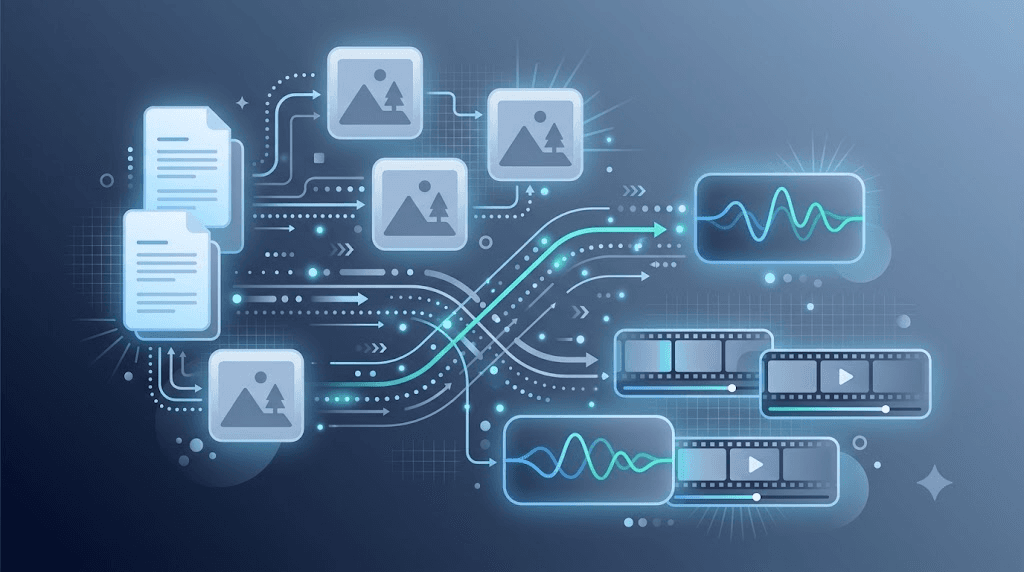
File Content Conversion: Formats, Methods & Free APIs
TL;DR: - File content conversion changes how data is encoded—not just its filename extension - Containers (MP4, DOCX) hold data; codecs (H.264, AAC) compress it; bitstreams are the raw 1s and 0s - Free APIs like Convert Fleet's let developers automate conversion in n8n, Make, or custom code without running FFmpeg servers - Pick your method by volume, privacy needs, and whether you need batch or real-time processing
Your automation pipeline breaks at the worst moment. A user uploads a ProRes video. Your n8n workflow expects MP4. Suddenly you're hand-wrestling FFmpeg flags at 2 AM, praying you don't corrupt the file. Again.
File content conversion is the invisible plumbing of modern software. It sits between cameras and cloud storage, between design tools and web browsers, between "it works on my machine" and production reliability. This guide explains what actually happens when a file changes format, walks through every major category, and shows you how to automate it without the 2 AM debugging sessions.
What Is File Content Conversion?

File content conversion is the process of transforming data from one encoded representation to another while preserving the underlying information. Unlike a simple rename—which only changes the extension—real conversion re-encodes the actual bitstream, often changing the codec, container, or both.
A container (MP4, AVI, MKV) wraps video, audio, and metadata like a ZIP file wraps documents. A codec (H.264, HEVC, AAC) compresses and decompresses that data. The bitstream is the raw sequence of 1s and 0s that represents your content. When you "convert" a file, you're typically re-encoding the bitstream through a different codec and repackaging it into a new container. Sometimes you just swap containers—remuxing—without touching the codec at all. That's faster and lossless, but it only works when the target container supports your codec.
Most guides skip this distinction. They tell you to "just use HandBrake" without mentioning that re-encoding a 4K video to H.265 on a laptop will take 40 minutes and melt your CPU. The method matters as much as the format.
How Does File Conversion Work?

The process follows a predictable pipeline, though the details vary wildly by file type.
Step 1: Parse the source. The converter reads the container header to identify codecs, streams, and metadata. Corrupt headers here mean failure before any conversion starts.
Step 2: Decode to raw frames/samples/data. Video becomes uncompressed frames. Audio becomes PCM waveforms. Documents become structured object trees.
Step 3: Transform as needed. Resolution changes. Color spaces convert. Compression ratios adjust. For documents, this might mean flattening layers or converting fonts.
Step 4: Re-encode. The raw data passes through a new codec. This is where quality loss happens—or doesn't, if you choose lossless codecs like FLAC for audio or PNG for images.
Step 5: Mux into output container. The new bitstream gets wrapped with metadata, timestamps, and any auxiliary streams.
Step 6: Validate. Checksums verify integrity. Some tools skip this. Don't.
In practice, most developers use FFmpeg for media, LibreOffice headless for documents, or specialized libraries like Pandoc for markup formats. Running these at scale means managing memory, queueing jobs, and handling edge cases like variable frame rate video or password-protected PDFs.
Document Conversion: What Changes and What Doesn't
Document conversion looks deceptively simple. It's not.
| Aspect | DOCX → PDF | PDF → DOCX | DOCX → EPUB |
|---|---|---|---|
| Text content | Preserved exactly | Extracted, may reflow | Reflows for e-readers |
| Formatting | Fixed layout | Attempts reconstruction | Adapts to screen size |
| Images | Embedded as-is | Extracted, reinserted | Optimized, may compress |
| Fonts | Embedded or subsetted | Substituted if unavailable | User-selectable |
| Interactive elements | Flattened to static | Lost (forms, comments) | Limited support |
| File size | Often larger | Similar or smaller | Usually smaller |
| Best for | Archival, printing | Editing, extraction | E-books, accessibility |
The catch most people hit: complex layouts break. A brochure with layered images, custom fonts, and precise positioning will never convert cleanly to editable Word. Tools that claim otherwise are lying. For automation, headless LibreOffice with --headless --convert-to pdf works reliably for simple documents, but you'll need pre-flight checks for complex ones.
Image Conversion: Pixels, Color Spaces, and the Quality Trap
Image conversion changes pixel data, color encoding, or both. The three decisions that matter:
Format family: Raster (JPEG, PNG, WebP, AVIF) stores pixels directly. Vector (SVG, EPS) stores drawing instructions. Converting vector to raster is irreversible—your crisp logo becomes blurry at scale.
Compression type: Lossy (JPEG, WebP lossy) discards data for smaller files. Lossless (PNG, WebP lossless, TIFF) preserves everything. According to Google's 2024 image format study, AVIF achieves 50% smaller file sizes than JPEG at equivalent visual quality, but encoding is 8-10x slower.
Color space: RGB for screens, CMYK for print, grayscale for efficiency. Converting RGB to CMYK changes colors—sometimes dramatically—because the color gamuts don't overlap perfectly.
The quality trap: Saving a JPEG at "quality 90" then re-saving that file again at quality 90 compounds artifacts. Each generation loses information. For archival work, keep masters in lossless formats and derive compressed versions from those originals.
Audio Conversion: Codecs, Bit Depth, and Sample Rate
Audio conversion reshapes how sound is digit舌 represented. Three parameters control everything:
| Parameter | What It Means | Common Values |
|---|---|---|
| Codec | Compression algorithm | AAC, MP3, FLAC, Opus, WAV |
| Bit depth | Precision of amplitude measurement | 16-bit (CD), 24-bit (studio), 32-bit float (DAW) |
| Sample rate | How often amplitude is captured | 44.1 kHz (CD), 48 kHz (video), 96 kHz (hi-res) |
Converting from WAV to MP3 at 320 kbps is transparent to most listeners. At 128 kbps, artifacts become audible on good headphones. Converting MP3 to WAV doesn't restore lost data—it just pads the gaps with zeros.
For automation, FFmpeg's libfdk_aac provides the best AAC encoding quality, but it requires separate compilation due to licensing. The built-in aac encoder works for most cases. If you're building podcast pipelines, loudness normalization (EBU R128) is the step everyone forgets until Apple rejects their episode.
Video Conversion: Containers, Codecs, and the Encoding Time Bomb
Video is the most complex conversion category. A single file contains multiple synchronized streams—video, audio, subtitles, chapters—each with independent codecs.
Containers (MP4, MKV, MOV, WebM) are interchangeable for many purposes. MKV supports nearly everything; MP4 plays everywhere but has limited subtitle support. MOV is Apple-centric. WebM is web-native with royalty-free codecs.
Codecs determine compatibility and quality. H.264 (AVC) plays everywhere. H.265 (HEVC) halves file sizes but requires licensing. AV1 is royalty-free and competitive with H.265, but encoding is glacially slow on CPUs—hardware acceleration (Intel QSV, Apple Media Engine, NVIDIA NVENC) is essential for real-time workflows.
The encoding time bomb: Converting a 10-minute 4K ProRes file to H.265 on a CPU can take 4-6 hours. The same job with NVENC on an RTX 4090 finishes in 8 minutes at comparable quality. For automation, this means your infrastructure choice—CPU vs. GPU, cloud vs. on-premise—shapes your unit economics more than any software decision.
Structured Data Conversion: CSV, JSON, XML, and Beyond
This category gets ignored in "file conversion" discussions, but it's where most developer pain lives.
CSV ↔ JSON: Straightforward until you hit nested objects, inconsistent quoting, or encoding mismatches. Papa Parse handles the edge cases. Python's csv module chokes on malformed UTF-8.
XML ↔ JSON: Lossy in both directions. XML supports attributes, namespaces, and mixed content that JSON has no equivalent for. Conversion libraries make arbitrary decisions about representation.
Database dumps: MySQL to PostgreSQL, MongoDB to JSON. Schema differences, type mismatches, and index rebuilds make this more migration than conversion. Tools like pgloader automate the bulk but require manual review for edge cases.
The pattern: structured data conversion fails at the boundaries. Your schema assumptions, encoding expectations, and null-handling philosophy all get tested when formats change.
How to Automate File Conversion in n8n
Manual conversion doesn't scale. Here's a production-ready pattern using Convert Fleet's API inside an n8n workflow.
Prerequisites: - n8n instance (cloud or self-hosted) - Convert Fleet API key (sign up free) - A trigger (HTTP webhook, schedule, or file upload)
Step 1: Set up the trigger. Use an HTTP Request node or a Webhook node to receive files. For scheduled batch jobs, use the Schedule Trigger + Read Binary Files node.
Step 2: Send to Convert Fleet API. Use an HTTP Request node with:
- Method: POST
- URL: https://api.convertfleet.com/v1/convert
- Headers: Authorization: Bearer YOUR_API_KEY, Content-Type: multipart/form-data
- Body: the binary file, with output_format set (e.g., "mp4", "pdf")
Step 3: Handle the response. The API returns a job ID. Poll the status endpoint (/v1/jobs/{id}) or configure a webhook callback.
Step 4: Store or forward the result. Write to S3, Google Drive, or your next processing step.
Step 5: Add error handling. Timeouts, format unsupported errors, and corrupted uploads are inevitable. Branch the workflow to a notification node (Slack, email) on failure.
For a ready-made version of this workflow with pre-configured error handling and retry logic, grab the importable JSON in the free download below. It includes nodes for video, audio, and document conversion with format validation.
Free File Conversion APIs: What to Look For
Not all free tiers are equal. Here's how to evaluate:
| Criterion | What to Check | Red Flags |
|---|---|---|
| File size limits | Max MB per request | Anything under 100MB for video |
| Rate limits | Requests per minute/hour | Undocumented throttling |
| Format support | Your specific formats | "We support everything" (lie) |
| Privacy | Retention policy, encryption | Vague "we take privacy seriously" |
| n8n/Zapier integration | Native node or raw HTTP | Requires OAuth dance for simple tasks |
| Output quality | Same as input or re-encoded | Always re-encodes (quality loss) |
| Uptime SLA | Guaranteed availability | No SLA on free tier |
Convert Fleet's free tier includes 100 conversions/day, 178+ formats, and direct n8n integration via HTTP Request or MCP server. No credit card required. For workflows that exceed that, the pay-as-you-go pricing scales without commitment.
Common Mistakes That Waste Hours
Re-encoding unnecessarily. Check if remuxing suffices. Converting MKV to MP4 with the same H.264 stream? Use ffmpeg -c copy—takes seconds, not minutes.
Ignoring color space mismatches. Converting Rec. 2020 HDR video to SDR without tone mapping produces washed-out garbage. Specify -tonemap or use a tool that handles it.
Trusting "lossless" claims. FLAC is genuinely lossless. "Lossless" video codecs like ProRes and DNxHD are visually lossless—mathematically, they compress. Know which you're getting.
Forgetting about metadata. EXIF data in images, ID3 tags in audio, XMP in PDFs—stripping or corrupting metadata breaks workflows downstream. Use -map_metadata in FFmpeg or equivalent.
Not testing edge cases. Variable frame rate phone video, interlaced broadcast footage, PDFs with embedded fonts—these are where converters break. Build a test suite with your worst real-world files.
Free download
To make this actionable, we built a free resource you can grab right now — no signup:
- ⬇ N8N Workflow: file-content-conversion-workflow-a96f49418fa423cb.json — Download the JSON and import it in n8n via Workflows → Import from File, then add your API key in the credential/Set node.
Frequently Asked Questions
What is file conversion API? A file conversion API is a web service that accepts files in one format and returns them in another, handling encoding, decoding, and container management programmatically. It lets applications convert files without installing local software like FFmpeg or LibreOffice.
How to automate file conversion? Use a workflow automation tool (n8n, Make, Pipedream) with a conversion API or self-hosted FFmpeg. Trigger on file upload, send to the converter, handle the response, and route the output to storage or the next step. Error handling and retry logic are essential for production reliability.
How to integrate n8n with file conversion tools? Add an HTTP Request node pointing to a conversion API (like Convert Fleet), or use a community node if available. For advanced setups, run FFmpeg in a Docker container called via n8n's SSH or Execute Command node. The free downloadable workflow above provides a working template.
What are the different types of file formats supported by Convert Fleet? Convert Fleet supports 178+ formats across document (PDF, DOCX, EPUB), image (PNG, JPEG, WebP, AVIF, SVG), audio (MP3, AAC, FLAC, WAV, OGG), video (MP4, MKV, MOV, WebM, AVI, ProRes), and structured data (CSV, JSON, XML) categories. The full list is available on the features page.
Is online file conversion safe for sensitive documents? It depends on the provider. Look for zero-retention policies (files deleted immediately after conversion), encryption in transit (TLS 1.3), and ideally processing that happens without storing files on disk. Self-hosted or API-based conversion with your own infrastructure is safest for regulated data.
Conclusion
File content conversion is not a single operation—it's a family of transformations with different rules for documents, images, audio, video, and structured data. The developers who build reliable systems understand the difference between containers and codecs, know when remuxing beats re-encoding, and automate with APIs that handle edge cases they haven't thought of yet.
Convert Fleet was built for this: free API access, 178+ formats, FFmpeg-powered reliability, and native n8n integration so your workflows keep running while you sleep. Start with the free tier. Scale when you need to.
Read next

Developer & APIs · Jul 15, 2026
File Conversion MCP Tool: Add It to Claude Code in 5 Min
Turn Convertfleet into a file conversion MCP server for Claude Code, Cursor, or any AI agent. Free tool-definition JSON included for automation workflow tools.

File Conversion · Jul 15, 2026
File Conversion API: 2025 Guide to Replacing 123apps at Scale
Hit limits with 123apps? Learn when free file conversion online tools stop scaling and how a file conversion API like Convert Fleet fixes batch, automation, and quality.

Automation & Workflows · Jul 15, 2026
How to Automate File Conversion in Pipedream: Audio, PDF & Video
Learn how to automate file conversion in Pipedream with a free API. Build workflows that convert audio, PDF, and video without managing ffmpeg or Lambda.