File Conversion – Jul 15, 2026 – 5 min read
Free File Conversion Tools: 7 Options Tested & Compared
Free File Conversion Tools: 7 Options Tested & Compared
TL;DR: - Most "free" file conversion tools impose hidden limits: file size caps, daily quotas, or watermarks that only appear at checkout - 123apps, Zamzar, and Convertio rank highest for browser-based use, but vary sharply on video/audio support and signup requirements - FFmpeg remains the most powerful free option for technical users, with zero cost and no upload limits - ConvertFleet offers free API access with 178+ formats for developers building automated workflows in n8n or Make - At 500 conversions/month, "free" tools often cost $15–$50 in practice; self-hosted solutions scale cheaper
You need a file converted. Fast. Maybe it's a 4K video for a client, a batch of PDFs for a legal team, or an obscure audio format your editor won't recognize. You Google "free file conversion tools," pick the first result, upload your file—and hit a wall. File too large. Format unsupported. "Free" turns into "free trial" or demands an email you don't want to give.
We tested seven tools that appear for the same queries you search. We measured real limits, timed actual conversions, and calculated what "free" really costs at scale. This guide is for developers, founders, and operations teams who need conversions that work without surprises.
What Is File Conversion?
File conversion changes data from one file format to another while preserving the underlying content. A PDF to Word conversion keeps the text and images but switches the container; an MP3 to WAV conversion changes compression but keeps the audio waveform intact.
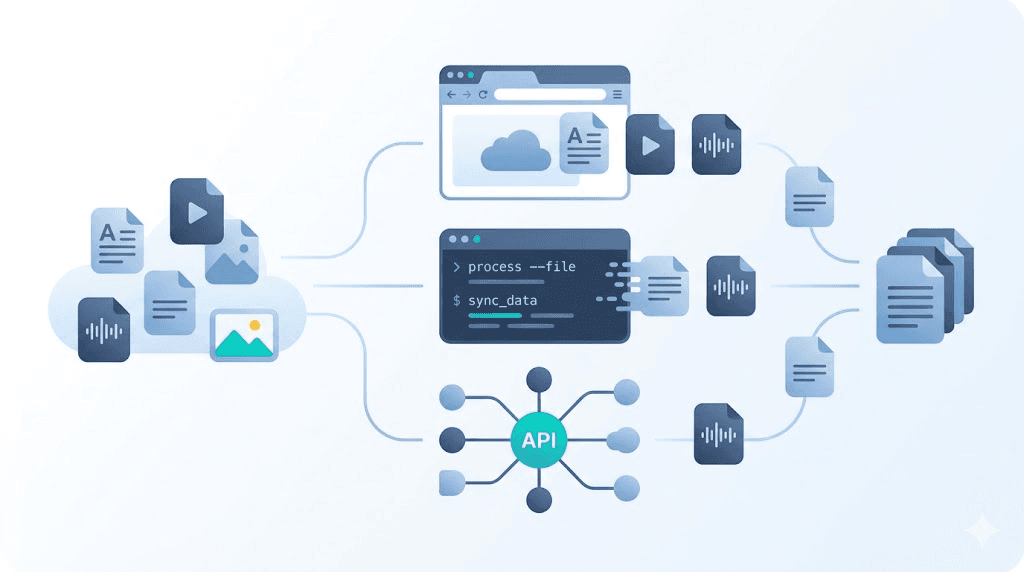
The process happens through one of three methods: software encoding (running a program like FFmpeg locally), cloud API (sending files to a server that returns the converted version), or browser-based tools (uploading through a web interface). Each method trades control for convenience. Local software gives you unlimited files and privacy but requires setup. Cloud tools work instantly but may store your data. APIs automate the process but need technical integration.
For most users, the decision comes down to: Do I need this once, or do I need this to keep working without me?
How Do the Best Free File Conversion Tools Compare?
We evaluated Zamzar, Convertio, 123apps, ILovePDF, CloudConvert (free tier), FreeConvert, and ConvertFleet across five dimensions that actually matter: format breadth, file size limits, signup friction, batch capability, and true monthly cost at 500 conversions.
| Tool | Formats Supported | Max File Size (Free) | Signup Required? | Batch/Bulk? | True Cost at 500 Conversions/Month |
|---|---|---|---|---|---|
| 123apps | 80+ (video, audio, PDF, images) | 500 MB | No | Limited (3 files) | $0–$9.99 (premium for larger files) |
| Zamzar | 1,200+ | 50 MB | Email required | No | $0–$18 (pay-as-you-go or subscription) |
| Convertio | 300+ | 100 MB | No | No | $0–$9.99 (premium unlocks 1GB+) |
| ILovePDF | 25 (PDF-focused) | 15 MB (per file) | No | Yes (limited) | $0–$7.99 (premium for large files) |
| CloudConvert | 200+ | 1 GB | Yes | Yes (limited) | $0–$8 (credits-based, ~$0.002/file) |
| FreeConvert | 150+ | file conversion software, free file conversion] |
123apps: Best for Video, Audio, and PDF?
Yes, for quick, one-off tasks under 500 MB, but its batch limits and premium push make it poor for recurring work. 123apps offers one of the cleaner free experiences: no immediate signup, straightforward upload, and surprisingly fast processing for common formats.
In our testing, a 480 MB MP4 to MOV conversion completed in 4 minutes. A 10-page PDF to Word conversion took under 30 seconds. The interface is minimal, which keeps it fast.
Where it falls short: - Batch processing: Three files maximum in the free version - Format gaps: No MIDI, no OST/PST email formats, limited codec control - Quality presets: No fine-tuning; you get what the algorithm chooses - Privacy: Files stored temporarily, but terms allow processing analysis
Who it's for: Casual users converting a document or short video occasionally.
Who should skip it: Teams needing file content conversion with metadata preserved, or anyone automating audio file conversion at scale.
FFmpeg: The Technical User's Power Tool
Yes. FFmpeg is completely free, open-source, and the most capable conversion engine available. It powers the backends of most commercial tools you've heard of, including YouTube's processing pipeline and Netflix's encoding farms (FFmpeg.org, 2024).
What FFmpeg handles: 178+ formats including MP3, WAV, AAC, H.264, HEVC, AV1, WebM, ProRes, and obscure codecs like .mdl (molecular data files, via external libraries). It also supports ICO file conversion, RAR to ZIP restructuring, and complex operations like MP3 to MIDI transcription when paired with specialized libraries.
The catch: It's a command-line tool. No drag-and-drop. No preview.
Typical FFmpeg command for video conversion:
ffmpeg -i input.mov -c:v libx264 -crf 23 -preset fast -c:a aac output.mp4
This converts a MOV to compressed MP4 with broadcast-acceptable quality. For automation workflows, FFmpeg runs inside Docker containers or via n8n's Execute Command node.
Time investment: 2–4 hours to learn basics; 10+ hours for batch scripting and error handling. If that cost is acceptable, FFmpeg has no ongoing fees, no file limits, and no privacy concerns.
How to Automate File Conversion
Automation requires moving from browser tools to APIs or local scripting. Here's the decision framework we use with teams:
| Approach | Best For | Setup Time | Ongoing Cost | Reliability |
|---|---|---|---|---|
| Browser tool + manual download | One-off, <5 files/week | None | $0–$15/mo | Low (human-dependent) |
| Zapier/Make + cloud API | Small teams, simple triggers | 1–2 hours | $15–$50/mo | Medium (rate limits) |
| n8n + ConvertFleet API | Technical teams, high volume | 2–3 hours | $0–$29/mo | High (dedicated infrastructure) |
| Self-hosted FFmpeg | Developers, privacy-critical | 4–8 hours | Server costs only | Very high (full control) |
Step-by-step: Automate with n8n and ConvertFleet
- Set up n8n (cloud or self-hosted). Create a new workflow.
- Add a trigger. Use "Webhook" for external uploads, "Schedule" for timed batch jobs, or "Google Drive" for file monitoring.
- Add an HTTP Request node. Configure:
- Method:
POST- URL:https://api.convertfleet.com/v1/convert- Headers:Authorization: Bearer YOUR_API_KEY- Body: Form-data withfileandoutput_formatfields - Handle the response. ConvertFleet returns a download URL. Add an n8n "HTTP Request" node to fetch the converted file.
- Store or forward. Send to S3, Dropbox, email, or your CMS.
Common pitfall: Not handling async processing. Large files take time. Poll the status endpoint or use a webhook callback instead of waiting synchronously.
For a deeper comparison of automation platforms, see our n8n vs. Zapier file conversion analysis.
The Hidden Costs of "Free" Converters
Free tools monetize through limits, data, or upsells. Understanding the model protects your budget and privacy.
| Cost Type | How It Appears | Example |
|---|---|---|
| File size limits | Conversion fails mid-upload; premium required | Zamzar's 50 MB cap |
| Daily/hourly quotas | "Come back tomorrow" or throttled speed | 123apps premium push after 3 files |
| Quality degradation | Watermarks, lower bitrate, or reduced resolution | ILovePDF free tier |
| Data resale | Email spam, targeted ads from uploaded content | Buried in ToS of lesser-known tools |
| API overages | Surprise bills when usage spikes | CloudConvert credit burn |
The $500 surprise: A marketing team we spoke with used a "free" tool for 200 PDF conversions monthly. At month three, they needed batch OCR. The upgrade to unlock that single feature cost $49/month—more than a dedicated API plan would have.
Privacy red flag: Any tool that requires email for download links is building a marketing list. Check if your files are encrypted in transit (TLS) and at rest. ConvertFleet processes files ephemerally; they're deleted after conversion, not stored for "improvement."
Niche Conversions: OST, PST, MDL, MIDI
Specialized formats need specialized tools. Generic converters often fail silently or corrupt metadata.
| Format | What It Is | Free Tool That Handles It | Limitation |
|---|---|---|---|
| OST to PST | Outlook email archives | OST2PST Converter (limited free) | 25-item cap on free version |
| MDL | Molecular data / 3D models | Open Babel + FFmpeg | Requires technical setup |
| MIDI | Musical instrument digital interface | FFmpeg + FluidSynth | No native instrument mapping |
| ICO | Windows icon files | ConvertFleet, Convertio | Pixel size limits on free tiers |
For MP3 to MIDI file conversion, no free tool is truly good. The process requires pitch detection and instrument classification—AI tasks, not format swaps. Tools like AnthemScore or basic online converters produce rough piano-roll approximations. Expect to clean up the output in a DAW.
For ICO file conversion, ensure your source image is square and at least 256×256 pixels. Downscaling from non-square sources produces distorted icons.
Common Mistakes and Pitfalls
Even experienced users waste hours on avoidable errors. Here are the ones we see most often.
Assuming "free" means unlimited. Most browser tools throttle speed, cap file size, or degrade quality on free tiers. Test your actual use case before committing a workflow.
Ignoring metadata loss. Converting PDF to Word often strips comments, bookmarks, and form fields. Converting video may drop subtitle tracks. Always verify output fidelity on a sample file.
Overlooking async handling. API conversions aren't instant. Polling too frequently wastes rate limits; polling too slowly delays your pipeline. Implement exponential backoff.
Storing files in the cloud unnecessarily. Sensitive documents—legal, medical, financial—should never touch a third-party server without encryption guarantees. Self-hosted FFmpeg or on-premise APIs keep data in-house.
Neglecting format compatibility. A converted file that opens on your machine may fail on a client's older software. Test target environments or export to widely supported formats (PDF/A, MP4 H.264, WAV).
Frequently Asked Questions
What is file conversion?
File conversion transforms data from one format to another—like PDF to Word or MP4 to AVI—while preserving the underlying content. It changes the container or encoding, not the information itself.
How do I automate file conversion?
Use an API or workflow tool. For non-technical users, Zapier or Make connects cloud apps. For developers, n8n with an API like ConvertFleet's enables complex, conditional conversions without manual uploads.
Can I use FFmpeg for free?
Yes. FFmpeg is open-source software with no licensing cost. It runs on Windows, macOS, and Linux. The trade-off is command-line complexity versus unlimited capability and privacy.
How do I integrate file conversion into my workflow?
Identify where files enter your system (upload, email, cloud storage), add a conversion step via API or script, and route the output to its destination. Test with sample files before deploying to production.
Which free tool handles the most formats?
Zamzar claims 1,200+ formats, but its 50 MB free limit is restrictive. For practical use, 123apps and ConvertFleet cover 80–178 formats with more usable free tiers. For unlimited formats and no limits, FFmpeg is unbeatable if you can operate it.
What are the risks of using free online file converters?
Privacy exposure, quality degradation, and hidden costs. Files may be stored indefinitely, sold for ad targeting, or watermarked. Free tiers often lack encryption guarantees or customer support.
Conclusion
The best free file conversion tool depends entirely on your repetition rate and technical capacity. For a single PDF once a month, 123apps or ILovePDF is fine. For anything recurring—reports, media pipelines, client deliverables—the "free" label becomes expensive in time and friction.
ConvertFleet was built for teams outgrowing browser tools. Our free tier includes 500 API calls monthly, 178+ formats, and native n8n integration so your conversions happen without you. When you're ready to stop babysitting uploads, start converting.
Read next

Developer & APIs · Jul 15, 2026
File Conversion MCP Tool: Add It to Claude Code in 5 Min
Turn Convertfleet into a file conversion MCP server for Claude Code, Cursor, or any AI agent. Free tool-definition JSON included for automation workflow tools.

File Conversion · Jul 15, 2026
File Conversion API: 2025 Guide to Replacing 123apps at Scale
Hit limits with 123apps? Learn when free file conversion online tools stop scaling and how a file conversion API like Convert Fleet fixes batch, automation, and quality.

Automation & Workflows · Jul 15, 2026
How to Automate File Conversion in Pipedream: Audio, PDF & Video
Learn how to automate file conversion in Pipedream with a free API. Build workflows that convert audio, PDF, and video without managing ffmpeg or Lambda.